How to Make an AI Social Media Video (Vertical, 2026)
Make a scroll-stopping vertical social video with Pixo — a script-writer agent plans short, high-impact shots, keeps characters consistent, and places mobile-safe subtitles.

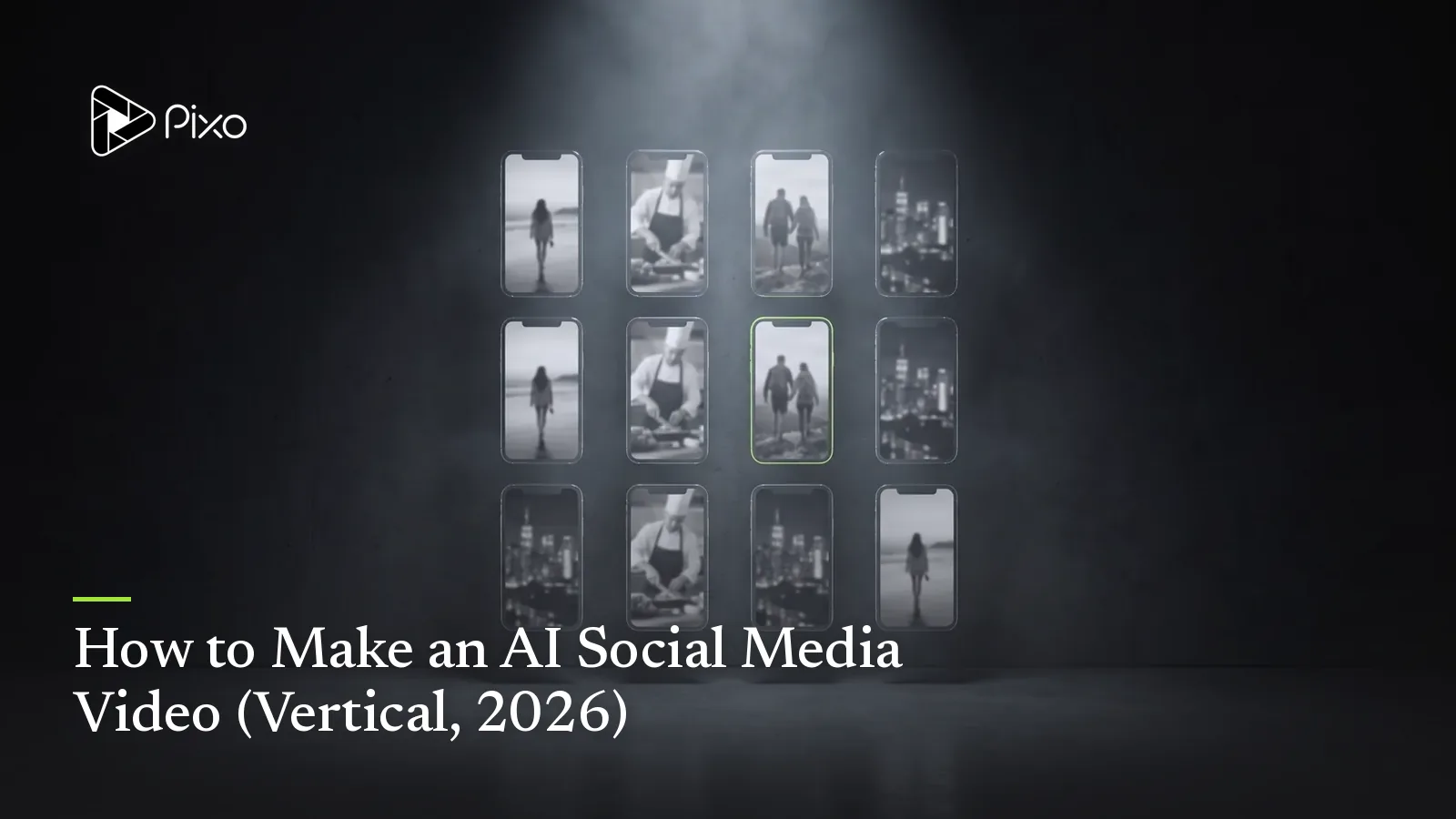
How to Make an AI Social Media Video (Vertical, 2026)
Social video has its own physics. It's vertical, it's watched with the sound sometimes off and the thumb always ready to scroll, and it lives or dies in the first three seconds. That's a specific set of constraints, and it's why generic AI video falls flat here: horizontal clips cropped to vertical lose the composition, characters morph between shots, and subtitles land right under the platform's own UI where nobody can read them.
The fix is a workflow built for the format. On Pixo I make social videos through the long-form video path: a script-writer agent plans the story into short, high-impact shots, an asset system keeps characters consistent, cross-cut continuity links the cuts, and — the detail most tools miss — subtitles land in the mobile safe zone where the platform UI can't cover them. It renders on Seedance 2.0 in native 9:16.
Here's the exact workflow, plus what the finished video looks like on a phone.
1. Why Use a Structured Workflow for Social Video?
You can generate vertical clips one at a time. But social video punishes two things a clip generator can't fix: inconsistency (a character who changes between shots reads as amateur) and poor mobile framing (a subtitle under the caption bar is a subtitle nobody sees). Pixo's path is built for the format:
| The hard part of a social video | How Pixo handles it |
|---|---|
| Stopping the scroll in 3 seconds | A script-writer agent plans short, high-impact shots (typically 4–15s each) with a hook up front |
| Characters morphing between shots | An asset-referencing system — define style, characters, and locations once; every shot references them |
| Seamless motion across camera angles | Cross-cut continuity links shots so the AI inherits exact pose, clothing, and props |
| Vertical framing done right | 9:16 native, chosen at the prompt stage, so shots are composed for the tall frame — not cropped |
| Subtitles hidden by platform UI | Mobile-safe text placed near frame-middle (position_y ~0.35–0.45), out of the UI dead zones |
| Surprise credit burns | All text, characters, and shot plans built first — review before any credits are spent on video |
The short version: it's a pipeline built for mobile-first video, not a horizontal generator you're cropping down.
2. Understand the Structure First: The Vertical Hook Formula
A social video has seconds to earn the rest of its runtime. Structure it around the scroll:
| Section | Time | What it does |
|---|---|---|
| Hook | 0–3s | Stop the thumb — a striking image, a question, a bold claim |
| Build | 3s–end-6s | Deliver the story or value, one high-impact shot at a time |
| Payoff / CTA | last 3s | Land the point and tell them what to do (follow, link, save) |
Each beat becomes one or two short panels. Brief the agent in these terms and the shot plan comes back paced for the feed.
3. Hands-On: From an Idea to a Vertical Social Video
Let's build a real one: a 30-second vertical video for a language-learning app's TikTok — a friendly recurring host character sharing one quick tip. Realistic time for a first pass: under an hour for short-form, most of it hands-off generation.
Step 1 — Start with a concept or script
Share a brief, a script, or a simple story idea. If you don't have one, the agent helps you write it — for our example, "a warm host character gives one memorable tip for remembering vocabulary, upbeat, 30 seconds."
Step 2 — Design the assets
Define the visual style, characters, and locations so they look identical from shot to shot — the host's face and wardrobe, the bright set. These become referenced assets that anchor consistency across the whole video.
Step 3 — Plan the panels
The story is grouped into short, high-impact shots (typically 4–15 seconds each), each with precise visual and audio directions. This is where the pacing is built — a strong hook shot, then one idea per shot.
Step 4 — Apply cross-cut continuity
If you want the host to move seamlessly from one camera angle to another, link the shots so the AI inherits the exact pose, clothing, and props from the previous shot — the difference between a clean cut and a jarring jump.
Step 5 — Generate the visuals and sound
Render the images and bring them into motion on the Seedance 2.0 model, then layer in dialogue, sound effects, ambient noise, and background music. Social video is watched with sound as often as without, so the audio matters both ways.
Step 6 — Add mobile-safe subtitles
Place clean text overlays positioned within the safe zones of mobile platforms — near the middle of the frame (position_y ~0.35–0.45) — so they stay fully readable and out of the dead zones where TikTok, Instagram Reels, and YouTube Shorts put usernames, icons, and captions. Preview, then export watermark-free and post.

Create AI videos with Pixo
Turn any idea into a publish-worthy video. One sentence is all it takes.
4. What Your Social Video Will Look Like
Built this way, the output is optimized for mobile viewing:
- 9:16 vertical — fills the phone screen, native to TikTok, Reels, and Shorts.
- 720p/1080p — smooth motion, natural physics, and cinematic lighting from the video model.
- Strong character and scene consistency — the asset-referencing system avoids the typical AI "morphing" between shots.
- Mobile-safe subtitles — positioned near frame-middle so platform UI never covers them.
- Rich sound design — natural dialogue, realistic SFX, and a mood-matched background track.
5. Making Variants and a Series (Reuse Your Assets)
Social rewards volume and consistency, and an asset-anchored pipeline is built for both:
| Variation | How to do it |
|---|---|
| A recurring-character series | Reuse the same host asset across every episode — that's how an account builds familiarity |
| Hook variants for testing | Re-brief just the first shot with a different hook; keep the rest |
| Cross-post cut | Same vertical master works across TikTok, Reels, and Shorts — no re-crop needed |
| Localized version | Regenerate dialogue and subtitles in another language, visuals unchanged |
The point: you're re-briefing shots, not rebuilding videos — which is how you keep a content calendar full without starting from zero each time.
6. Common Pitfalls & How to Avoid Them
| Pitfall | Cause | Fix |
|---|---|---|
| Weak first 3 seconds | Hook shot buried or generic | Make the first panel the strongest — a striking image or bold claim up front |
| Subtitles get covered | Text placed too low | Keep overlays near frame-middle (position_y ~0.35–0.45), out of UI dead zones |
| Character morphs between shots | Assets not referenced each shot | Reference the same character asset in every panel; use cross-cut continuity |
| Looks like cropped widescreen | Started horizontal | Choose 9:16 at the prompt stage so shots are composed for vertical from the start |
| Feels flat with sound off | Relied on voiceover only | Use subtitles and strong visuals so the video works muted, then sound adds to it |
FAQ
What format are AI social videos made in?
Vertical 9:16, framed to fill mobile screens — perfect for TikTok, Instagram Reels, and YouTube Shorts. You choose 9:16 at the prompt input stage in Pixo so every shot is composed for the tall frame instead of cropped down from widescreen.
How does Pixo keep characters consistent across a social video?
Through an asset-referencing system. You define a visual style, characters, and locations up front, and every shot references those same assets, so your characters and environments stay visually consistent instead of "morphing" between shots the way typical AI video does.
Are subtitles placed so platform UI doesn't cover them?
Yes. Text overlays are positioned near the middle of the frame (roughly position_y 0.35–0.45), which keeps them readable and out of the "dead zones" where usernames, icons, and captions block the view on TikTok, Reels, and Shorts.
Do I need a script to make a social video?
No. You can share a brief, a script, or a simple story idea — and if you don't have one, the agent helps you write it. It then plans the story into short, high-impact shots with precise visual and audio directions for each.
Can I review the plan before spending credits?
Yes. Pixo builds all the text, characters, and shot plans first, so you review the entire structure — script, shots, timing, and audio — before any credits are spent on video generation.
Does the exported social video have a watermark?
No. Pixo exports are watermark-free by default, in mobile-ready vertical formats. Your clips post clean to TikTok, Instagram Reels, and YouTube Shorts with no third-party logo in the corner.
Explore More Video Types
Making a different kind of video? These guides walk the full Pixo workflow for each:
- How to make an AI commercial ad — a cinematic, 4K-ready brand ad.
- How to make an AI music video — turn a song into a lip-synced video with MV Director.
- How to make an AI explainer video — explain a product in 60 seconds.
Making money from your videos? See how to make money with AI video.
Ready to make something the feed can't scroll past? Open Pixo, start a project, and share your idea — new users get 200 free credits on sign-up, and plans are currently up to 55% off. For the tool-specific breakdown, see AI social media videos; for ad-focused vertical content, see making UGC ads with Pixo.
Generate AI summary
From idea to finished video.
In one conversation.
Start CreatingNo credit card required • Free 200 credits