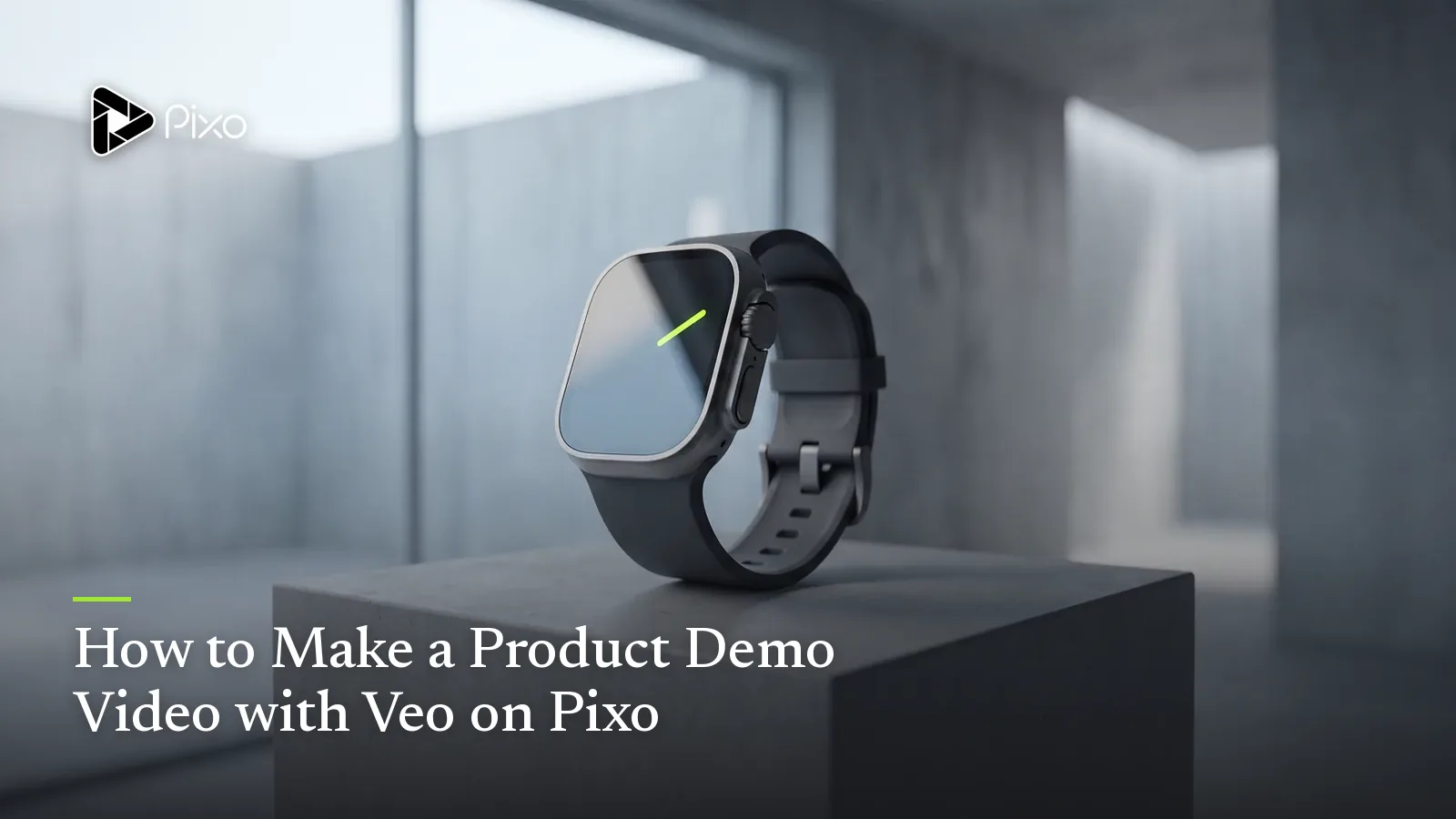
How to Make a Product Demo Video with Veo on Pixo
Make photorealistic product demo videos with Veo 3.1 on Pixo — 4K output, true-to-life materials, native multishot walkthroughs, and watermark-free export.

A product demo has exactly one job: make the viewer believe the product. And belief is where most AI-generated demos die. The aluminum reads as plastic, the reflection in the glass bends the wrong way, the hand lifting the device moves like it weighs nothing. Viewers don't consciously catch any single flaw — they just register "rendered," and a demo that feels rendered doesn't merely fail to convert. It spends down trust your product team took years to build.
Veo 3.1 is the model you reach for when the product has to look real. It's the photorealism and 4K specialist on Pixo: true-to-life materials, physically plausible light, and hands that interact with objects the way hands actually do. It's also one of only three models on the platform — alongside Seedance 2.0 and Kling 3.0 — that generates native multishot sequences. That matters because a demo isn't a clip; it's a walkthrough. Reveal, feature, feature, proof, close.
Pixo supplies the other half: an agent that turns "90-second demo of our smart bottle, three features, end on the lid mechanism" into a script and storyboard, plus a per-shot workflow that lets Veo handle the photoreal hero close-ups while another model covers connective footage. One honest caveat up front, because it shapes how you'll work: for strict shot-to-shot product identity across a long demo, Seedance 2.0 remains the consistency leader — and on Pixo you mix the two per shot instead of picking a side. Details below.
Why Veo 3.1 for Product Demo Videos
Material fidelity that survives the close-up
Demo footage is the most scrutinized footage in marketing. Viewers lean in: they're judging the brushed-metal grain, the fabric weave, the way light sits on matte plastic versus gloss ceramic. Veo 3.1's photorealism is strongest exactly here — surface response, reflection behavior, shadow softness — which is why it's the default recommendation for any shot where the product fills the frame. A product demo made on a stylized model can look beautiful; a demo made on Veo looks shot.
Native 4K output, chosen before you generate
Veo 3.1 outputs at up to 4K, and on Pixo you select resolution at the prompt input stage — not at export. For demos this is more than a spec-sheet flex: 4K is where stitching detail, engraved logos, and display text stay legible, and a 4K source downscales to a cleaner 1080p than native 1080p footage ever delivers. If the demo ends up on a product page, an app store listing, and a trade-show screen, one 4K source covers all three.
Native multishot for feature walkthroughs
A walkthrough has grammar: establish the product, show the interaction, cut to the detail that proves it worked. Veo 3.1 generates that as one native multishot sequence from a single structured prompt, so the lighting, environment, and product stay continuous across the cuts instead of being three independent rolls of the dice. Pixo's agent writes these timeline prompts automatically when it builds your storyboard.
Hands-on realism
Most demos need hands — pressing the button, twisting the lid, unboxing the packaging. Hands are historically where AI video falls apart, and they're where Veo 3.1 earns its keep: natural skin texture, plausible grip, objects that respond with believable weight and resistance. If your demo's proof moment is a physical action, this is the model to render it.
Veo vs Other Models for Product Demos
| Veo 3.1 | Seedance 2.0 | Kling 3.0 | Hailuo | |
|---|---|---|---|---|
| Photorealism / material fidelity | ★★★★★ | ★★★★★ | ★★★★ | ★★★ |
| 4K output | ✅ | — | — | — |
| Native multishot | ✅ | ✅ | ✅ | ❌ |
| Shot-to-shot product identity | ★★★★ | ★★★★★ | ★★★★ | ★★★ |
| Cost-effectiveness | ★★★ | ★★★★ | ★★★ | ★★★★★ |
The honest read: Veo 3.1 owns the shots where realism is the message — hero close-ups, material details, hands-on proof moments. But a full demo has other kinds of shots, and Pixo's per-shot model switching is built for exactly that:
- Running a long demo — 15, 20, 30 shots — where the product must be pixel-identical in every one? Seedance 2.0's persistent attention mechanism is the stronger identity anchor. A common pattern: Seedance for the connective spine, Veo for the close-ups where 4K material detail sells.
- Want a sweeping, brand-film style opener before the demo proper? Kling 3.0 has the most cinematic camera language on the platform.
- Need ten lifestyle b-roll variations of "product on a desk" for context cuts? Hailuo generates them at the lowest credit cost, and nobody scrutinizes b-roll.
Every switch happens inside the individual shot's workspace while the storyboard, asset references, and timeline stay intact. That's the structural argument for building demos on Pixo rather than on any single model's own app.
How to Make a Product Demo Video with Veo on Pixo
Budget 2–3 hours for a first multi-feature walkthrough; a single-feature 60–90 second demo lands closer to 1.5–2 hours. (The same storyboard-first method scales to much longer formats — see the long-form AI video guide.)
Step 1 — Brief the agent and set your format (3–5 minutes)
Open a new project with Pixo Director, tell it you want Veo 3.1 (or let it choose one for you), and pitch the demo like you'd brief a video team: the product, the 2–3 features that matter, the proof moment, target length, and where it will run. Set aspect ratio and resolution now, at the prompt input stage — 16:9 at 4K for a standard demo — because this is where it's decided, not at export. Upload clean product photos (front, three-quarter, detail) so every shot can reference the same asset.
Step 2 — Review the script and storyboard (30–45 minutes)
The agent returns a script and a full storyboard: per-shot visual descriptions, asset references, audio/SFX, durations. This is where the demo is actually won. Check that every feature gets a verifiable action on screen — not vibes, proof. Cut anything that doesn't either show the product or set up showing it. Lock the product asset so all shots point at the same reference.
Step 3 — Generate on Veo 3.1 (1–2 hours)
With Veo 3.1 set as the project's model, there's no extra setup or switching choreography. Where the per-shot economics matter: keep Veo on the close-ups, the hands-on actions, the material moments; drop b-roll to Hailuo to save credits (just say so in your brief); and for consistency-critical connective shots, switch them to Seedance 2.0 in their workspaces. Generate, review, and regenerate only the shots that miss; each generation is a single shot or multishot sequence of roughly 5–30 seconds.
Step 4 — Assemble in the timeline (10–15 minutes)
Preview the full cut in Pixo's timeline. Demo pacing rules apply: product visible within the first 5 seconds, each feature segment under 20 seconds, the proof moment given room to land. Reorder and trim until nothing on screen is decorative.
Step 5 — Export (under 5 minutes)
Export watermark-free and ship it — product page, app store, sales deck. Need a vertical cut for paid social later? Start a 9:16 variant at the prompt stage in a duplicate project rather than cropping the 16:9 master.
Create AI videos with Pixo
Turn any idea into a publish-worthy video. One sentence is all it takes.
Copy-Paste Prompts
1. Hero reveal close-up (single shot):
Single shot, 8 seconds, 16:9, 4K. Macro product shot: a matte black
wireless earbud case on a light oak desk, morning sunlight raking
across the surface. The lid opens slowly; a soft interior LED glows.
Shallow depth of field, true-to-life material response — matte
plastic with a subtle sheen, accurate soft shadows, no plastic-toy
gloss. Slow 10cm dolly-in. No on-screen text.
Why it works: it names the materials and the light behavior explicitly ("matte plastic with a subtle sheen", "soft shadows"), which is what steers Veo's realism, and it bans the two classic giveaways — toy-like gloss and baked-in text.
2. Feature walkthrough (multishot):
Multishot sequence, 3 shots, 16:9, 4K. A stainless steel smart water
bottle, brushed finish, on a kitchen counter — same bottle, same
lighting across all shots. Shot 1: medium shot, a man in his 30s in
a grey henley picks up the bottle. Shot 2: close-up, his thumb
presses the lid button and the temperature display lights up. Shot 3:
extreme close-up on the display and the condensation beading on the
steel. Natural window light, photorealistic skin and metal.
Why it works: the product and lighting are pinned in the header so the multishot sequence stays continuous, and the three shots follow demo grammar — context, interaction, proof detail — escalating toward the close-up where Veo's 4K fidelity does the convincing.
3. Hands-on unboxing proof shot:
Single shot, 6 seconds, 16:9, 4K. Over-the-shoulder view: hands with
natural skin texture lift a sage green ceramic pour-over dripper out
of molded paper packaging. Realistic paper flex and ceramic weight,
soft daylight from a window camera-left, faint steam from a mug
nearby. Deliberate, unhurried hand movement, five fingers visible.
Why it works: it pre-empts the failure modes of hands-on footage — weightless objects, rushed motion, anatomy errors — by specifying weight, pace, and finger count, and it gives Veo two material-physics cues (paper flex, ceramic mass) that make the interaction read as real.
Tips & Common Pitfalls
- Product identity drift is the long-demo killer. Attach the same product reference image to every shot and keep the product's written description word-for-word identical across prompts. If the demo runs past 12–15 shots and identity still wobbles, move connective shots to Seedance 2.0 — that's what per-shot switching is for.
- Don't generate screen text or UI. Displays, app interfaces, and engraved copy are where photorealism breaks first. Keep generated screens simple (a glowing display, a highlight state) and composite exact UI or text in post.
- Per-generation length is roughly 5–30 seconds per shot. A 90-second demo is 6–12 shots assembled in the timeline — structure your feature list around that, not around one long take.
- Storyboard before you spend. Generation is where credits go. A locked storyboard generates once; a vague one generates five times. The 30–45 minutes of review is the cheapest part of the whole pipeline.
FAQ
Why is Veo 3.1 the best model for product demo videos?
Demos are watched at close range, and Veo 3.1 is Pixo's photorealism and 4K specialist: true-to-life materials, physically plausible reflections, and believable hands-on interaction. It also generates native multishot sequences, so a reveal–interaction–detail walkthrough comes out of one structured prompt instead of three disconnected generations.
Can Veo 3.1 keep my product looking identical across a long demo?
Across a handful of shots, yes — especially with a product reference image attached to every shot. For strict shot-to-shot product identity across a long, many-shot demo, Seedance 2.0 is the stronger consistency model. On Pixo you don't have to choose: give Veo the photoreal hero close-ups and run connective shots on Seedance, per shot, in one project.
How do I use Veo 3.1 with Pixo's agent?
Start your project with Pixo Director and tell it you want Veo 3.1 — or describe the demo and let it choose a suitable model. The agent writes the script and builds the full storyboard, and generation runs on the model you've set. Want to fine-tune a single shot on a different model later? Switch it in that shot's workspace — the storyboard, asset references, and timeline all stay intact.
What resolution and aspect ratio should I choose for a product demo?
You set both at the prompt input stage — not at export. 16:9 at 4K is the standard demo setup: 4K is where Veo 3.1's material detail pays off, and the source downscales cleanly to 1080p for web embeds (see YouTube's recommended upload encoding settings). If the demo will also run as a vertical ad, start a separate 9:16 variant rather than cropping.
How long does it take to make a product demo with Veo on Pixo?
A multi-feature walkthrough takes roughly 2–3 hours end to end: 3–5 minutes to brief the agent, 30–45 minutes reviewing the storyboard, 1–2 hours of generation, 10–15 minutes in the timeline, and under 5 minutes to export. A single-feature 60–90 second demo lands closer to 1.5–2 hours.
Does the exported demo have a watermark?
No. Pixo exports are watermark-free by default, ready for your product page, app store listing, or sales deck. Aspect ratio and resolution were already locked at the prompt input stage, so export is just the final render.
Ready to make your product look real? Sign up for Pixo — new users get 200 free credits on sign-up. Compare plans (currently up to 55% off), or see what else Veo 3.1 handles well: YouTube videos and marketing videos run on the same photoreal engine.
Generate AI summary
From idea to finished video.
In one conversation.
Start CreatingNo credit card required • Free 200 credits