How to Make a Product Demo Video with Seedance on Pixo
Make AI product demo videos with Seedance 2.0 on Pixo: the same product in every shot, realistic in-hand and in-use footage, watermark-free export in hours.

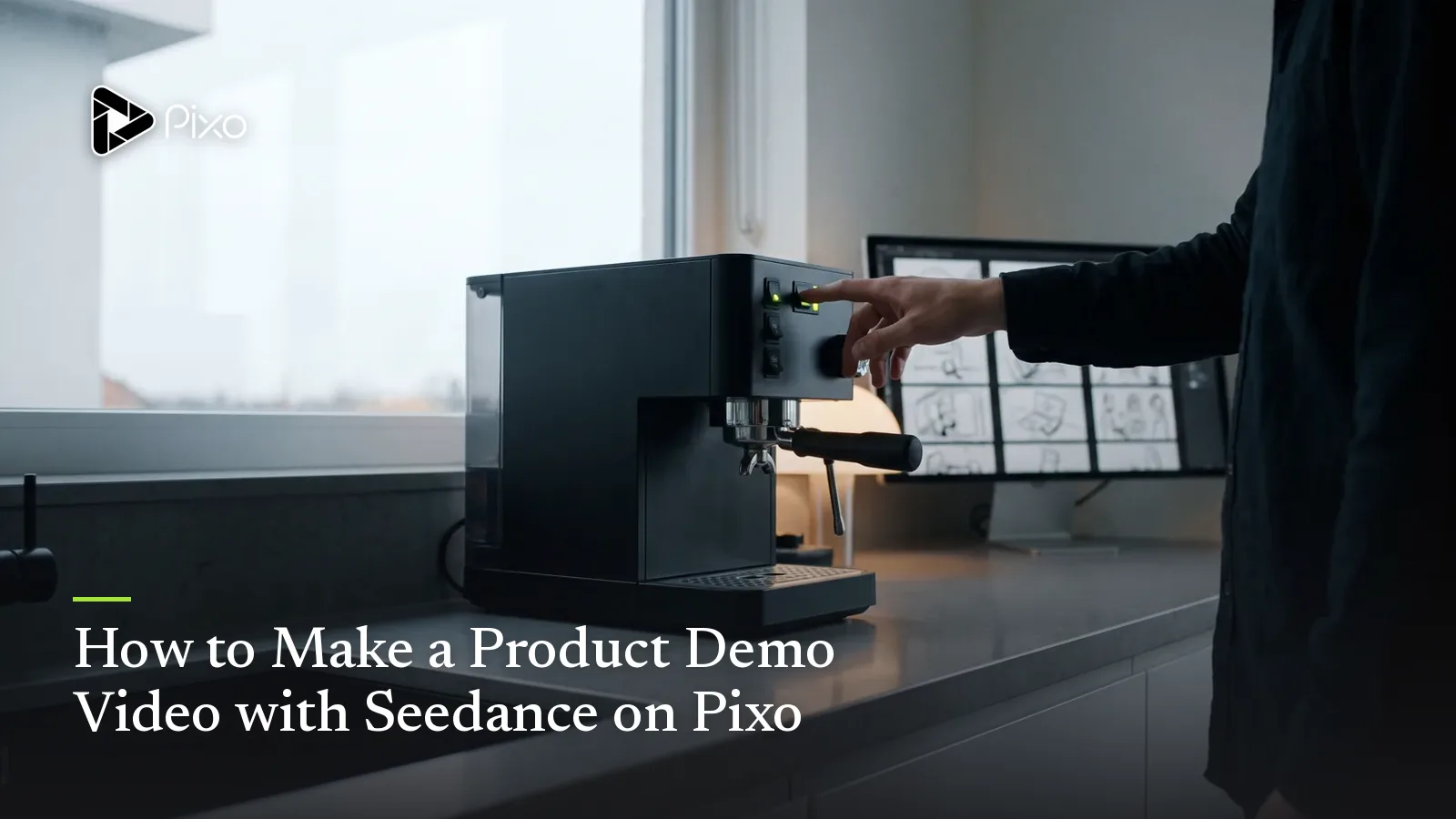
In a product demo, the product is the protagonist — and the audience is checking it for honesty in every frame. A potential buyer who notices the bottle's cap change color between shot 3 and shot 7, or the device's button layout quietly rearrange itself mid-walkthrough, doesn't think "AI artifact." They think "I can't trust what this product actually looks like," and they leave. This is why most AI-generated product demos fail: clip generators re-imagine your product from scratch on every roll, and a demo where the hero item drifts is worse than no demo at all.
Seedance 2.0 attacks this problem at the model level, and Pixo attacks it at the project level. Seedance 2.0's persistent attention mechanism holds an object's visual identity — shape, materials, label, colorway — across shots, and on Pixo your product is stored as a referenced asset that every shot in the storyboard points back to. Add physically realistic hands-on-product interaction and native multishot generation for feature walkthroughs, and you get the rare AI pipeline that can produce a full demo a buyer will actually believe.
This page covers why Seedance 2.0 is the right default for AI product demo videos, where the other models on Pixo beat it, and the exact workflow and prompts to ship a demo this week.
Why Seedance 2.0 for Product Demos
Asset consistency — your product, identical in every shot
This is the killer feature for this use case. A typical demo runs 15–30 shots: hero reveal, three or four feature sequences, a problem/solution beat, lifestyle context, closing CTA card. Most AI video models treat each of those shots as an unrelated generation, which is how you end up with five subtly different versions of your own product. Seedance 2.0's persistent attention mechanism maintains object identity across shots, and Pixo reinforces it structurally: the product is an asset in the project library with its own workspace and version history, and every storyboard shot references it. Consistency is enforced twice — by the model and by the project — instead of hoped for.
Physical realism for in-hand and in-use shots
The shots that actually sell a product are the ones where someone touches it: thumbs pressing a button, a hand pouring from the spout, fingers peeling the unboxing tab. These are also the shots where AI video has historically embarrassed itself. Seedance 2.0's physical realism is flagship-grade — believable hand-object contact, weight, and material behavior — which is exactly what separates a usable in-use shot from an uncanny one. If your demo needs the product demonstrated rather than just displayed, this is the strongest reason to start on Seedance.
Native multishot for feature walkthroughs
A feature walkthrough is inherently sequential: wide shot of the device, insert on the control, result on the display. Seedance 2.0 generates multishot sequences natively (a capability it shares only with Kling 3.0 and Veo 3.1 on the platform), so a three-step feature beat comes out of one structured timeline prompt as a continuous, logically connected sequence — not three disconnected dice rolls you have to fake into continuity in the edit.
Agent automation built around it
Seedance2 Director — Pixo's recommended agent — dispatches Seedance 2.0 exclusively. Describe your product and what the demo needs to prove, and the agent writes the script, builds the storyboard with per-shot visual descriptions, asset references, and audio/SFX, and after generation it reviews the output, flagging consistency problems (a label that changed, a colorway drift) so you regenerate only the shots that miss. As Pixo's most advanced, beginner-friendly agent, it makes Seedance the fastest path from spec sheet to finished demo.
Seedance vs Other Models for Product Demos
| Seedance 2.0 | Kling 3.0 | Veo 3.1 | Hailuo | |
|---|---|---|---|---|
| Product/asset consistency | ★★★★★ | ★★★★ | ★★★★ | ★★★ |
| Hands-on physical realism | ★★★★★ | ★★★★ | ★★★★★ | ★★★ |
| Native multishot | ✅ | ✅ | ✅ | ❌ |
| Hero-shot polish (max fidelity) | ★★★★ | ★★★★★ | ★★★★★ | ★★★ |
| Cost-effectiveness | ★★★★ | ★★★ | ★★★ | ★★★★★ |
| Agent automation | ✅ Seedance2 Director | ✅ Pixo Director | ✅ Pixo Director | ✅ Pixo Director |
The honest read: Seedance 2.0 should carry the spine of the demo — every shot where the product appears and must match itself. But a demo has a few shots where switching pays:
- The single hero close-up at the top of the page? Veo 3.1 renders photoreal 4K detail, and one hero shot doesn't need cross-shot continuity — compare how teams build full demos on cinematic models in the Kling product demo workflow.
- A cinematic lifestyle beat — the product in a sweeping, film-like scene — plays to Kling 3.0's camera language.
- Atmosphere b-roll (office ambiance, hands typing, city texture) where your product never appears? Hailuo generates it at the best credit cost on the platform.
You make these switches per shot, inside the shot's workspace, while the asset reference keeps the product identical across whichever models render it. That's the structural advantage of building demos on Pixo instead of any single model's own app — and it's something a one-model tool cannot offer at any price.
How to Make a Product Demo with Seedance on Pixo
Budget 2–3 hours for a first demo; once your product asset exists, follow-up videos (new feature, new placement, seasonal variant) are dramatically faster. For the deeper methodology, see the long-form AI video guide.
Step 1 — Brief Seedance2 Director on the product (3–5 minutes)
Open a new project, choose Seedance2 Director, and brief it like you'd brief a video agency: what the product is, its exact visual details (color, materials, label text placement), who it's for, the 2–3 features that close sales, and where the demo will run. Pick aspect ratio and resolution now, at the prompt input stage — 16:9 for a landing page, 9:16 for ad placements — because this is where it's set, not at export.
Step 2 — Review the storyboard and lock the product asset (30–45 minutes)
The agent returns a script and full storyboard: shot-by-shot visual descriptions, asset references, audio/SFX, durations. Spend your review time on two things. First, structure — does the demo state the problem before the solution, and does each feature beat earn its place? Second, the product asset itself: get it exactly right in its workspace before generating anything, because every shot in the project inherits it. Ten minutes perfecting the asset saves an hour of regeneration.
Step 3 — Generate, multishot for walkthroughs (1–2 hours)
Generate feature walkthroughs as native multishot sequences and standalone beats (hero reveal, CTA card) as single shots. When the agent flags a consistency issue — label drift, a port that moved — regenerate that one shot rather than the sequence. For your designated hero close-up or lifestyle beat, open that shot's workspace and switch the model manually.
Step 4 — Cut the demo in the timeline (10–15 minutes)
Preview the full demo in Pixo's timeline, reorder, and trim against conversion logic: the product should be unmistakable within the first 3 seconds, the strongest feature should come first, and nothing should run a second longer than it proves something.
Step 5 — Export watermark-free (under 5 minutes)
Export with no watermark and publish directly — landing page, marketplace listing, ad manager. Need a vertical version? Spin up the 9:16 variant project; the product asset carries over, so the second build is mostly generation time.
Create AI videos with Pixo
Turn any idea into a publish-worthy video. One sentence is all it takes.
Copy-Paste Prompts
1. 360-style product reveal:
Single shot, 10 seconds, 16:9. The product from project assets (reference:
aurora-bottle-v2) on a matte charcoal pedestal, seamless dark studio
background. Camera orbits the product slowly through a full 360 degrees at
eye level, constant speed. A single soft key light catches the brushed
aluminum cap; label stays sharp and legible the whole rotation. No hands,
no props, no text overlays. Premium commercial product photography look.
Why it works: the asset reference — not a verbal re-description — is what makes the bottle this bottle, and an orbit is the single hardest test of object consistency, since every angle must agree with every other. Pinning the lighting and forbidding extras keeps the model from "decorating" your hero shot.
2. Feature-in-use walkthrough (multishot):
Multishot sequence, 3 shots, 16:9. The same smartwatch from project assets
(reference: pulse-watch-v1) on the wrist of a woman in her 30s, gray knit
sweater (consistent across all shots), bright kitchen, morning light.
Shot 1: medium shot, she raises her wrist and double-presses the side
button — realistic finger pressure, the button visibly depresses.
Shot 2: macro insert on the watch face as the heart-rate screen animates on.
Shot 3: she glances at the reading and smiles, watch still clearly in frame.
Clean commercial look, shallow depth of field on inserts.
Why it works: the three-beat structure (action → product response → human payoff) is the grammar of every good feature demo, and running it as one native multishot sequence keeps wrist, sweater, and watch continuous. Calling out "the button visibly depresses" leans directly on Seedance 2.0's physical realism instead of leaving the interaction vague.
3. Problem/solution demo beat:
Multishot sequence, 4 shots, 16:9. Shot 1: cluttered desk, a man in his 40s
untangles a knotted mess of charging cables, frustrated, cool desaturated
grade. Shot 2: hard cut — the same desk now clean; his hand places the
charging pad from project assets (reference: flux-pad-v3) at the center.
Shot 3: top-down insert, he lays a phone on the pad and a subtle ring of
light confirms charging. Shot 4: medium shot, same man, relaxed, warm grade,
product clearly in frame. Same desk, same wardrobe across all shots; only
the grade shifts from cool to warm.
Why it works: problem/solution lives or dies on the audience believing it's the same desk and the same person on both sides of the cut — exactly what cross-shot consistency provides. Encoding the emotional turn in the color grade ("cool to warm") gives the model a concrete instruction instead of an adjective like "satisfying."
Tips & Common Pitfalls
- Perfect the product asset before generating a single shot. Every shot inherits the asset, so an error in the library (wrong cap color, missing logo) multiplies into every generation. Fix it once in the asset workspace, not thirty times in shots.
- Never let the model invent your label. AI video mangles small text. Keep on-product text large and simple in prompts, frame inserts so fine print isn't the focal point, and put detailed claims in your own post-production overlays.
- A demo is 15–30 shots of 5–30 seconds each — structure for that. Per-generation length is model-bound, so plan feature beats as 2–4 shot multishot sequences in the storyboard rather than wishing for one long continuous take.
- Don't crop 16:9 into vertical ads. Aspect ratio is set at prompt input; a cropped landscape demo amputates your product at the edges. Run a 9:16 sibling project — the product asset carries over, so it's cheap.
FAQ
Will my product look exactly the same in every shot of the demo?
That's the design goal of the combination. Your product lives in Pixo's asset library as a referenced asset, and every shot points to the same version of it. Seedance 2.0's persistent attention mechanism then maintains that visual identity across generations — same shape, same label, same colorway — instead of re-imagining the product each time.
Can Seedance generate realistic shots of someone actually using my product?
Yes, and this is where Seedance 2.0 stands out. Its physical realism handles the hardest demo shots — hands gripping, pressing, pouring, unboxing — where weaker models produce melted fingers or products that bend like rubber. Describe the interaction precisely in the prompt and reference the product asset.
How long does a complete product demo take to make on Pixo?
Around 2–3 hours for a first project: 3–5 minutes describing the demo to the agent, 30–45 minutes reviewing the script and storyboard, 1–2 hours of generation, 10–15 minutes arranging the timeline, and under 5 minutes to export. Repeat demos with an existing product asset go faster.
Can I make one demo in 16:9 for my site and 9:16 for ads?
Yes, but set it up correctly: aspect ratio and resolution are chosen at the prompt input stage on Pixo, not at export. Run a 16:9 project for your landing page and a 9:16 variant for vertical ad placements rather than cropping one export.
Do I have to use Seedance for every shot in the demo?
No. Seedance2 Director dispatches Seedance 2.0 for the build, but you can open any individual shot's workspace and manually switch it to Veo 3.1 for a photoreal 4K hero close-up, Kling 3.0 for a cinematic lifestyle shot, or Hailuo for inexpensive background b-roll. Asset references keep the product consistent across models.
Is the exported demo watermark-free and ready for my product page?
Yes. Pixo exports are watermark-free by default, so the video can go straight onto your landing page, Amazon listing, App Store preview, or ad account without any extra cleanup.
Ready to demo your product without a film crew? Sign up for Pixo — new users get 200 free credits on sign-up. Check plans (currently up to 55% off), or see what else Seedance 2.0 handles: YouTube videos and explainer videos.
Generate AI summary
From idea to finished video.
In one conversation.
Start CreatingNo credit card required • Free 200 credits