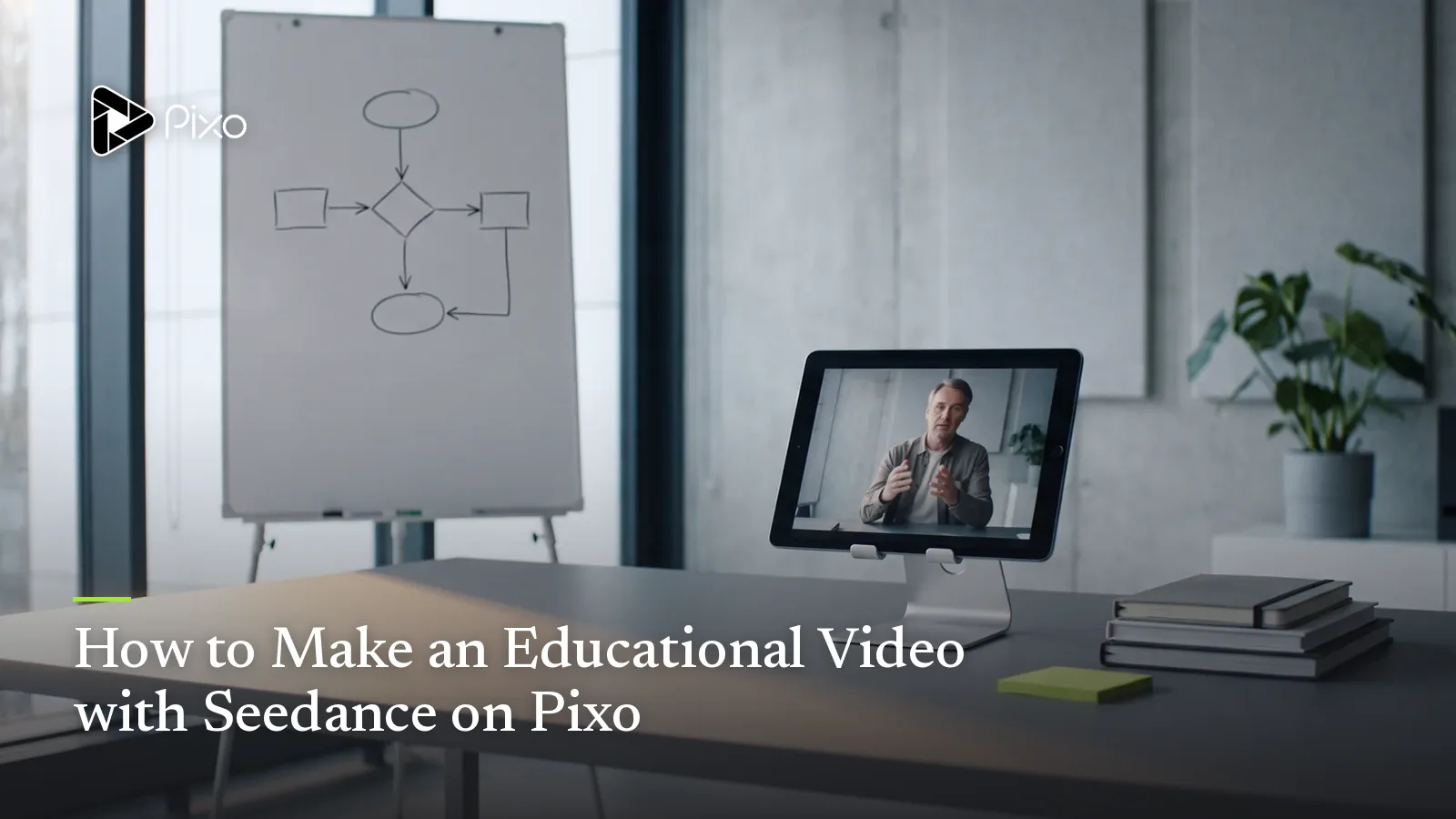
How to Make an Educational Video with Seedance on Pixo
Create educational videos with Seedance 2.0 on Pixo — one instructor across every lesson, accurate historical and science visuals, and watermark-free export.

A course isn't a video — it's twenty, thirty, fifty videos that have to feel like one teacher built them. Learners notice instantly when "the instructor" has a different face in Lesson 4 than in Lesson 3, when the classroom set quietly changes, or when a Roman soldier wears a 14th-century helmet. Educational content has two failure modes most AI video tools can't avoid: visual drift across a long series, and confident-looking inaccuracy. Either one costs you student trust, refund requests, and reviews.
Seedance 2.0 is the model on Pixo best equipped for both problems. Its persistent attention mechanism holds a character's face, wardrobe, and style steady across shots — the mechanism that makes a recurring instructor or mascot possible — and it's the strongest model on the platform for physical realism, which is what historical reconstructions and science visualizations actually demand. Crucially, on Pixo your instructor isn't re-described in every prompt: they live in the asset library and are shared by reference across every lesson in the project, so consistency is enforced by the project structure, not by your prompt-writing discipline.
Pixo's difference from clip generators is the rest of the pipeline: Seedance2 Director turns a lesson outline into a script, a full storyboard, and a finished multi-scene video with audio — the AI educational video workflow end to end. Here's how to use it for course production, where Seedance wins, and where you should switch models mid-lesson.
Why Seedance 2.0 for Educational Videos
One instructor, every lesson — consistency at two levels
Course production is a series problem. A typical curriculum needs the same on-screen teacher (or mascot, for K-12 and language content) across dozens of lessons recorded over weeks. Seedance 2.0 solves the within-sequence half: its persistent attention mechanism keeps the character coherent shot after shot. Pixo solves the across-lessons half: the instructor is a managed asset with its own workspace and version history, referenced by every shot in every lesson. When you produce Lesson 30 next month, you reference the same asset version you used in Lesson 1 — not a fresh description that the model interprets slightly differently.
Accurate reconstruction, not aesthetic guessing
History, science, and medical content punish hallucinated detail. Seedance 2.0's physical realism — correct material behavior, plausible mechanics, period detail that follows explicit constraints — is the difference between a Renaissance workshop that a historian can sign off on and a vaguely old-timey set. Write the constraints in ("period-accurate 1490s Florentine dress, no modern objects, candlelight only") and the model respects them far more reliably than aesthetics-first models do. For the full method, see our guide to making AI history videos.
Logical progression matches how lessons are built
Lessons have an argument structure: concept, demonstration, example, recap. Seedance 2.0 supports long-sequence narrative generation — given a timeline framework, it produces shots that progress logically instead of looping pretty b-roll. Combined with native multishot generation (only Seedance 2.0, Kling 3.0, and Veo 3.1 support it), a chemistry demonstration generates as one continuous, correctly ordered sequence rather than five disconnected rolls of the dice you hope cut together.
The agent does the production work; you do the teaching
Seedance2 Director — which dispatches Seedance 2.0 exclusively — takes your lesson outline and returns a script and complete storyboard: per-shot visual descriptions, asset references, audio and SFX, durations. After each generation, it reviews the output and flags consistency problems (instructor wardrobe drift, set mismatches) so you regenerate only what missed. Your review time goes where your expertise is — is the explanation right, is the sequence pedagogically sound — instead of into prompt engineering 50 shots per lesson.
Seedance vs Other Models for Educational Videos
| Seedance 2.0 | Kling 3.0 | Veo 3.1 | Hailuo | |
|---|---|---|---|---|
| Native multishot | ✅ | ✅ | ✅ | ❌ |
| Instructor consistency across lessons | ★★★★★ | ★★★★ | ★★★★ | ★★★ |
| Historical / scientific accuracy | ★★★★★ | ★★★★ | ★★★★★ | ★★★ |
| Diagram & process clarity | ★★★★ | ★★★ | ★★★★ | ★★★ |
| Cost across a full course | ★★★★ | ★★★ | ★★★ | ★★★★★ |
| Agent automation | ✅ Seedance2 Director | ✅ Pixo Director | ✅ Pixo Director | ✅ Pixo Director |
For course work, Seedance 2.0 is the right default: instructor consistency and accuracy are the dimensions a curriculum lives on, and it leads both. But honest cases for switching exist, and on Pixo you switch per shot, not per project:
- A dramatic historical reenactment opener — battle scenes, sweeping period establishing shots — benefits from Kling 3.0's cinematic camera language. Switch that opening shot, keep the lesson body on Seedance.
- Photoreal close-ups for nature, lab, or anatomy content are where Veo 3.1 earns its keep — 4K realism for shots where the visual is the lesson.
- Bulk transitional b-roll across a 40-lesson course (campus exteriors, page-turn inserts) is a credit-cost decision: Hailuo generates it cheapest, and consistency barely matters there.
For any shot you hand to another model, open that shot's workspace and switch it there. Asset references keep your instructor identical across all of them, which is exactly what single-model tools structurally can't offer.
How to Make an Educational Video with Seedance on Pixo
Budget 2–3 hours for your first complete lesson; subsequent lessons in the same course go faster because the instructor, set, and style assets already exist.
Step 1 — Give Seedance2 Director the lesson outline (3–5 minutes)
Open a project, pick Seedance2 Director, and brief it like a co-teacher: subject, target audience and level, lesson length, and structure ("hook question, three concepts with one demonstration each, recap quiz prompt"). Set aspect ratio and resolution now, at the prompt input stage — 16:9 for course platforms — because that's where it's chosen, not at export.
Step 2 — Review the storyboard for accuracy and pedagogy (30–45 minutes)
The agent returns the script and full storyboard: every shot's visual description, asset references, audio, and duration. This is your subject-matter review pass. Check facts, check sequence logic (does the demonstration come after the concept?), and lock your recurring assets — instructor, classroom set, mascot — so every shot references the same versions. For a course, this step is also where you pin the visual style the whole series will share.
Step 3 — Generate the lesson (1–2 hours)
Generate shot by shot, or let native multishot handle continuous sequences like a whiteboard walkthrough. Seedance 2.0 holds the instructor and set steady; when the agent flags drift — wardrobe change, prop mismatch — regenerate just that shot. For any shot you've decided belongs to another model (a Kling reenactment, a Veo macro), open its workspace and switch manually.
Step 4 — Assemble and pace in the timeline (10–15 minutes)
Preview the full lesson in the timeline. Reorder if a demonstration lands better before the formal definition, trim dead air, and check that each chapter earns its minutes — course completion rates are a pacing problem as much as a content problem.
Step 5 — Export and upload to your platform (under 5 minutes)
Export watermark-free in your platform's format and upload to Teachable, Udemy, Kajabi, or your LMS. If your course pipeline finishes in a professional NLE, export the .otioz timeline (OpenTimelineIO standard) and grade or mix in DaVinci Resolve with shot order preserved.

Create AI videos with Pixo
Turn any idea into a publish-worthy video. One sentence is all it takes.
Copy-Paste Prompts
1. Instructor at the whiteboard (recurring-asset shot):
Single shot, 12 seconds, 16:9. The instructor from project assets
(reference: prof-elena-v2) stands at a large whiteboard in the same
bright classroom set, navy blazer, sleeves rolled. She draws a supply
and demand curve while explaining, marker squeak audible, then taps
the intersection point twice. Medium shot, eye-level, soft even
lighting, clean educational style consistent with previous lessons.
Why it works: the instructor is referenced as a project asset, not re-described — on Pixo, that reference is what makes her identical across fifty lessons, not merely similar. The physical action (drawing, tapping) gives Seedance's realism something concrete to render instead of a static talking head.
2. Historical reconstruction sequence:
Multishot sequence, 4 shots, 16:9, documentary reconstruction tone.
Period: Florence, 1490s — period-accurate dress and architecture, no
modern objects anywhere. Shot 1: establishing, narrow street at dawn,
woodsmoke. Shot 2: interior of an artist's workshop, apprentices
grinding pigment by hand, candle and window light only. Shot 3: close
on hands transferring a cartoon drawing to a panel, charcoal dust.
Shot 4: slow pull back revealing the full workshop at work. Muted
natural palette, consistent grade across all shots, 24fps look.
Why it works: the accuracy constraints are stated as hard rules in the header ("no modern objects anywhere"), which is the single most effective guard against anachronism — the dominant failure mode in history content. The four shots follow a documentary grammar (place → activity → detail → context) that cuts together without narration doing all the work.
3. Science process visualization:
Multishot sequence, 3 shots, 16:9, clean scientific visualization
style. Shot 1: a clear glass beaker on a lab bench, blue copper
sulfate solution; an iron nail is lowered in. Shot 2: macro time-lapse
on the nail surface, reddish copper layer forming gradually and
realistically, solution fading paler blue. Shot 3: split composition —
the finished nail beside a floating labeled diagram showing the
displacement reaction, Fe + CuSO4, arrows animating left to right.
White background in shot 3, soft studio lighting, no text errors.
Why it works: it sequences the process in true causal order and asks for realistic gradual change, which plays to Seedance 2.0's physics strengths; the diagram is isolated in its own shot with a plain background, so the visualization stays legible instead of fighting the live-action footage.
Tips & Common Pitfalls
- Build your instructor asset before Lesson 1, not during it. Generate the character, lock the version you like, and reference it everywhere. Retrofitting a consistent instructor onto five already-produced lessons means regenerating five lessons.
- Write accuracy constraints as prohibitions, not vibes. "No modern objects," "anatomically correct heart, four chambers," "steps in this exact order" outperform "historically accurate" or "scientifically correct" every time. The agent's storyboard review is your second checkpoint — read the visual descriptions like an editor.
- Budget shots, not minutes. Each generation is roughly 5–30 seconds, so a 10-minute lesson is a 40–60 shot project. Structure chapters around that math — and reuse establishing shots across lessons to save credits.
- Cutting course promos for social? Don't crop the 16:9 master. Start a 9:16 variant at the prompt input stage — aspect ratio is set there, and vertical crops of whiteboard shots lose the whiteboard.
FAQ
Can I keep the same instructor across an entire course made with Seedance?
Yes — this is the core reason to use Seedance 2.0 for courses. Your instructor lives as an asset in Pixo's library and is shared by reference across every lesson in the project, while Seedance 2.0's persistent attention mechanism keeps their face, wardrobe, and mannerisms consistent within each generated sequence. Lesson 30 looks like Lesson 1.
How accurate are Seedance's historical and scientific visuals?
Seedance 2.0 is the strongest model on Pixo for physical realism, and it follows explicit accuracy constraints well — period wardrobe, no modern objects, correct process order. You still control accuracy at two points: write constraints into the prompt, and verify the storyboard before generating. The model renders what you specify; subject-matter review is on you.
How long can a single lesson be?
As long as the lesson needs. Each Seedance 2.0 generation produces roughly 5–30 seconds, and Pixo's storyboard and timeline assemble shots into complete videos — a 10-minute lesson is typically 40–60 shots. There's no per-video ceiling, so full lectures and multi-chapter lessons are normal projects.
Do I have to write a prompt for every shot in every lesson?
No. Seedance2 Director takes your lesson outline, writes the script, and builds the full storyboard — per-shot visual descriptions, asset references, audio, and timeline prompts. Your job shifts from prompt engineering to what teachers actually do: reviewing the lesson plan for clarity and accuracy.
Can I mix Seedance with other models inside one lesson?
Yes. Open any shot's workspace and switch that single shot to Kling 3.0, Veo 3.1, or Hailuo — for example, a cinematic historical opener on Kling — while the rest of the lesson stays on Seedance 2.0. Asset references keep your instructor consistent across models.
Can I upload the exported lessons to Teachable, Udemy, or my LMS?
Yes. Pixo exports are watermark-free by default, in standard formats that every major LMS and course platform accepts. You pick aspect ratio and resolution at the prompt input stage — 16:9 for course platforms, with a separate 9:16 variant if you also cut promo clips.
Ready to produce your course? Sign up for Pixo — new users get 200 free credits on sign-up. Compare plans (currently up to 55% off), or see what else Seedance handles: explainer videos and long-form YouTube videos use the same asset-driven workflow.
Generate AI summary
From idea to finished video.
In one conversation.
Start CreatingNo credit card required • Free 200 credits