Why Does GPT Image Give You 'Fish Scale Skin'? — Root Causes and How to Fix It
GPT Image keeps producing scaly, plastic-looking skin? This post breaks down the three root causes of scaling artifacts and gives you copy-paste prompt fixes and step-by-step generation techniques to eliminate that cheap AI look for good.
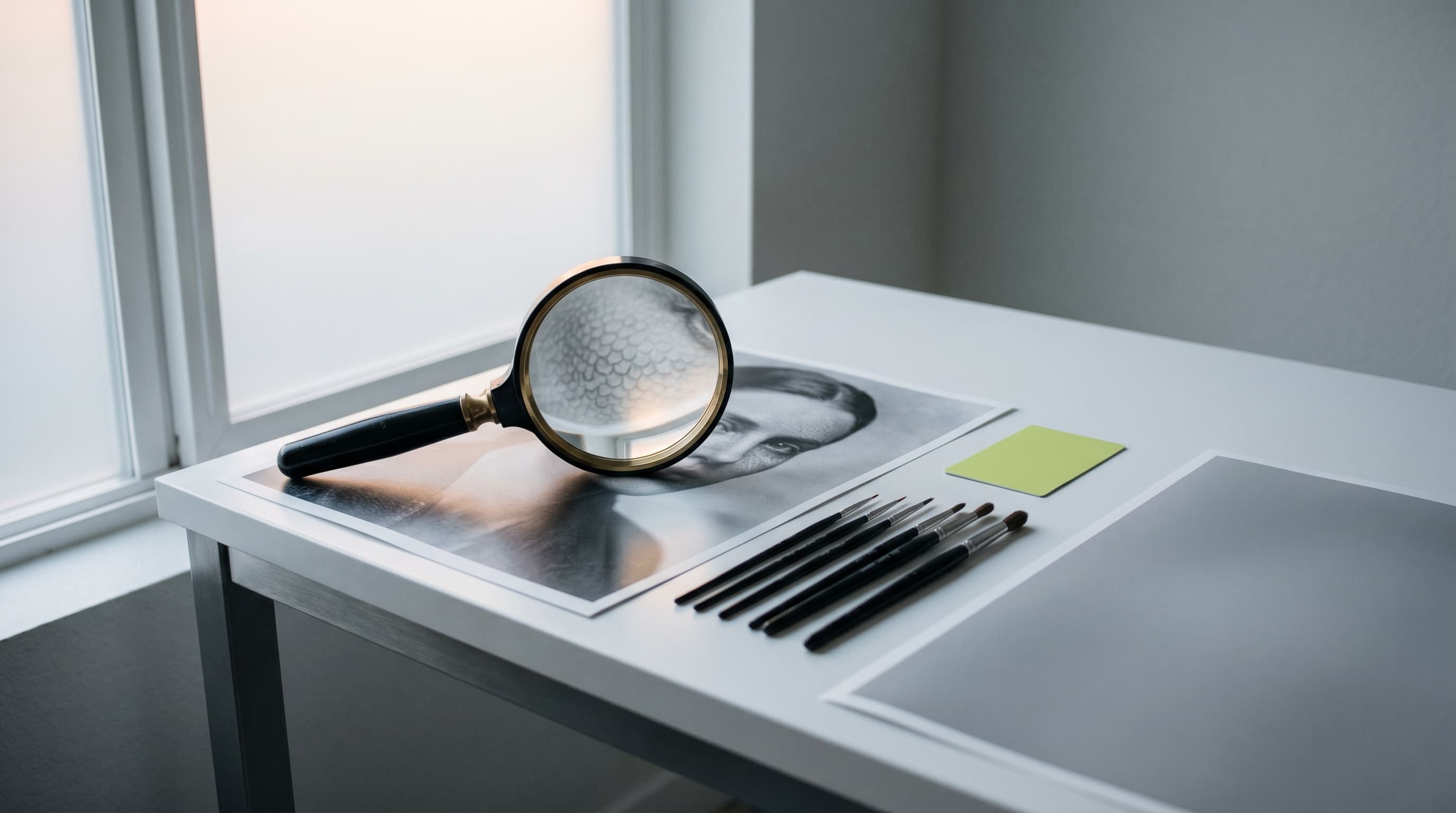
If you've been using GPT Image and noticed that skin, clothing, or large flat-color areas come out looking like fish scales, honeycomb, or fine plastic grain — don't blame your prompting skills. This isn't a you problem. It's the model overthinking.
This artifact is extremely common in the AI image generation world. I call it "scaling artifact". Virtually everyone who has done serious work with GPT Image has run into it. OpenAI has confirmed they're working on a fix, but as of now no official patch has shipped. The good news: by adjusting your prompts and generation strategy, you can dramatically reduce — or even eliminate — this issue right now.
1. Why Do Scaling Artifacts Happen?
Think of GPT Image as a skilled painter who memorized too many reference books — the technique is there, but sometimes the model shoves in details where they don't belong.
Cause 1: Trained on too much noisy data
GPT Image was trained on billions of images scraped from the internet. The problem is that a huge chunk of those images were low quality — JPEG compression artifacts, over-smoothed phone selfies, low-resolution upscales. The model can't distinguish "real detail" from "image noise," so it memorized those noise patterns as "what skin is supposed to look like."
The result: when it paints skin, it unconsciously overlays those memorized noise templates, producing that fish-scale or honeycomb texture.
Cause 2: It's afraid of leaving areas blank
When your prompt asks for "high definition" or "rich detail," the model interprets that as "every single pixel needs something in it." That works fine for hair or fabric folds where detail naturally exists. But for large areas of skin, sky, or walls — areas that should be smooth — the model has no real detail to draw, so it pulls out those memorized noise templates and force-fills the space.
At its core, scaling artifact is the model manufacturing detail in areas where none should exist.
Cause 3: Prompt overload causes processing breakdown
If you pack a single prompt with too many demands — rich lighting, visible pores, textured fabric, background bokeh — the model's attention gets spread dangerously thin. It tries to do everything well but lacks the processing bandwidth, so it "gives up" on certain areas and fills them with repetitive mechanical textures.
You've seen those AI images where the skin looks like plastic and the clothing texture looks copy-pasted? Nine times out of ten, that's prompt overload.
2. How to Fix This During Generation
Now that we know the problem comes from "overthinking" and "memorized noise," the strategy is clear: lighten the load and teach it what "clean" means.
Method 1: Remove "toxic words" — stop making the model anxious
Certain words are high-risk triggers for scaling artifacts. They sound professional, but they push the model toward over-filling detail. Avoid these in your prompts:
High-risk word blacklist:
| Avoid these | Why they're dangerous |
|---|---|
| Hyper-detailed | Forces the model to cram detail into every area |
| Micro texture | Directly triggers noise templates |
| 8K / 16K | Model interprets this as "need more pixel-level detail" |
| Crisp / Sharp focus | Makes smooth areas artificially sharp |
| Intricate details | Same problem as Hyper-detailed |
The alternative: Instead of saying "I want extreme detail," say "I want natural."
Replace hyper-detailed, 8K, sharp focus with natural lighting, film photography style, gentle details — the results will be significantly better. OpenAI's official Prompt Guide also recommends using photography language (lens, lighting, composition) to guide the model rather than stacking abstract quality words. When the model hears "natural" and "film look," it automatically dials down detail filling, because real film photos inherently have soft grain and natural transitions.
Method 2: Explicitly teach it what "clean" looks like
The model doesn't know what "clean skin" or "soft lighting" means unless you explicitly tell it what to avoid.
Add this "purification clause" at the end of your prompt (feel free to copy-paste):
Smooth, even skin texture, soft lighting transition, no visible grains,
no repetitive scales, no plastic texture, uniform surface.
This draws a clear line for the model, explicitly banning it from regurgitating those memorized noise templates. In my experience, adding this text reduces scaling artifact occurrence by over 70%.
You can adapt it to your specific scenario. For landscapes, try:
Smooth sky gradient, no banding, no repetitive cloud patterns,
natural color transition.
The core logic is the same: telling the model "what NOT to do" is more effective than telling it "what to do." This principle is discussed in detail in the Prompt Engineering Guide — negative prompting is one of the most direct ways to control AI image output quality.
Method 3: Generate in stages — don't try to do everything at once
This is the most effective anti-scaling technique and my personal top recommendation.
The wrong way:
Generate a fully detailed, full-body character with background and effects in a single pass.
Result: messy background, scaly skin, plastic-looking clothes. The model's attention is stretched to the limit, and every area suffers.
The right way (staged generation):
Step 1: Silhouette and lighting only (low-detail mode)
Write a prompt with just the essentials:
An Asian man, half-body portrait, looking at camera, soft natural light.
Goal: lock down composition and lighting first. At this stage, the model has minimal processing pressure and little to overthink, so it won't generate scales. The output might look "plain" — but plain is exactly right. Plain means clean.
Step 2: Targeted refinement (selective editing)
If you're not happy with the face, use GPT Image's "edit/brush" tool and select only the face for modification.
Prompt:
Natural skin texture, soft, flawless.
Goal: leave the background and clothing untouched so you don't dirty areas that were already clean. When editing locally, the model only needs to focus on a small region, has plenty of processing capacity, and the odds of artifacts drop dramatically.
Step 3: Final touches
One critical note: don't repeatedly spam the same prompt on the same area. That causes "over-fitting stacking" — each edit adds another layer of detail on top of the last, making it progressively dirtier and more scale-like.
If an edit doesn't look right, try a different phrasing. If "smooth skin" doesn't work, try "soft, matte skin like magazine photography." Or slightly expand your selection area so the model has more context to understand what you want.
Another proven technique is to start each generation from a fresh conversation. GPT Image quality tends to degrade when generating multiple images in the same session. If you notice scaling getting progressively worse, try opening a new chat.
3. Advanced Tip: Validate Your Character Design with AI Video Tools
If you're using GPT Image to create character reference images for video projects — AI short films, explainers, or brand videos — the scaling problem gets amplified in subsequent video generation. A still image with subtle scaling artifacts will distort as the character moves in video, making the issue far more noticeable.
In this case, you don't even need to switch between ChatGPT and a video tool — Pixo has integrated the GPT Image 2 model, so you can generate character reference images directly in Pixo, optimize them using the anti-scaling techniques from this article, then immediately upload the reference as a character asset within the same platform to generate a 5–10 second test shot and see how the character holds up in motion. Pixo also supports multiple AI video models, letting you test the same reference image across different models. If texture issues that were invisible in the still image show up in video, you can refine them locally with GPT Image 2 right in the platform before committing to full production — no tool-switching required.
If you're working on a complete AI video project from character design to final edit, check out our AI long-form video production guide for the full workflow.
4. Summary: The Three-Rule Anti-Scaling Cheat Sheet
Remember three things:
1. Cut the fluff. Drop 8K, hyper-detailed, and other empty quality words. They won't make your images better — they'll just make the model anxious.
2. Emphasize smoothness. Add smooth, soft, no repetitive patterns at the end of your prompt. Explicitly tell the model what NOT to do.
3. Divide and conquer. Generate the figure first, then the face, then the clothing. Don't make the model do everything in one pass. Staged generation is the single most effective way to reduce scaling artifacts.
Nail these three points and the visual quality of your GPT Image output will leap forward — no more cheap digital plastic look.
Happy with your character reference? The next step is bringing it to life. Pixo integrates GPT Image 2 and multiple AI video models, letting you go from image generation to anti-scaling optimization to video production — all in one platform, no tool-switching needed.
FAQ
Why does the same prompt sometimes produce scales and sometimes not?
GPT Image has inherent randomness in every generation. Even with an identical prompt, different internal noise seeds produce different results. Scaling artifacts aren't guaranteed to happen every time, but the probability is high with risky prompts. The methods above will dramatically lower that probability but can't guarantee 100% elimination. When it happens by chance, simply regenerating usually fixes it.
Is this problem unique to GPT Image?
No. Scaling artifacts and texture anomalies are a common issue across virtually all AI image generation models, including Midjourney, Stable Diffusion, and DALL-E. The specific appearance varies — some lean honeycomb, others lean plastic — but the methodology in this article (removing high-risk words, adding negative descriptions, staged generation) works across all of them.
Any extra tips for character reference images used in AI video?
Video amplifies imperfections that are barely noticeable in stills. When generating character references: (1) Don't chase maximum resolution — clean beats high-res; (2) Generate multiple reference images from different angles to ensure the character is scale-free from every viewpoint; (3) Before committing to full video production, do a quick test shot to validate — Pixo has GPT Image 2 and multiple video models built in, so you can go from image generation to video testing in a single platform.
Can I use the "purification clause" alongside style keywords?
Absolutely. For example, if you want a cyberpunk look without scales, write your prompt like this:
Cyberpunk city street at night, neon lights, rain-wet road,
a woman in a black leather jacket.
Smooth skin texture, soft lighting transition, no visible grains,
no repetitive patterns, no plastic texture.
Style keywords and the purification clause don't conflict. Style keywords tell the model "what to create," while the purification clause tells the model "what not to mess up" — they operate on different generation dimensions.
What scenarios are most prone to scaling artifacts?
Three types of scenes are the worst offenders: (1) Large areas of bare skin — especially close-up portraits; (2) Light or white backgrounds — the model is most likely to "over-fill" blank areas; (3) Smooth material surfaces — metal, glass, water, etc. When dealing with these scenarios, always use the purification clause and staged generation.
Master these anti-scaling techniques and your AI character references will improve dramatically. If your next step is turning those characters into video — explainers, narrative shorts, or brand content — Pixo can take you from a clean reference image all the way to a multi-shot final cut.