Upload your song and brief
Upload a WAV, MP3, OGG, or M4A file up to 20 MB. Describe your idea and add optional performer or setting references.
AI Music Video Generator
Upload your track, review the storyboard, and create a music video with performer references, singing lip sync, and individual scenes you can revise.
Made with a real Pixo production project
From track to cut
From your audio file to a finished MP4, with a storyboard you can review and scenes you can revise.
Upload a WAV, MP3, OGG, or M4A file up to 20 MB. Describe your idea and add optional performer or setting references.
Review the scenes, performers, and visual direction before generating. Use your references across shots, or ask Pixo to create them from your brief.
Check the credit estimate, then generate your scenes. Enable singing lip sync for vocal shots and replace only the scenes that need work.
Preview the timeline and export an MP4 in 16:9, 9:16, 1:1, or 3:4. Available resolution depends on the project, model, and account access.
Created with Pixo
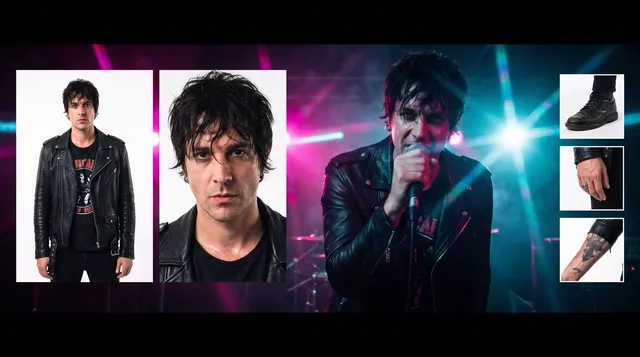
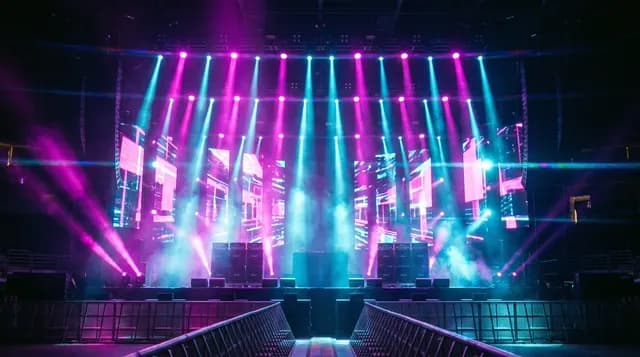
The performer and concert references behind Neon Electric. Compare the face, wardrobe, lighting, and setting with the finished video above.
Choose your format
A performance, a lyric-led release, or a looping visual needs a different plan. Start with the format that fits your song.
Put the artist on screen with a consistent look, directed shots, and lip-synced vocal performances.
Make the words the focus. Plan backgrounds and timing around the lyrics you want listeners to follow.
Build a visual atmosphere around an instrumental or track, without needing an on-screen singer.
Plan a short looping visual for the track’s Spotify release.
FAQ
Yes. Download the song and upload the audio file to Pixo. You need permission to use it; this workflow does not require a Suno or Udio share link.
Yes. A full song is assembled from multiple generated scenes. Longer tracks need more scenes and credits, and the uploaded audio must fit the 20 MB limit.
Yes. Music-video projects can enable lip sync for vocal performance shots. Clear vocals and visible, front-facing performance footage produce the strongest results.
You can add lyrics as editable text clips on the timeline, with a start time, duration, position, and style. Ask for a lyric-video treatment and review the words and timing. Singing lip sync and on-screen lyrics are separate choices.
There is no fixed completion time. It depends on song length, scene count, model processing, and how many revisions you make. Plan time to review the storyboard, check the generated scenes, and render the finished edit.
Account creation is free; video generation requires a paid subscription, purchased credits, or an eligible trial shown in your account. Costs vary by model, duration, settings, and revisions. A free signup does not guarantee a complete music video.
Pixo’s free-tier outputs may be watermarked. New generations made with paid subscription access or purchased credits do not receive that Pixo watermark. Existing watermarked source files keep their watermark when included in an edit.
Pixo’s terms say you retain ownership of content you create. Commercial use is subject to the applicable plan and model-provider terms. You also need rights to the song, lyrics, reference images, and likenesses you use.
Your track is next
Bring the finished track and your creative direction. Pixo helps direct the complete cut.