Kling 4 Prompt Guide: Omni Reference, Keyframes, Audio and Editing
Learn how to write Kling 4 prompts for text-to-video, Omni Reference, keyframes, multi-shot sequences, native audio and targeted video editing.

Kling 4 can work from one short idea or a production-style brief. The right prompt depends less on word count than on the kind of control you need: are you exploring a concept, preserving a character, following a reference movement, fixing visual milestones, generating dialogue, or editing an existing clip?
This guide explains the complete prompting system across Kling 4's main workflows. For specifications and launch status, see the Kling 4 release guide.
Start by Choosing the Right Kling 4 Mode
Kling 4 presents two primary entry points. They solve different problems and cannot be combined within one generation task.
| Entry point | Use it when | Inputs | Main control |
|---|---|---|---|
| Omni Reference | You have an idea, references, or an existing video to guide or edit | Text, images, videos, elements and voice profiles | Appearance, style, action, camera, pacing and audio |
| Keyframes | You already know which images must appear at specific moments | Images | Visual milestones distributed along the timeline |
Choose Omni Reference when you want to generate from text, preserve a character or product, borrow motion or camera language, combine several assets, or edit an uploaded video.
Choose Keyframes when your non-negotiable requirement is visual placement in time: start on this image, arrive at that image, or pass through several approved frames in a defined order.
A Kling 4 Prompt Can Begin with One Idea
You do not need a long technical brief to start. Kling's official guide says a simple prompt can name the subject and desired event, leaving the model to develop blocking, camera movement and story detail.
An exhausted astronaut finds a tiny green plant growing inside an abandoned lunar base.That approach is useful for exploration. Add structure only when you already know which decisions should not be improvised. A more controlled version might define a 16:9 frame, a slow discovery, one uninterrupted camera move and the exact sound of the room.
The useful progression is:
- State the idea.
- Identify what the first result must preserve or change.
- Add only the relevant control: references, timing, camera, audio or keyframes.
The Four-Block Kling 4 Prompt Structure
For a controlled Omni Reference generation, Kling documents four functional blocks.
[Asset Roles]
@Image1 defines the character; preserve facial features, hair and clothing.
@Image2 defines the location; preserve its layout, materials and lighting.
Reference the camera path and pacing of @Video1, but not its people or setting.

[Overall Settings]
Scene and texture: ...
Visual style: ...
Camera tone: ...
Duration and aspect ratio: ...

[Sequence of Events]
0–X seconds: visuals, action and emotion.
X–Y seconds: camera movement and the next story beat.
Y seconds–end: closing action and final composition.

[Audio]
Dialogue or voiceover.
Ambient sound.
Music.
Sound effects.
These labels are organizational, not magic words. Their value is separation: references do not get confused with actions, actions do not get mixed with sound, and the model can see the sequence in the order it should unfold.
1. Asset roles
Name every uploaded asset and explain its job. A label without a role forces the model to guess.
Weak:
Use @Image1, @Image2 and @Video1.Stronger:
@Image1 defines the woman's face and hairstyle.
@Image2 defines the apartment layout and warm evening lighting.
@Video1 supplies only the handheld camera path and action pacing.
Do not carry over the people, wardrobe or location from @Video1.
The exclusion sentence matters when one reference contains useful motion but irrelevant subjects or scenery.
2. Overall settings
Replace abstract labels with visible evidence. Kling specifically recommends descriptive language over terms that require interpretation.
Instead of:
Premium product video with a vintage feel.Write:
Side backlighting traces the bottle's edges. Fine matte grain remains visible on the
label. The room has yellowed plaster walls, worn walnut furniture and warm incandescent
light, with shallow depth of field and restrained camera movement.
The second version turns “premium” and “vintage” into lighting, material, setting and camera choices.
3. Sequence of events
Describe events in the order the viewer sees them. Use timestamps when an entrance, reveal, cut or reaction needs to happen at a particular moment.
0–4s: Wide shot. The courier enters from frame-left and crosses the empty station.
4–8s: Cut to a close insert as she places a sealed envelope on the bench.
8–12s: Over-the-shoulder shot. A second figure appears in the reflection behind her.
For multi-shot work, give each shot one main job and make the transitions explicit. For a continuous take, say “one continuous shot, no cuts” and describe a single camera path instead of using shot headings.
4. Audio
Treat sound as its own plan. Separate dialogue, ambience, music and effects so they do not compete.
Dialogue: The courier whispers, "You were supposed to come alone."
Voice: restrained adult female voice, quiet, breath slightly unsteady.
Ambience: empty station room tone, distant rail vibration and fluorescent hum.
Music: no background music.
SFX: envelope touching wood, one soft shoe movement behind her.
If you want no subtitles or no background music, state that directly. Kling's guide identifies these as the two negative instructions that are often necessary because the model may otherwise add them.
How to Prompt Text-to-Video
Text-to-video is the cleanest place to begin. Cover four things before adding technical detail:
- Subject: who or what the viewer follows;
- Scene: where the action occurs and what the space looks like;
- Action: what visibly changes over time;
- Treatment: how the camera, light, texture and sound present it.
A ceramic artist works alone in a small studio during a thunderstorm. One continuous
12-second shot, 16:9. Start close on wet clay turning beneath her hands, then slowly
pull back to reveal shelves of unfinished cups and rain moving across the windows.
Cool window light mixes with one warm desk lamp. Natural wheel motor, clay and rain
sounds; no dialogue, subtitles or background music.
Add timing only if the model needs to hit a sequence of events. Add lenses or exact camera measurements only when those choices are important; naming a simple “slow pullback” is often clearer than over-specifying optics.
How to Use Omni Reference
Omni Reference can combine images, videos, elements and voice profiles within one task. Kling's documented maximum is 15 reference assets in total, subject to individual limits:
- up to 10 images;
- up to five videos totaling no more than 30 seconds;
- up to seven elements, including no more than three video elements;
- up to three voice profiles.
Reference videos, editing videos and video elements share the same quota of five clips and 30 seconds total.
The objective is not to fill every slot. Use the smallest set that controls the decisions you care about.
Character and product references
State which traits are authoritative:
@Image1 defines the protagonist's facial features, short black hair and green raincoat.
Preserve these traits in every shot. Do not copy @Image1's background or lighting.
For a product, specify shape, materials, color, label and any geometry that must not drift. Avoid asking the reference to control unrelated camera or environmental decisions.
Action and camera references
A reference video can supply movement without supplying the cast or location:
Reference the fight choreography and attack timing of @Video1.
Use @Image1 and @Image2 only for the two characters' appearances.
Replace @Video1's location with the warehouse in @Image3.
For camera language:
Reference only the camera path, shot order and pacing of @Video1.
Replace the subject with the car from @Image1 and the location with @Image2.
Do not inherit @Video1's people, vehicles, branding or audio.
Composition and storyboard references
When an image controls composition, say whether the final video should preserve framing exactly or use it only as a starting point.
If the input is a storyboard, tell Kling to produce the depicted finished scenes rather than animate the board itself:
@Image1 is the approved storyboard. Follow its shot order, framing, camera paths,
screen direction and emotional progression. Render the finished live-action scenes;
do not show storyboard grids, panel borders, labels, arrows or notes.
That last sentence prevents planning artifacts from leaking into the result.

Official Kling 4 multimodal-reference example. Source: Kling AI.
How to Use First and Last Frames
The Keyframes entry point accepts images only. Its simplest forms are a first frame or a first-and-last-frame pair.
For a first frame:
Use @Image1 as the first frame. The cyclist begins still, then pushes off and rides
into the fog while the camera tracks beside her. Preserve the road direction, wardrobe
and morning light established in @Image1.
For first and last frames:
Use @Image1 as the first frame and @Image2 as the last frame. Show the physical process
of the empty stage becoming the finished exhibition space. Use motivated hard cuts to
compress setup time. The final three seconds must settle into @Image2's composition.
Do not describe only the endpoints. Explain the process between them: what changes, what stays fixed, whether time is continuous or compressed, and how the camera reaches the closing frame. For a broader comparison of first/last frames, motion references and text-directed motion, see our AI motion control guide.
How to Prompt Multiple Keyframes
Kling 4 supports up to 10 keyframe inputs. Each keyframe represents a required visual moment, not merely another style reference.
Assign each image to a time range and describe the transition:
0–3s — @Image1: begin on the empty platform. The camera is locked and snow moves gently.
3–7s — move toward @Image2: the train enters from frame-right and slows naturally.
7–11s — @Image3: hard cut inside the carriage as the doors open.
11–15s — move toward @Image4: the passenger crosses the aisle and the camera settles
into the exact closing composition.
Keyframes can control:
- a character action at a specific moment;
- when someone enters or exits;
- a weather or lighting change;
- a change from wide shot to close-up;
- a visible transformation from one state to another.
Leave enough time for movement between frames. Ten keyframes are available, but using all ten in a short clip can force abrupt transitions.
How to Write 30-Second Multi-Shot Prompts
Kling 4 supports 3–30 second generations in one-second increments, and multi-shot generation is enabled by default. Longer duration is most useful when the prompt contains a progression rather than one action stretched across more time.
A strong 30-second brief usually defines:
- the spatial layout and direction of travel;
- the number and duration of shots;
- the action assigned to each shot;
- how cuts connect;
- continuity rules for subjects, lighting and audio.
[Spatial plan]
The harbor remains frame-left, the old city lies ahead and the lighthouse remains on
the far right. The rider always travels from the harbor toward the old city. Do not
reverse this direction after cuts.

[Shot plan]
0–5s: environmental wide establishes the route.
5–10s: low side-tracking shot as the rider accelerates.
10–16s: front three-quarter shot; the rider notices smoke ahead.
16–22s: overhead shot reveals the blocked street and alternate path.
22–27s: close pursuit through the narrow passage.
27–30s: wide arrival at the square; hold the final composition.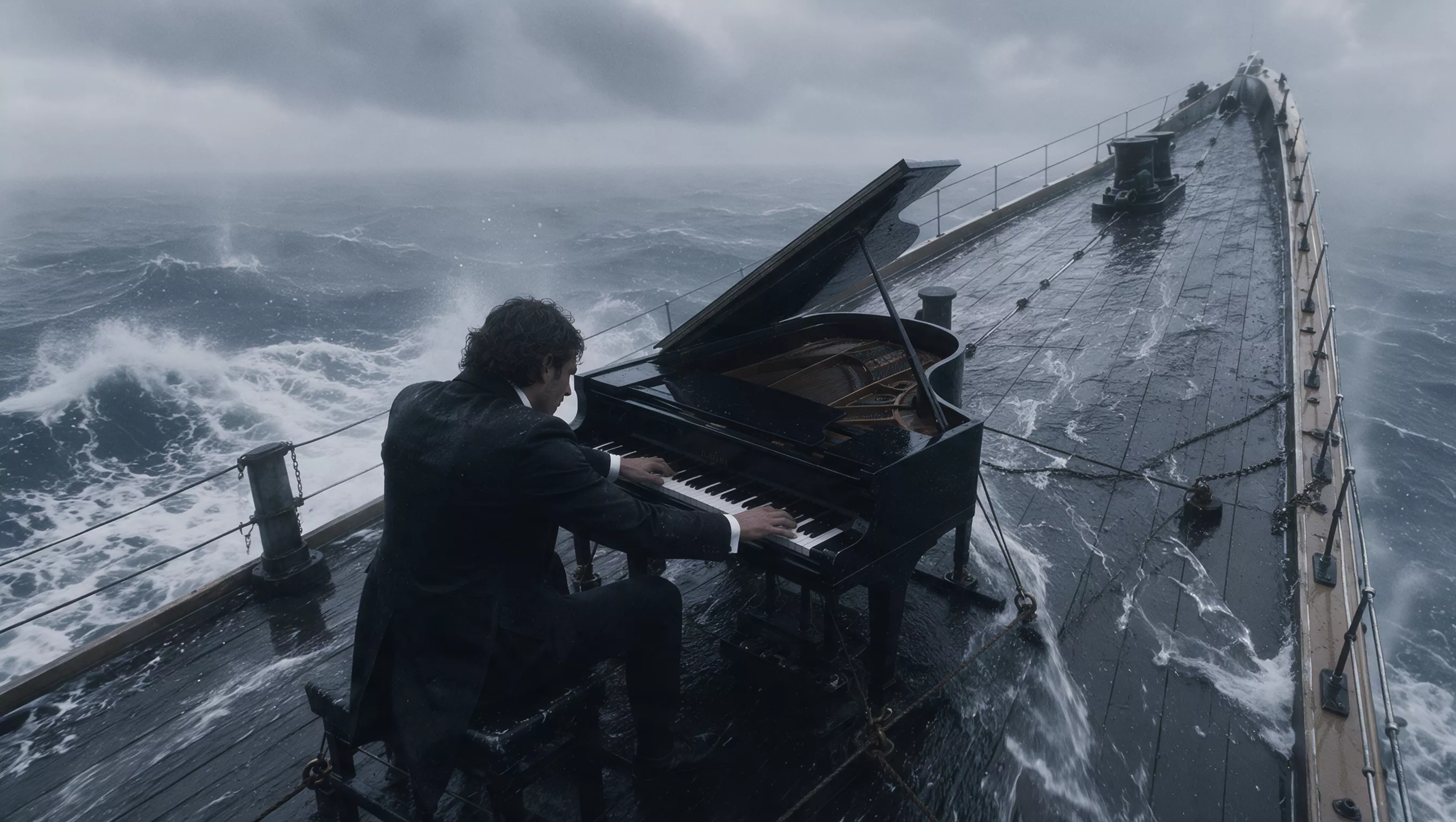
Official Kling 4 long-form generation example. Source: Kling AI.
How to Prompt Dialogue, Voices and Stereo Sound
Kling 4 can generate two-channel stereo output. For dialogue, write the exact line in quotation marks and describe:
- who speaks;
- language or accent;
- age and vocal character;
- speed and emotion;
- pauses and emphasis;
- whether other speakers remain silent.
The guide speaks in clear, natural Spanish at a measured pace: "La entrada está al
final de esta calle." Pause for half a second. The visitor nods, then replies in English:
"Thank you." The speakers do not overlap. Keep both voices distinct and synchronized
to the correct person.
Voice profiles can guide speaker timbre, but uploaded audio is not a background-music or sound-effect input. Describe music and effects in the prompt instead.
For spatial sound, connect cues to visible positions and actions:
The motorcycle moves from rear-left to front-right in the stereo field. Dialogue stays
centered. Rain fills the background evenly; the door slam lands sharply on the right.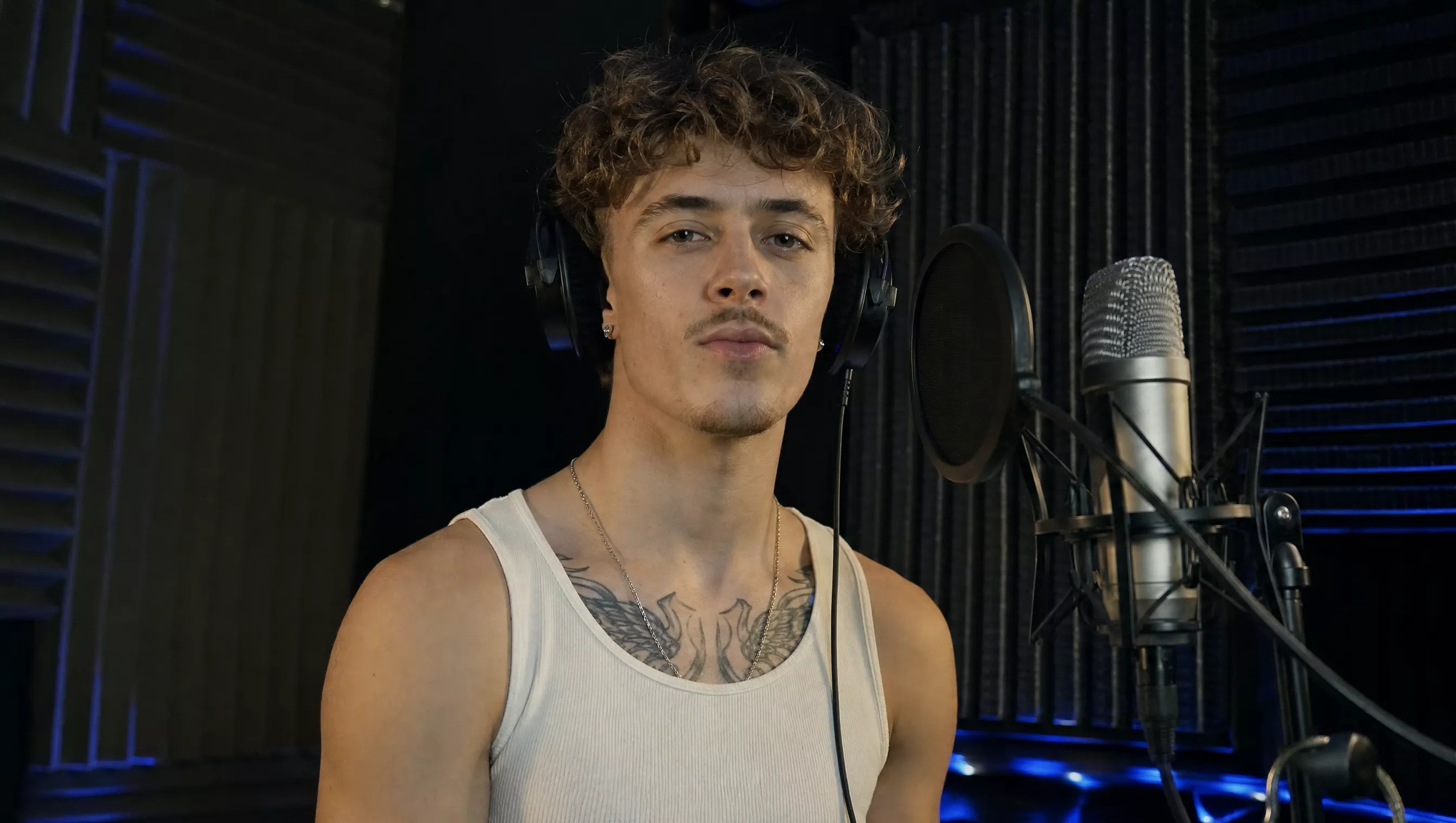
Official Kling 4 audiovisual example. Source: Kling AI.
How to Write Video-Editing Prompts
Editing prompts need a different opening. Write “Edit @Video1”, not “Reference @Video1,” so Kling treats the upload as footage to modify.
Use this structure:
Edit @Video1.
Change: [the exact subject, background, action, style, camera or dialogue change].
Timing: [where the change begins and ends].
Preserve: [subjects, environment, composition, lighting, motion, audio and duration
that must stay unchanged].
Remove an object
Edit @Video1. Remove the advertising sign in the foreground throughout the clip.
Reconstruct the wall and pavement it obscures. Keep the people, background geometry,
lighting, shadows, reflections, camera movement, audio, pacing and duration unchanged.
Replace a subject or background
Edit @Video1. Replace the original backpack with the backpack in @Image1. Match its
position, scale, movement, contact points, lighting and shadow to the original object.
Keep the person, wardrobe, scene, camera movement, audio and duration unchanged.
Change one part of the style
Edit @Video1. Transform only the vehicle into a handcrafted clay model while preserving
its size, trajectory and wheel motion. Keep the people, road, buildings, lighting,
camera movement and audio photorealistic and unchanged.
The preservation list is as important as the requested change. Without it, the model has more freedom to alter untouched parts of the clip. The same change-and-preserve logic is covered across other editing models in Edit AI Video by Prompt.
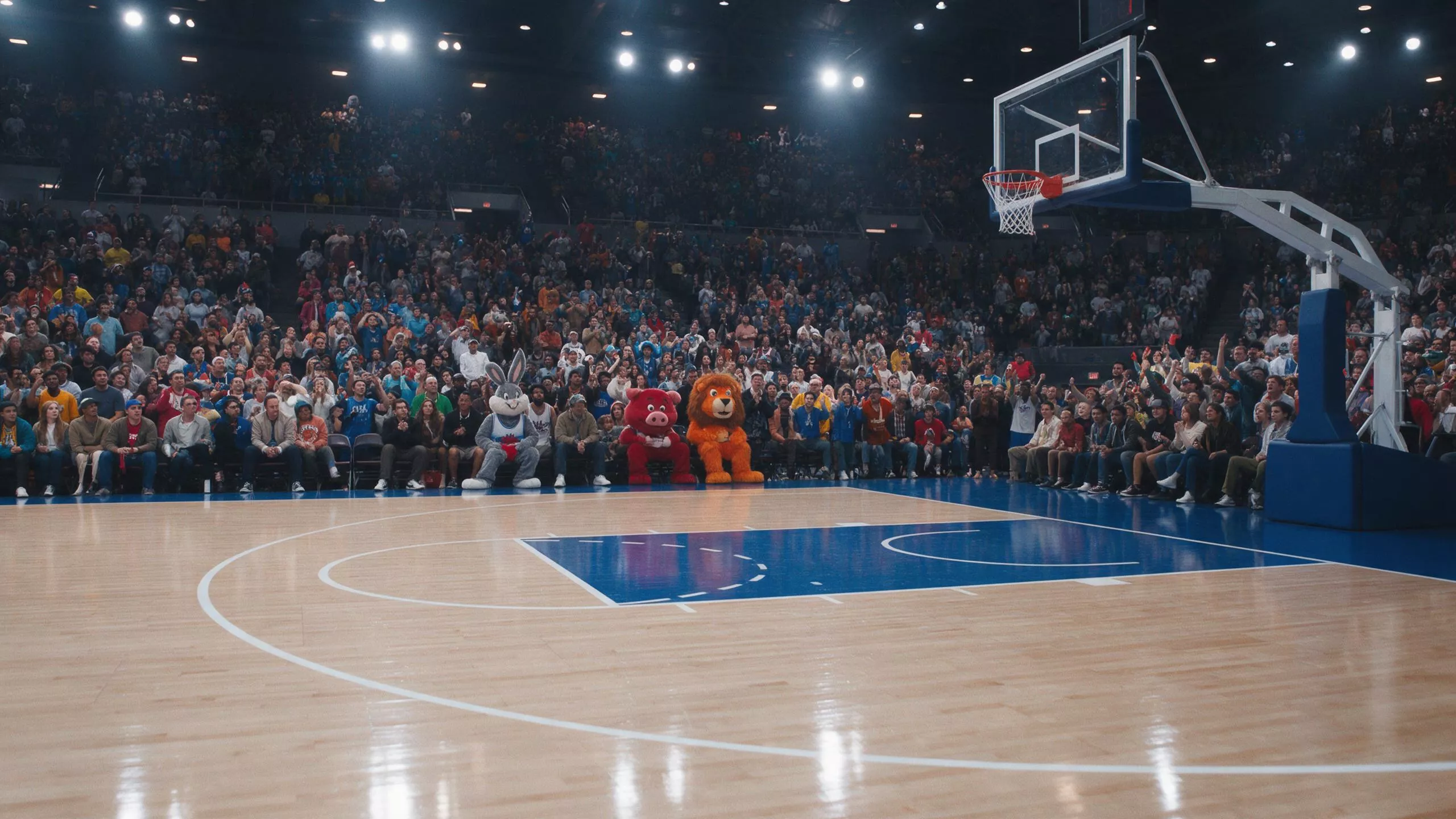
Official Kling 4 video-editing example. Source: Kling AI.
Negative Instructions: Use Them Sparingly
Kling recommends describing the desired image directly instead of building a long negative-prompt list.
Weak:
Do not show her face. No bad lighting. No strange camera. No messy background.Stronger:
Show the woman in profile while she talks on the phone. Soft side light defines her
silhouette. The camera remains locked at shoulder height. The background is a clean,
out-of-focus office wall.
Keep negative instructions for concrete failure boundaries:
- no subtitles;
- no background music;
- no extra characters;
- do not inherit the people or setting from a motion reference;
- keep everything else unchanged during an edit.
A Practical Revision Order
When a result misses the brief, change one layer at a time:
- Check asset labels. Make sure every @ reference points to the intended file.
- Clarify asset roles. State exactly what each reference controls and excludes.
- Replace abstractions. Convert “cinematic,” “premium” or “emotional” into visible and audible evidence.
- Fix the timeline. Remove overlapping timestamps and give each shot one main action.
- Protect continuity. Add screen direction, spatial layout, identity and lighting rules only where drift occurred.
- Narrow editing scope. Name both the change and everything that must remain unchanged.
- Simplify. If instructions conflict, delete the lower-priority direction instead of adding more explanation.
Kling accepts prompts up to 8,000 tokens, but the limit is room for complex tasks—not a target. A short prompt with clear priorities is more useful than a long prompt with competing instructions.
Using This Guide with Pixo
Kling 4 is not currently listed in Pixo's live model catalog. The Kling models available in Pixo have their own current inputs and limits, so use the controls shown for the model you actually select. This guide remains a reference for Kling 4's official prompting system and can inform how you structure clear video briefs.

Create AI videos with Pixo
Turn any idea into a publish-worthy video. One sentence is all it takes.
FAQ
What is the best structure for a Kling 4 prompt?
For controlled generations, use four blocks: asset roles, overall settings, a timed sequence of events, and audio. Simple explorations can begin with one sentence and add only the controls that matter.
Should I use Omni Reference or Keyframes in Kling 4?
Use Omni Reference to combine a creative idea with images, videos, elements or voice profiles. Use Keyframes when specific images must appear at defined moments on the timeline. The two entry points cannot be combined in one task.
How do I reference an uploaded file in a Kling 4 prompt?
Use its assigned label, such as @Image1 or @Video1, and state its role explicitly. Say what to preserve or borrow—identity, setting, action, camera movement, composition or pacing—instead of mentioning the asset without instructions.
How do I write a Kling 4 video-editing prompt?
Begin with “Edit @Video1,” identify the exact change, and state what must remain unchanged. For example: “Edit @Video1. Remove the foreground sign. Keep the people, background, lighting, camera movement, audio and duration unchanged.”
Can Kling 4 generate dialogue, music and sound effects?
Yes. Kling 4 generates two-channel stereo audio. Write dialogue verbatim in quotation marks, describe the speaker and delivery, and specify ambience, music and effects separately. Uploaded audio currently serves as a voice profile rather than a background-music or sound-effect track.
Are longer Kling 4 prompts always better?
No. Kling supports up to 8,000 tokens, but the official guidance recommends beginning with a clear subject, scene, action and emotion, then adding only details that affect the result.
Sources
Generate AI summary
From idea to finished video.
In one conversation.
Start CreatingNo credit card required • Free 200 credits