Seedance 2.0: How to Use a Reference Image as the First Frame
Seedance 2.0 won't let you set a first-frame image and reference images together. The documented workaround is one line of prompt. We tested whether it works.

Seedance 2.0 makes you choose. You can hand it an exact first frame, or you can hand it reference images for your character, your location and your colour. Send both and the request fails.
There's a documented way around that, and it's one line of prompt. It works better than ByteDance's own documentation suggests, and most of the time you don't need it at all.
Why can't you use a first frame and reference images together?
Seedance 2.0 has three ways to take input, and they don't mix. There's text-to-video. There's image-to-video, where you supply a first frame and optionally a last frame. And there's omni reference, where you attach up to nine images, three videos and three audio clips and let the model draw on all of them.
Pick one. ByteDance's docs list them as separate scenarios, each selected by the role you set on the assets you attach: first_frame and last_frame for image-to-video, reference_image, reference_video and reference_audio for omni reference. They don't combine. Send a first-frame image alongside reference images and the request is rejected.
That's a problem, because real shots usually need both halves. You have a character who has to look the same as in the last scene, a location you've already established, a colour treatment you're matching, and you also know exactly what the opening frame should be. The API makes you give up one or the other.
The documentation does offer a way through. Filed under "Advanced usage" in the Seedance 2.0 series tutorial: "For omni reference video generation, you can specify reference images as the first/last frame via prompts to indirectly achieve the effect of 'first and last frames + omni reference'." Then it hedges — if you need the frames to strictly match the images you supplied, use image-to-video instead.
That hedge is what we set out to test. Every third-party Seedance guide we found repeats the syntax; none of them had checked what it actually produces.
How do you set a reference image as the first frame?
Attach everything as a reference image, including the one you want to open on. Then name that one in your prompt.
Here's the setup we used. Four images, attached in this order:
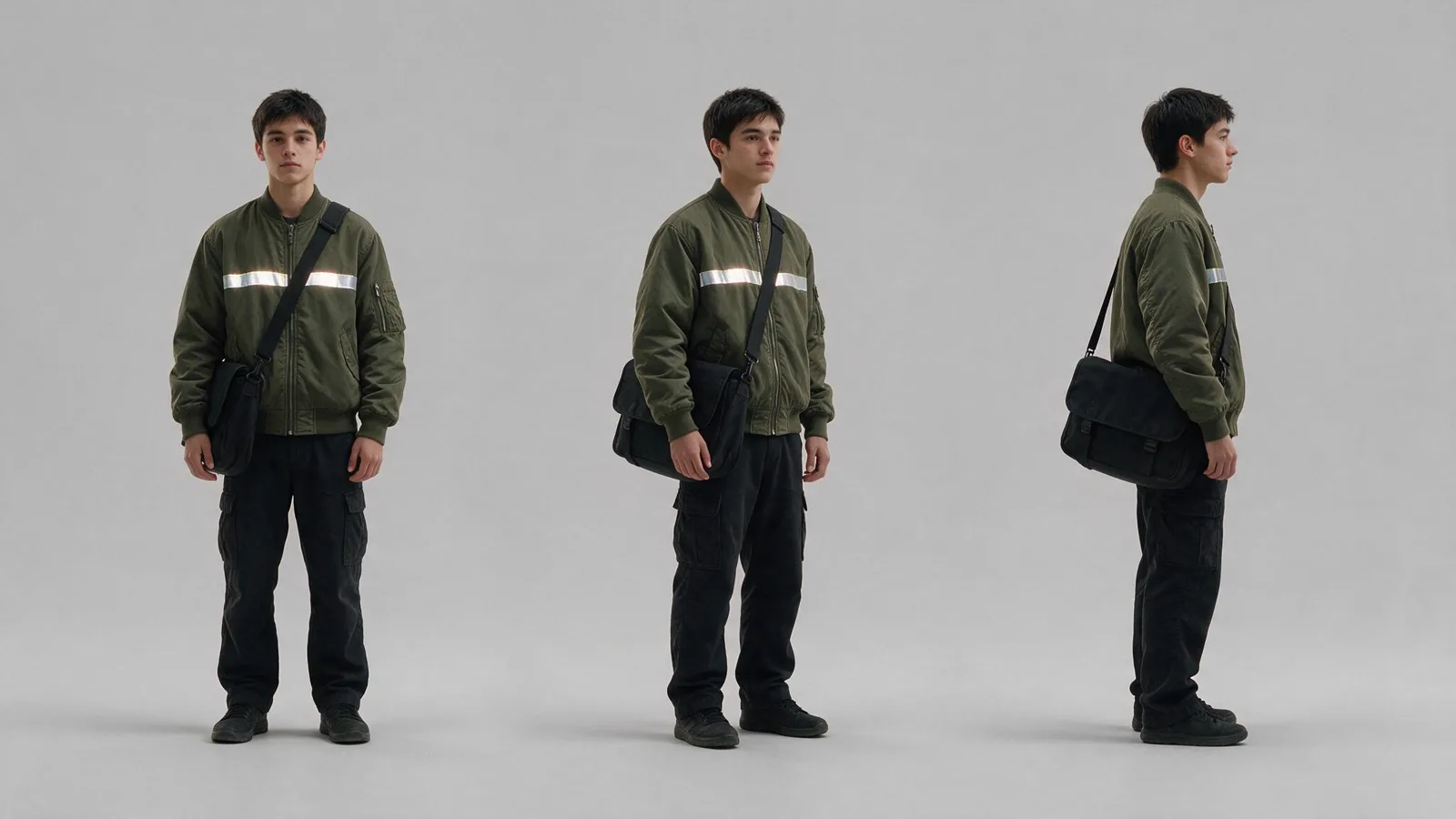
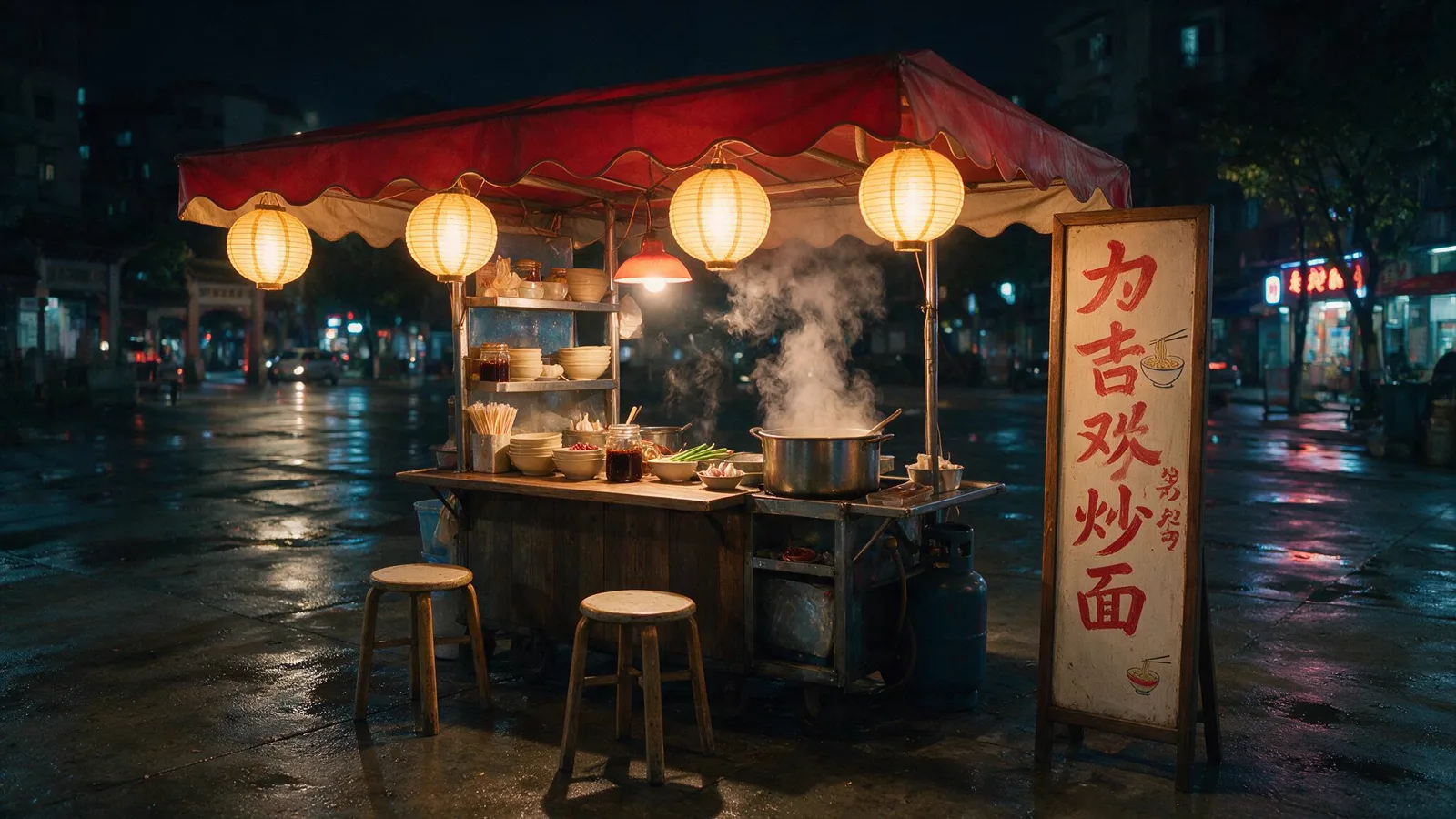
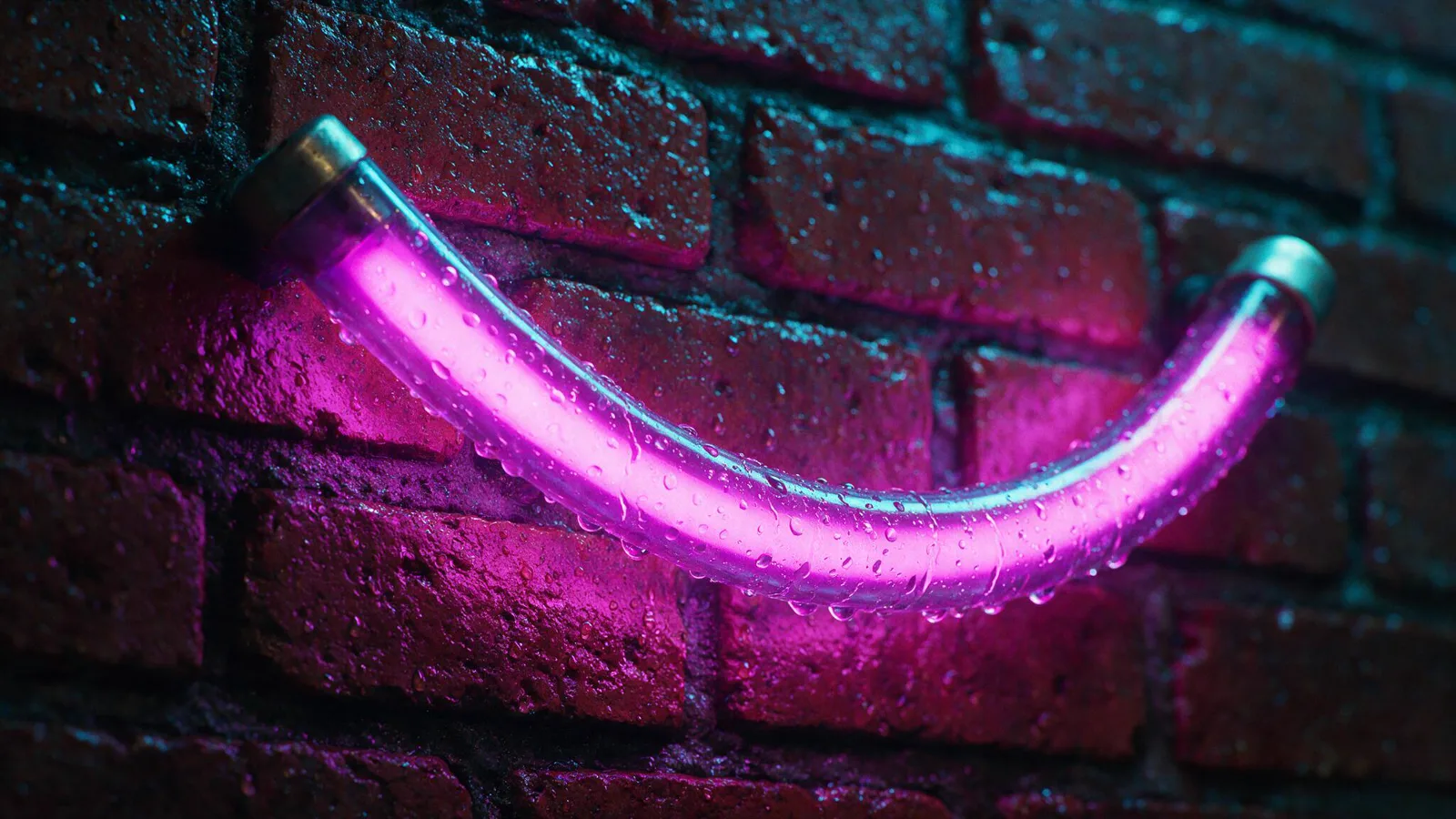
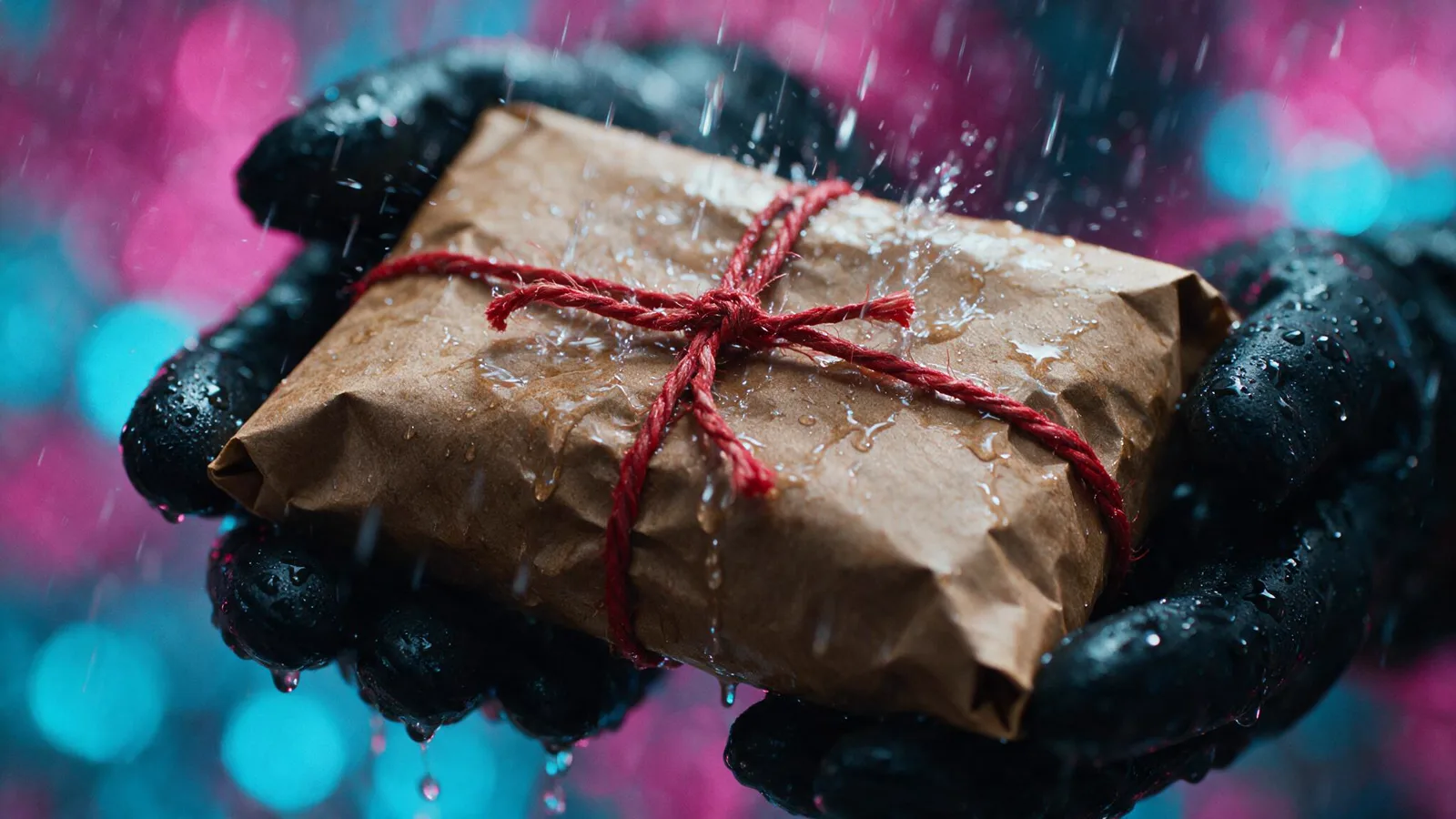
And the prompt:
@Image 4 as the first frame. The courier arrives at a late-night noodle stall and hands the parcel to the vendor. @Image 1 is the character reference - keep the face, hair and jacket exactly as shown. @Image 2 is the noodle stall - match its awning, lanterns and signage. @Image 3 is the colour and lighting reference - match its palette. Rain falls steadily throughout. No subtitles, no captions, no watermark, no logo.
Which produces this:
It opens on the parcel, and the courier, the stall and the palette all survive alongside it.
The number refers to the image's position in the list you send, not to a name you assign. @Image 4 is the fourth image in the request, so if the order changes, the line points at a different picture.
Put the line at the start. That's where we put it in every run we tested, so we can't tell you whether it survives being buried mid-prompt.
Do you actually get your exact image?
One of these two frames is the reference image we supplied. The other is the first frame Seedance generated from it.
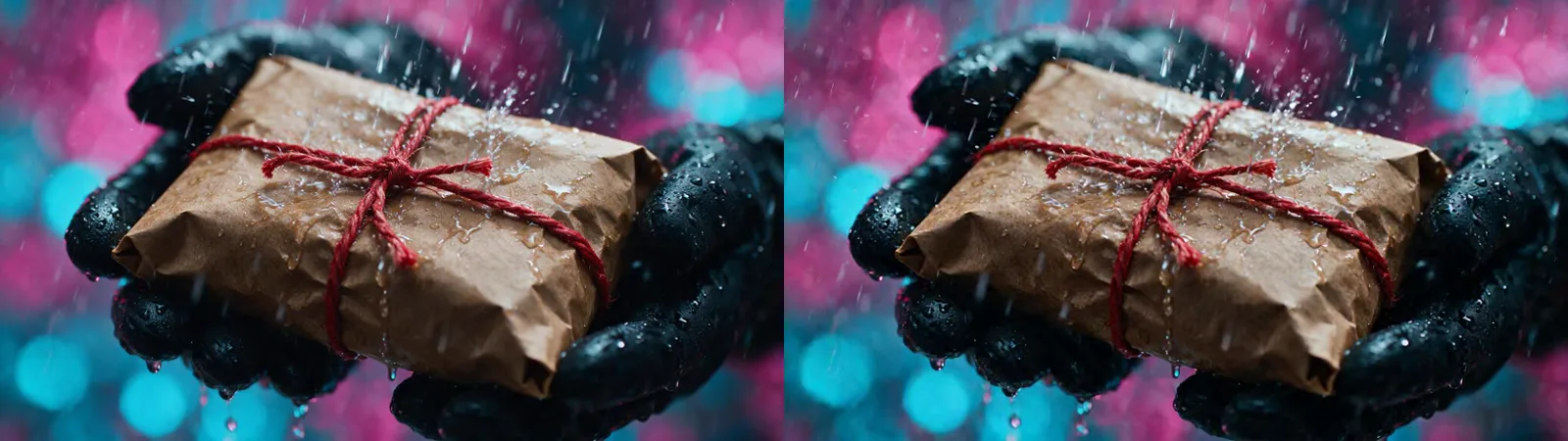
Everything that isn't moving came back the same: the creases in the paper, the way the twine crosses and knots, the position of the fingers, the bokeh behind. The only difference is the rain, which has to differ: this is the first frame of a moving clip and the drops are in flight.
ByteDance's word for this is "indirectly", which suggests you'd get the right idea and roughly the right composition. We got the picture back. If your opening frame has to be a specific image, this route gets you there without giving up your other references.
We'd still take the documentation's advice for the strictest case. If the opening frame has to stitch seamlessly onto the last frame of a previous clip, where a few pixels of drift would show as a jump cut, use image-to-video and accept the loss of your references. For everything short of that, this works.
Create AI videos with Pixo
Turn any idea into a publish-worthy video. One sentence is all it takes.
When does it actually matter?
The line earns its keep when more than one of your images could plausibly be the opening shot.
In our four-image setup, the noodle stall is a legitimate candidate: it's a location, it's a scene, and the prompt describes arriving there. With no first-frame line, the clip opened on the noodle stall. The parcel macro we actually wanted was ignored.
Add the line and it flips.
No first-frame line
One line added
So the line isn't a switch that turns first-frame control on. It settles a contest, and it only does work when two or more of your images could reasonably claim the opening shot. With one candidate you can leave it out. With two or more, leaving it out means the model chooses for you.
Does the exact wording matter?
We tested three ways of saying it:
| What we wrote | Result |
|---|---|
| "@Image 4 as the first frame." | Opened on the intended image |
| "The video opens exactly on @Image 4 - an extreme macro of rain striking a brown paper parcel tied with red twine, held in two black-gloved hands, background blurred to neon bokeh. Hold that framing for a beat." | Opened on the intended image |
| "The first frame must be @Image 4 - identical composition, framing and lighting. Do not reinterpret it." | Opened on the intended image |
Each of those replaced the opening line; the rest of the prompt was identical every time.
No difference. Describing the image in detail changed nothing, and ordering the model not to deviate changed nothing. What mattered was naming the image at all.
Use the short one.
When do you not need the line at all?
With only one image that could open the shot, the model doesn't need telling. To check that, we ran a version where we attached an image and never mentioned it. Same prompt text in both arms, word for word, with no reference to any camera angle or location. The only difference was whether one extra image was in the request.
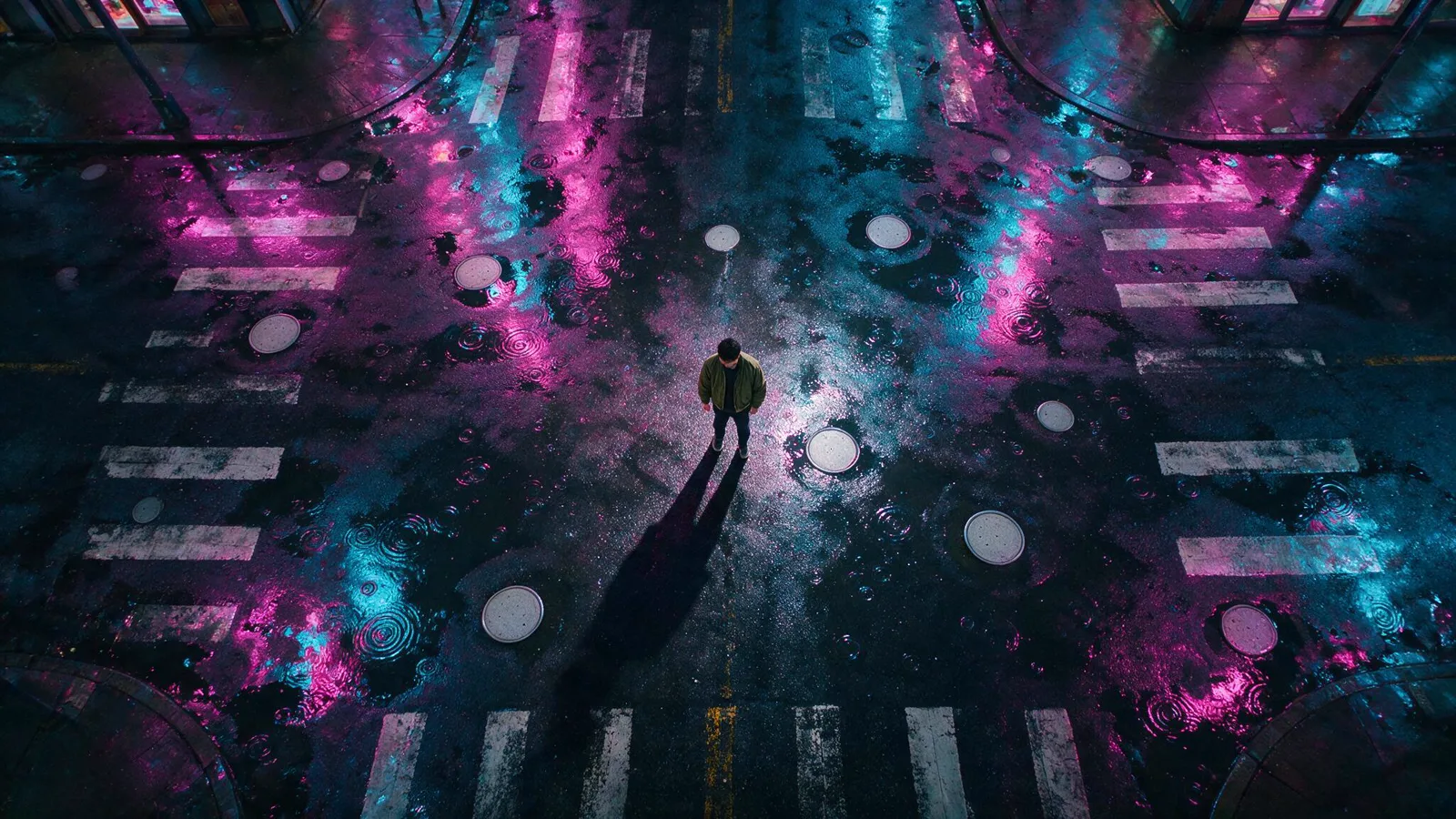
The prompt, identical in both arms:
The courier makes a late delivery in the rain-slick neon district at night. @Image 1 is the character reference - keep the face, hair and jacket exactly as shown. @Image 2 is the colour and lighting reference - match its palette. Rain falls steadily and the courier moves through the scene. No subtitles, no captions, no watermark, no logo.
Nothing in it describes the aerial shot, or names any camera angle at all.
Without that image, the clip opened at eye level, on the street, in the obvious way. With it attached and never named, it opened overhead, from the exact aerial position of the reference, a camera angle nothing in the prompt asked for.
Aerial image not attached
Aerial image attached, never mentioned
So attaching a reference image is, by itself, enough to set your opening shot. If the shot you want to open on is the only scene-like image you're attaching, the first-frame line is buying you something you already have.
What if you attach an image and never mention it?
This is the same finding as above, pointed at your workflow.
An image you attach for one reason can steer a different part of the generation. Add a colour plate for its palette, and if it reads as a scene it may take the opening shot with it, without being named anywhere in the prompt.
Two things help. Name your opening image whenever another scene-like image is in the request, and drop references you don't need. Every extra image is another candidate for a job you didn't assign.
Where this might not hold
All of this is Seedance 2.0, one scene per test, English prompts. Seedance 2.5 documents the same restriction but we haven't measured it. And we confirmed the other references survive alongside a named first frame in one scene, which is enough to say it isn't broken by default and not enough to promise it never happens.
The recipe
- Attach every image as a reference image, including your opening shot.
- Note the position of the one you want to open on. The number is its slot in the request.
- If any other attached image could read as a scene, add
@Image N as the first frame.at the start of your prompt. - Drop any reference you don't genuinely need. Every extra image is a candidate for a role you didn't intend.
In Pixo, references are attached in the order you add them, so the numbering follows what you see in the shot's workspace. Worth a glance before you generate if you're naming a specific frame. If you're new to the model, our complete guide to Seedance 2.0 covers the rest of its input modes, and the director-prompts guide goes deeper on shot language. You can try Seedance 2.0 on Pixo with all of this wired up.
Generate AI summary
From idea to finished video.
In one conversation.
Start CreatingNo credit card required • Free 200 credits