AI Sticker Generator

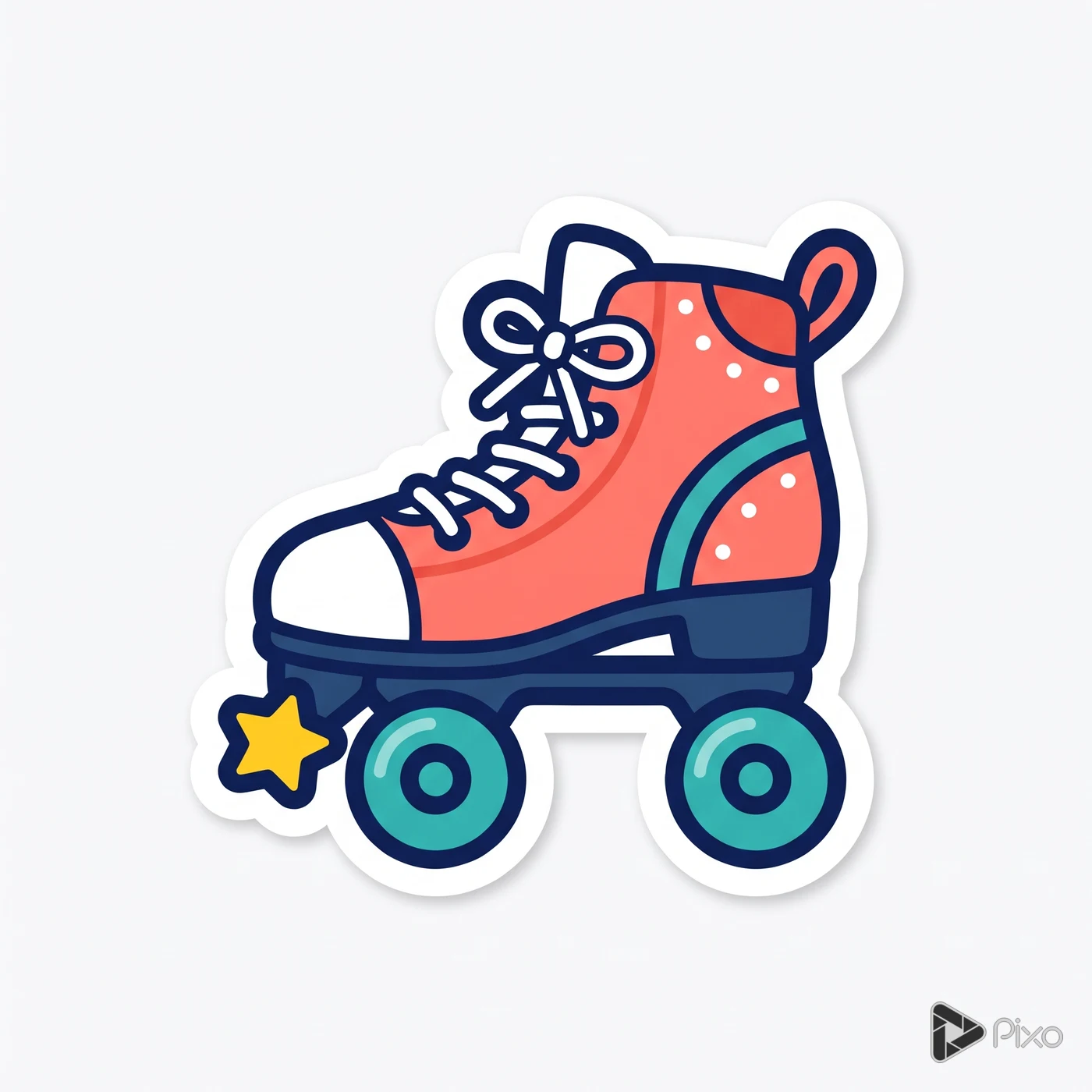
Create an original sticker character, object, or phrase with a clear outline. Explore a small set of coordinated designs before preparing backgrounds and files for printing or messaging.

Create image artwork

Generation uses credits. Check the selected model’s price and your plan before generating.

Shape the creative brief

Bold silhouette

Keep the subject recognizable outside its original background.

Cut-line space

Leave a margin around thin parts and small accessories.

Set consistency

Repeat line weight and color choices across related stickers.

Two prompts to start with

Use these written examples as a starting point. Adapt the subject and references to your project; generated results will vary.

First direction

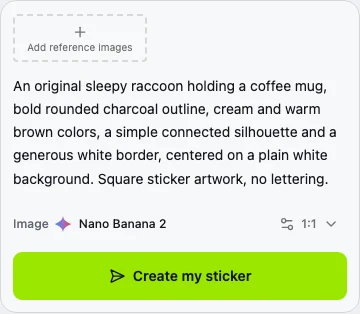
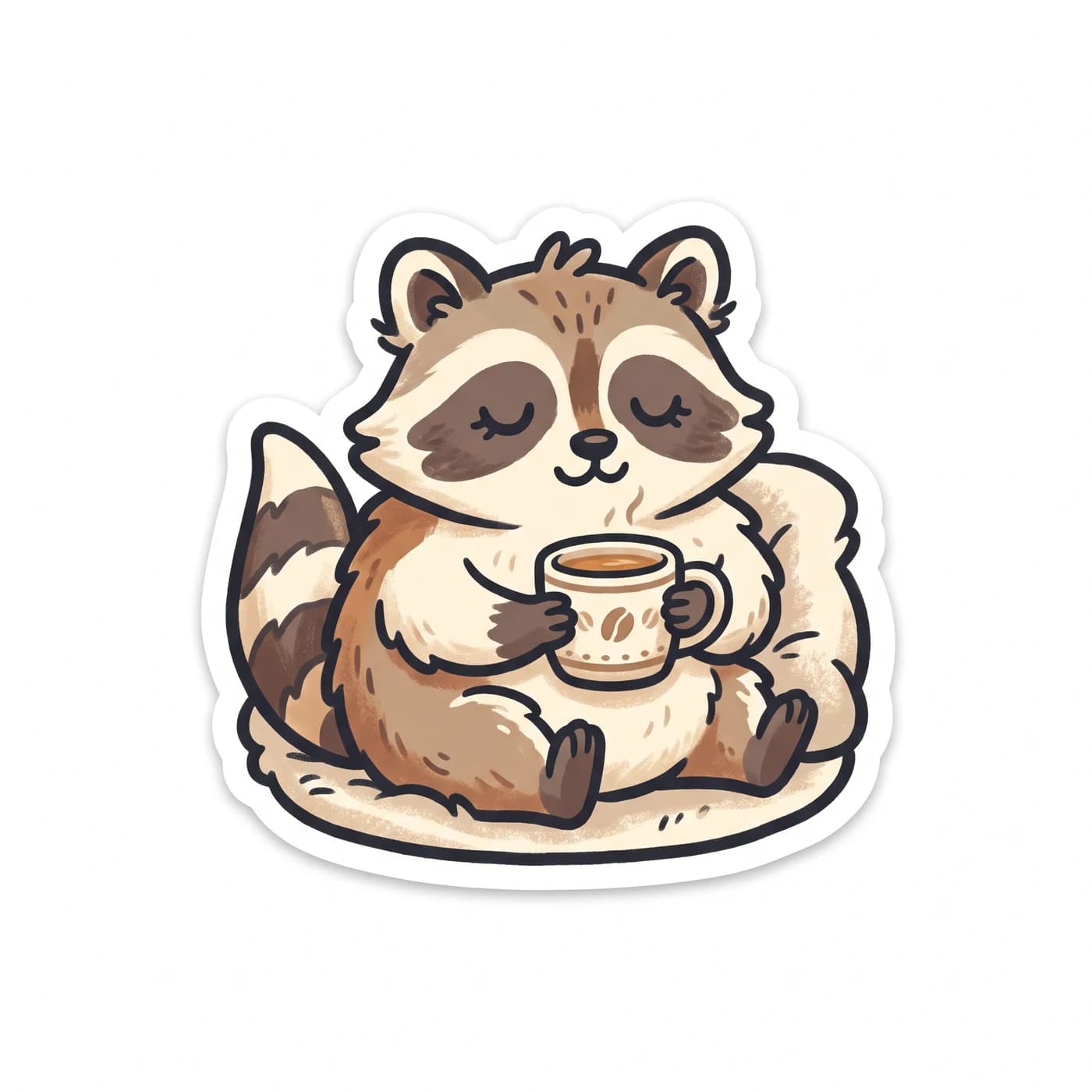
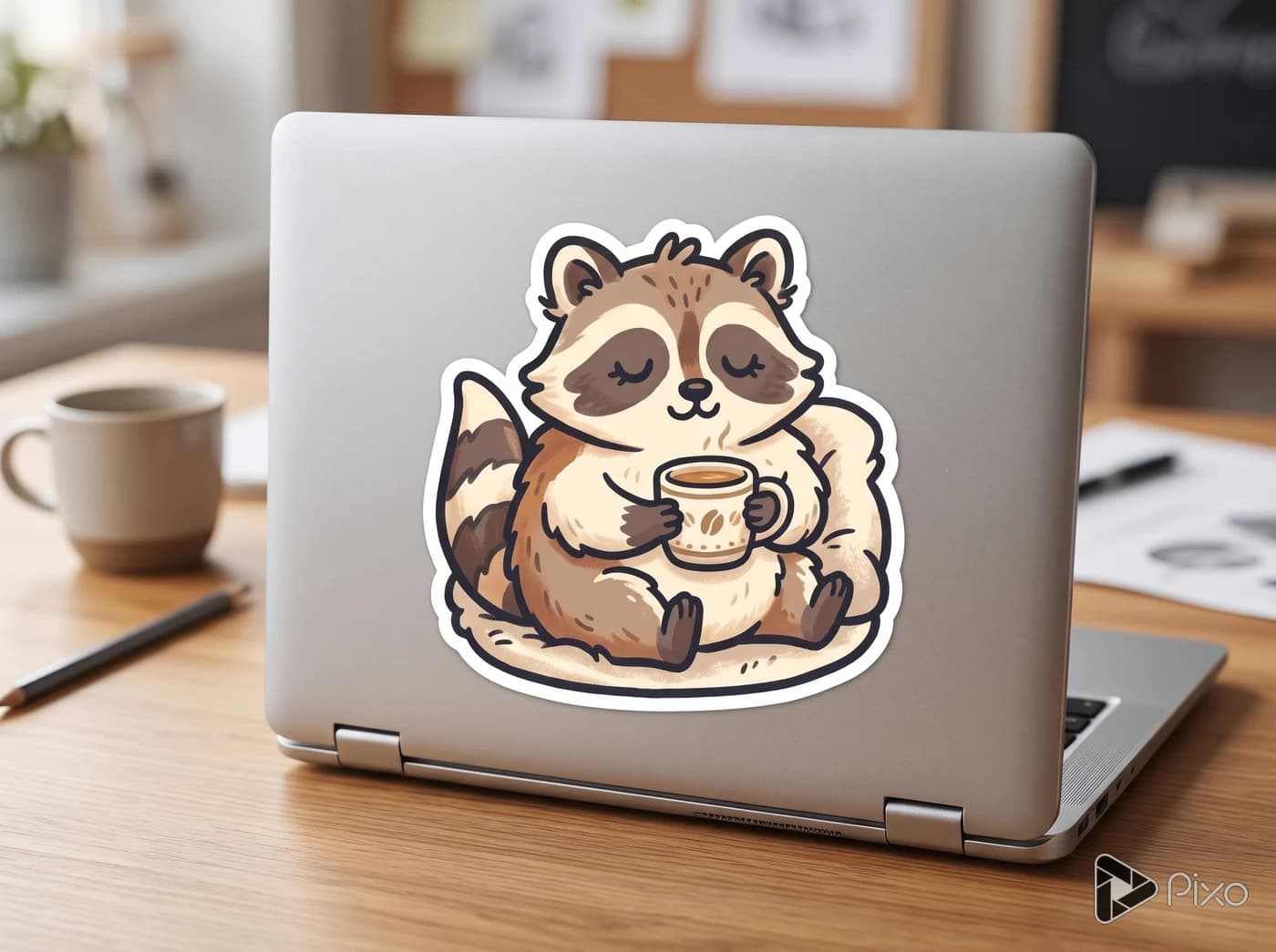
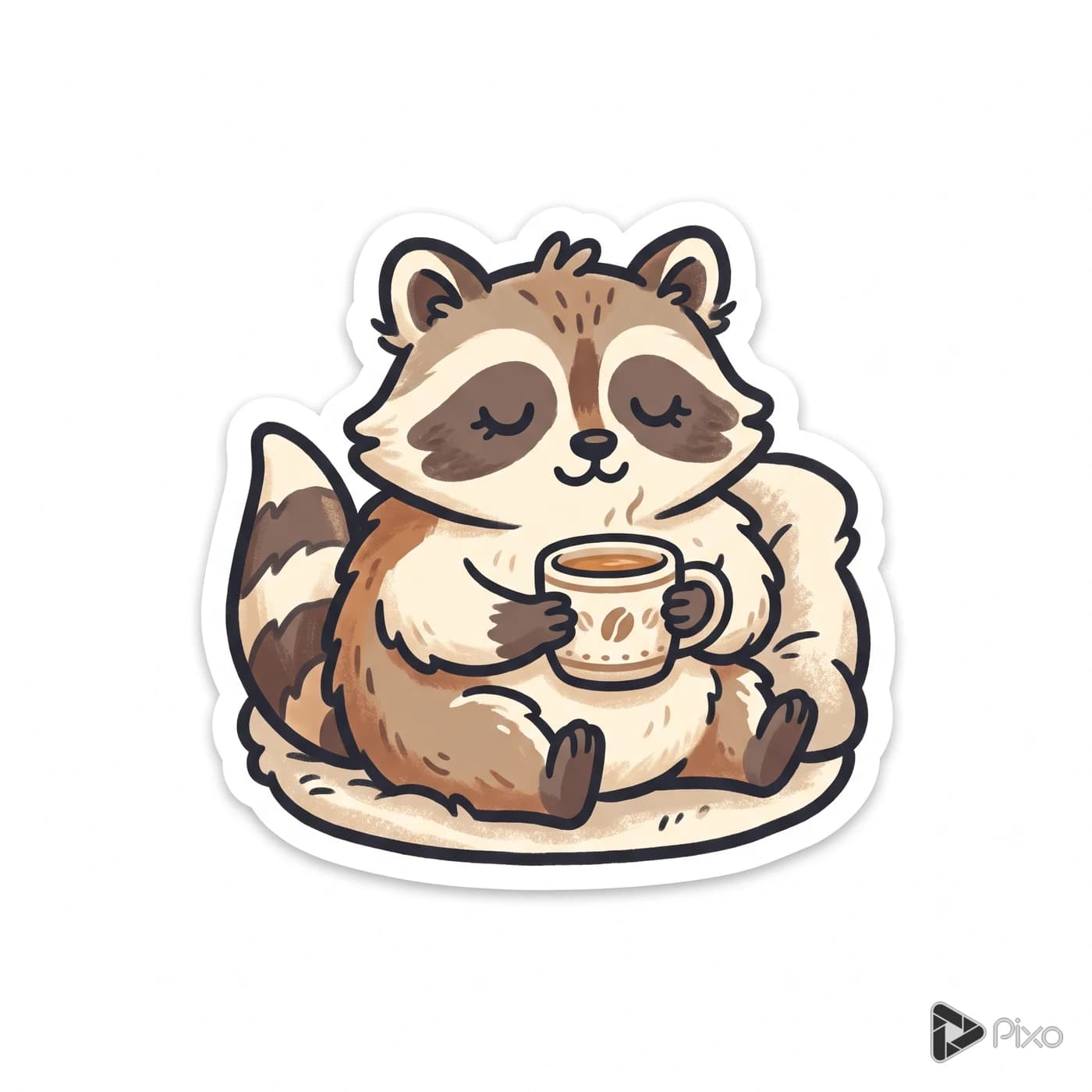
An original sleepy raccoon holding a coffee mug, bold rounded outline, cream and charcoal palette, isolated on a plain white background, sticker artwork.

Another approach

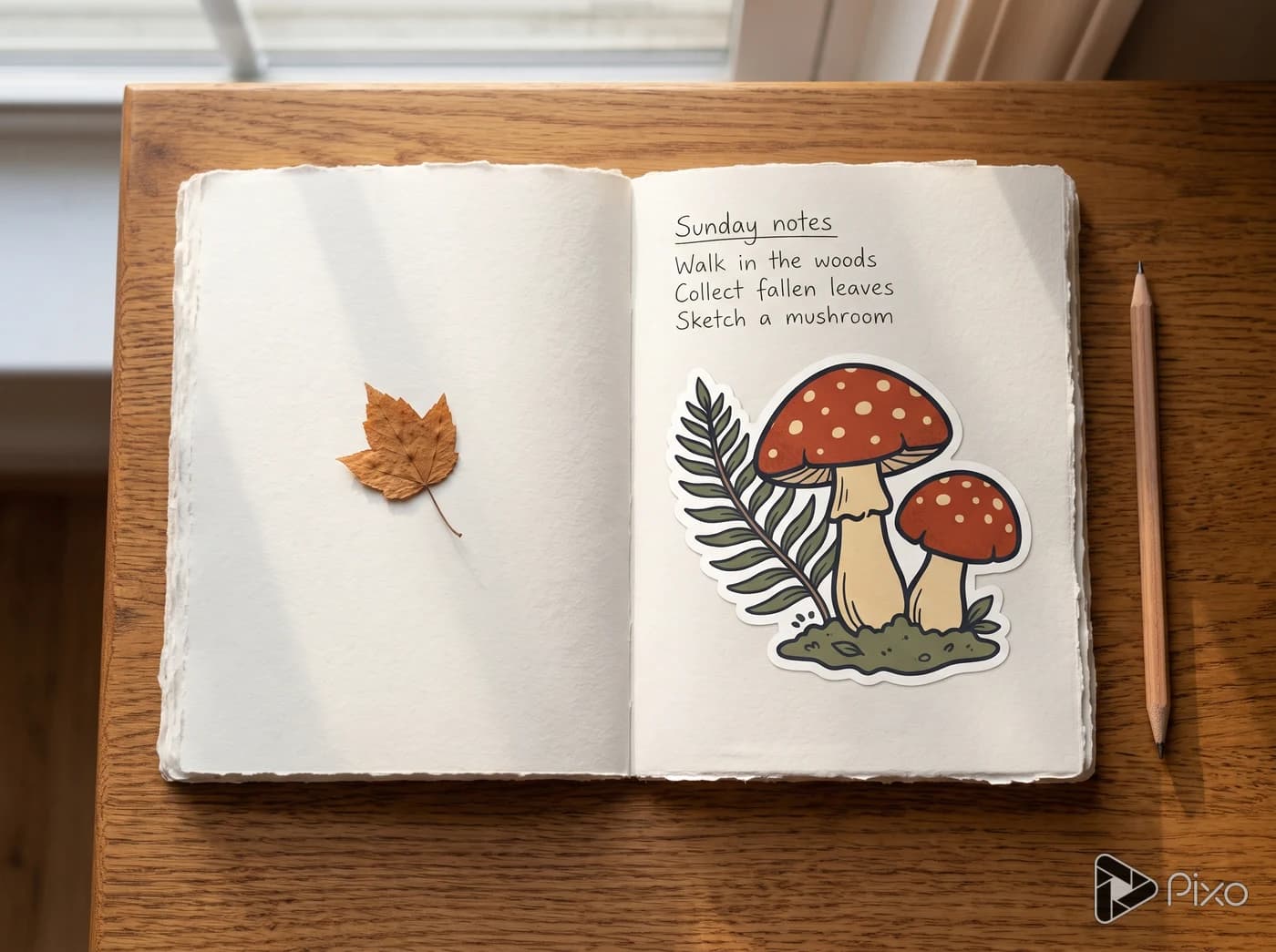
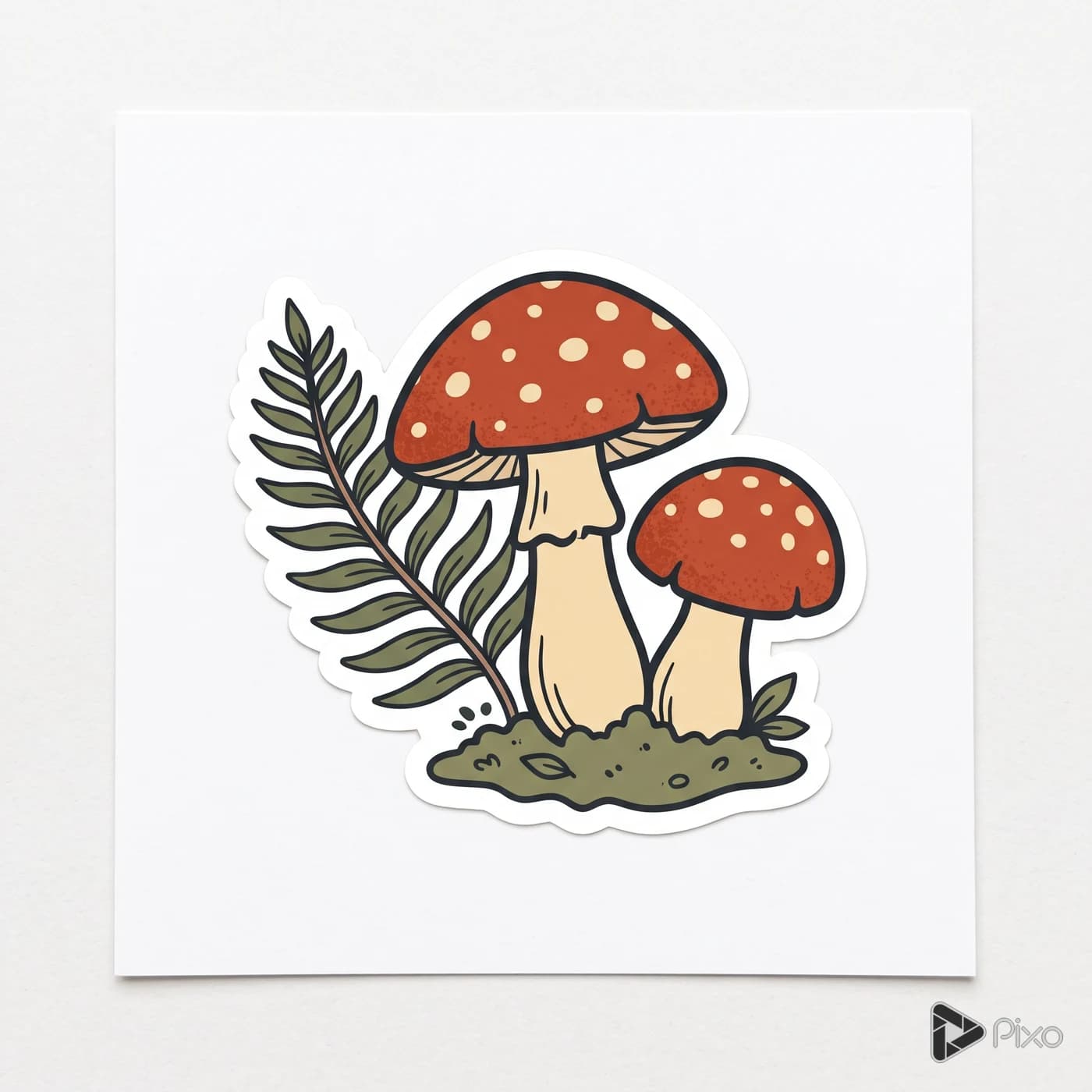
A small collection of three botanical sticker concepts: fern, mushroom, and acorn, matching ink outlines and muted earthy colors, separated clearly.

Finishing the result

A generated sticker concept is not automatically a transparent file or a print-ready cut path.

How to get started with AI Sticker Generator

1

Set the visual direction

Start with the subject, style, and intended placement. Keep the subject recognizable outside its original background.

2

Open the image Playground

Choose Nano Banana 2 in Pixo. Add your prompt and any reference images, then select a supported aspect ratio and resolution.

3

Generate and compare

Check edges and thin details at the final sticker size.

4

Prepare the final artwork

A generated sticker concept is not automatically a transparent file or a print-ready cut path.

AI Sticker Generator: questions and answers

Inputs, creative control, and finishing your project.

Start your next image project

Generation uses credits. Check the selected model’s price and your plan before generating.