Spotify Canvas: How to Make One with AI (Size & Rules)
What Spotify Canvas is, the format rules, and how to generate a looping 9:16 Canvas with AI that matches your song — plus how to upload it to your release.

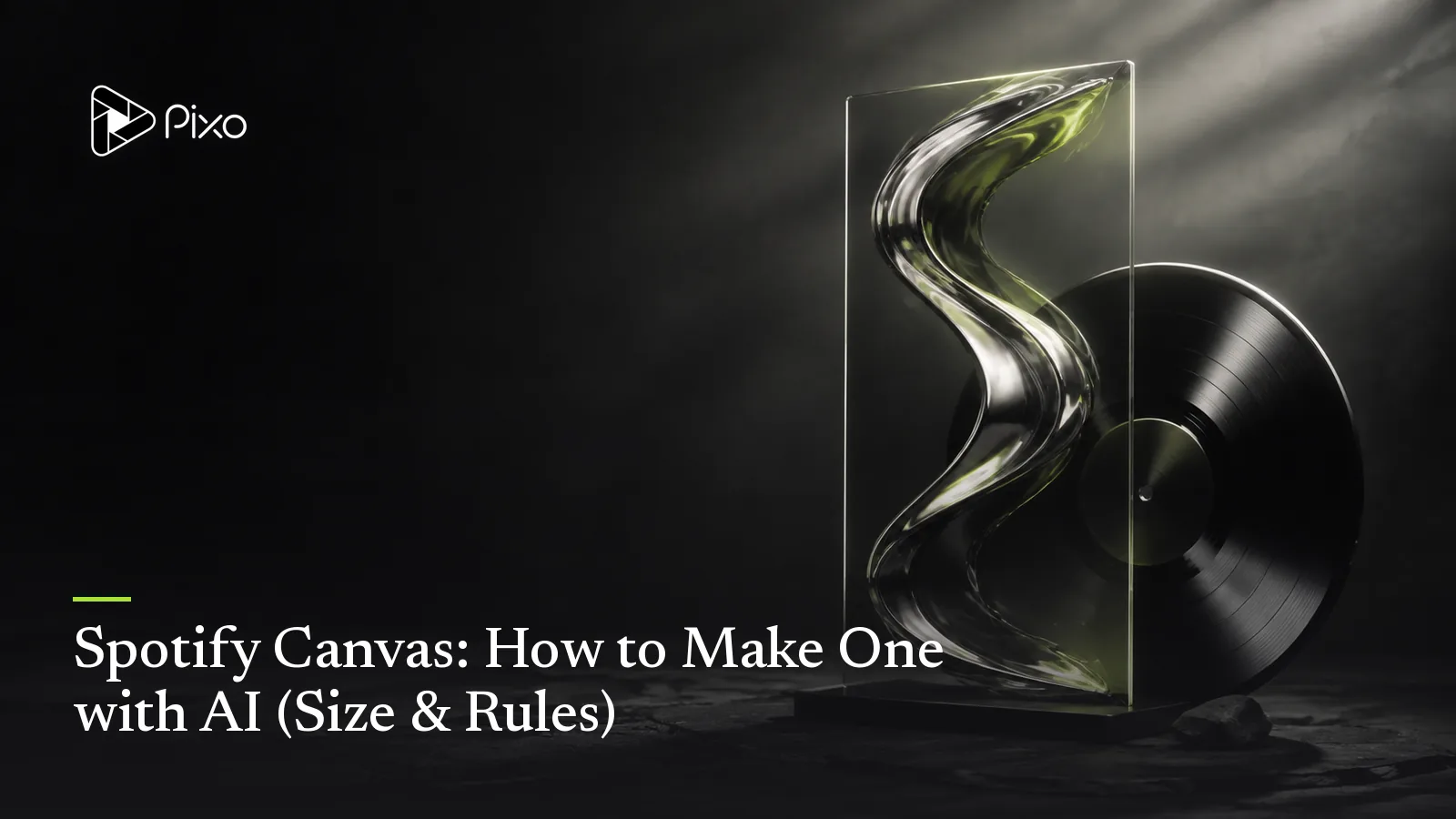
Open Spotify, play almost any major-label single, and watch the cover art: it moves. That looping vertical clip is a Canvas — Spotify's 3–8 second video that takes over the Now Playing screen while your track streams. Use the loop to extend the release’s visual identity while the song plays.
For independent artists, the math has been annoying: it's eight seconds of video, but it still needs to be made — shot, animated or commissioned, per track, times every track on the release. This guide covers the rules, then the AI route that turns a Canvas into a short generation and review workflow.
The Rules First
- Length: 3–8 seconds, looping continuously.
- Format: vertical 9:16, full-bleed in the Now Playing view.
- Where it goes: uploaded per-track via Spotify for Artists; you can swap it any time without touching the audio.
- What works: motion that reads as endless — atmosphere, drift, breathing light. What doesn't: hard narrative actions that visibly "restart" every eight seconds, and text (your title is already on screen).
Spotify’s Canvas guidelines specify 3–8 seconds, 9:16, 720–1080 px tall, and MP4 or JPG. For motion, export MP4 and check duration, dimensions, the loop seam and the phone crop. Avoid rapid flashing and vocal close-ups that cannot stay synchronized with a repeating loop.
Upload and Check
In Spotify for Artists on the web, open Music, select the track and choose Add Canvas. You need an eligible main-artist role and Admin or Editor access. Upload the file, check the preview and verify it in the mobile Now Playing view. Follow the official upload steps and content policy if a file is rejected.
Making One with AI
A Canvas can use a single vertical shot from Pixo. Create a standalone clip or trim a suitable completed MV shot to Spotify’s requirements; a full MV panel must keep its assigned duration during generation. The workflow:
- Give the agent the song, not just a vibe. You can prompt a scene cold, but handing over the track (upload the MP3, or the song you generated in-flow via Suno) lets the visuals take their mood from the actual music.
- Describe one loopable motion. The prompt discipline is the whole craft here — see below.
- Generate at 9:16, review the result, then trim and resize the exported file if required. Requested variants consume credits.
- Export watermark-free and upload through Spotify for Artists.
The loop-friendly prompt pattern: one setting + one continuous motion + no beginning or end.
Slow orbit around a neon-lit motel sign at night, light rain drifting through the glow, moths circling. No cuts, continuous motion, atmospheric.
A vinyl record spinning on a turntable in warm lamplight, dust motes floating, shallow depth of field. Continuous, hypnotic, no camera cuts.
Underwater light rays shifting over a slowly drifting figure, hair and fabric suspended, deep teal palette. Endless drift, no hard movements.
Motions that return near their starting state — orbits, spins, drifts, rain, smoke, breathing light — hide the loop point. Review where frame 1 meets the final frame before you ship it.
The Real Efficiency: Canvas as a By-Product
Decide separately what accompanies the full song on YouTube: the visualizer versus music video comparison helps choose its scope. A short Canvas should not determine the pacing of that longer release.
Reuse can reduce creative setup: if you're already making a music video in Pixo, your style, scenes and artist are locked as reference assets — and the Canvas is one more generation against the same assets. Your Now Playing screen, your MV and your Shorts cutdowns all live in one visual world, from one setup. Releasing an EP? That's one aesthetic definition and a Canvas per track, not five separate commissions.
The same logic runs in reverse for animated album covers and profile visuals: define the world once, generate every format from it.
If the same release also needs a stage backdrop, the concert visuals guide covers the separate playback handoff. Reuse the visual identity, then prepare files for the venue rather than stretching the Canvas export.
Review Before Release
These prompts are starting briefs, not verified sample outputs. Reference images help continuity; they do not guarantee identical faces, exact lettering, choreography or seamless loops. Review the full cut, including vocal close-ups and repeated shots. Ask explicitly for song generation and provide lyrics if using Suno; approve the audio first. Video generation has a separate approval checkpoint. Song and image generation and requested retries can consume credits before that checkpoint. Check current pricing for your settings.
Create AI videos with Pixo
Turn any idea into a publish-worthy video. One sentence is all it takes.
FAQ
What is Spotify Canvas?
Canvas is a short vertical visual loop displayed in Spotify’s mobile Now Playing view in place of static artwork. It is a visual treatment for a track, not a full music video.
What are the Spotify Canvas requirements?
Spotify specifies 3–8 seconds, vertical 9:16, 720–1080 px tall, and an MP4 or JPG file. Use MP4 for motion, preview the loop and crop, and upload through Spotify for Artists with the required artist access.
How do I make a Spotify Canvas with AI?
Describe the scene and mood — or hand over the song itself so the visuals match the track — and generate a vertical clip using image references. Check and, if needed, trim or resize the exported file for the Canvas slot. Generate a few variants and pick the one that loops most naturally.
Should my Canvas loop seamlessly?
The best Canvases read as endless: motion that returns near its starting state — drifting smoke, rain, a slow orbit, a breathing light — loops far better than a hard action with a visible reset. Pick loop-friendly motion in your prompt and review the loop point before uploading.
Can I use the same visuals for my Canvas and my music video?
Yes — that's the efficient path. If you've made an MV in Pixo, the same locked style and character assets can produce the Canvas, so your Now Playing view, your video and your channel all live in one aesthetic.
Eight seconds, one prompt — Pixo generates your Canvas in your song's world. Sign up now. See the current plans and generation costs before starting. Made your song on Suno? Start with the Suno music video guide.
Generate AI summary
From idea to finished video.
In one conversation.
Start CreatingNo credit card required • Free 200 credits