Concert Visuals with AI: Backdrops That Follow Your Set
Generate concert visuals and stage backdrops with AI: looping worlds per song, builds that follow the arrangement, one aesthetic across the whole set. How-to.

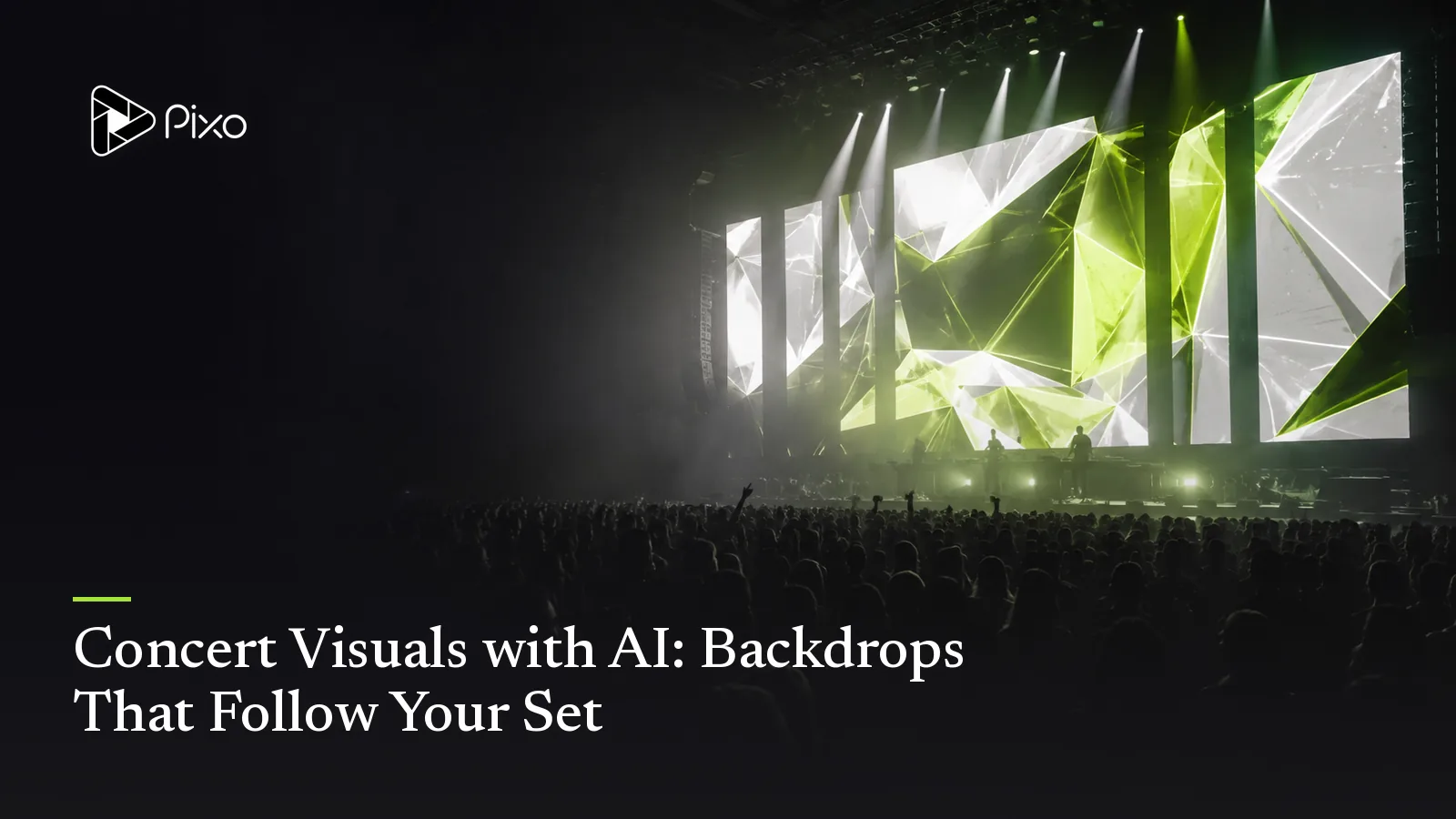
There's a visible line at every festival between the acts with a visuals budget and the acts with a logo on the screen. Stage visuals used to be a specialist craft — VJ packs, motion designers, per-song render farms — priced for tours, not for the Thursday-night set that actually needs the help.
The pipeline that makes music videos makes stage content too, and in some ways it's the easier job: no lip-sync, no narrative continuity, just worlds that hold a mood and move with a song. Here's how to build a set's worth.
Two Kinds of Stage Content
For abstract passages, the trippy video workflow offers a place to develop a repeating visual motif. If the set already has release artwork, the animated album cover guide explains how to scope motion without intentionally redesigning the cover.
The loop. An ambient world edited into a loop — drifting fog, slow city neon, liquid light. Loops are the live standard for a reason: they're immune to tempo drift, extended solos and the singer talking to the crowd for three minutes. Build them like a Spotify Canvas at stage scale: one setting, one continuous motion, no beginning or end.
The sequence. For fixed arrangements (backing-track sets, electronic shows), a structure-following visual hits harder: the system parses the track's sections and builds the energy with it — restrained through the verse, opening wide on the drop, the same grammar as a directed visualizer. When the arrangement is locked, the screen can land the chorus with you.
A practical set can mix both: sequences where timing is fixed, loops where the band needs flexibility.
Pixo produces pre-rendered media. Live cueing, timecode, projection mapping and playback are handled in your stage software. For instrumental tracks, plan scene timing manually rather than relying on lyric chunking. Rehearse the exported files on the actual playback system.
One Tour, One World
The difference between visuals that feel designed and a folder of cool clips is aesthetic consistency — and that's the reference-asset system's home turf. Lock the tour's look once (palette, texture, recurring motif) and generate each song's world against it:
Tour style: analog heat — VHS grain, sodium-orange and teal, slow zooms. Song 1 (opener): empty desert highway at dusk, heat shimmer. Song 2 (up-tempo): neon car wash at night, water and light. Song 3 (ballad): a motel room, curtains breathing, TV static glow. Utility: pre-show loop of the highway at dawn; walk-off loop of taillights receding.
Ten songs later, the show still looks like one show.
Practical Notes for the Stage
- Go darker than looks right on your laptop. LED walls and projectors bloom; visuals with deep blacks and restrained highlights read better behind a lit performer than bright, busy frames.
- Motion slower than the music. The screen supports the act — fast cutting behind a live body reads as chaos. One motion per scene.
- Keep centers calm if you overlay titles or a logo in your playback software.
- Format: Confirm the venue’s pixel map, aspect ratio, codec and frame rate; 16:9 is only a starting point; export watermark-free and test the files in your chosen playback/VJ software. For unusual wall dimensions, generate wide and crop in your playback tool.
- Make the utility pieces — pre-show, intermission, walk-off — in the same world. They're the difference between a set with visuals and a designed show.
Review Before Release
These prompts are starting briefs, not verified sample outputs. Reference images help continuity; they do not guarantee identical faces, exact lettering, choreography or seamless loops. Review the full cut, including vocal close-ups and repeated shots. Ask explicitly for song generation and provide lyrics if using Suno; approve the audio first. Video generation has a separate approval checkpoint. Song and image generation and requested retries can consume credits before that checkpoint. Check current pricing for your settings.
Make a Playback Handoff
Give the operator one file per cue, named in set-list order. Include a cue sheet with the trigger, whether the file loops, its intended screen and the fallback if playback stops. Test the start, loop seam and exit on the venue system, and rehearse a held chorus or extended outro before show day.
Create AI videos with Pixo
Turn any idea into a publish-worthy video. One sentence is all it takes.
Playback and accessibility preparation
For a music release, distinguish the composition from the recording using the U.S. Copyright Office's musician guidance. For manual finishing, Blackmagic's Resolve training materials cover editing, color and audio workflows. Plan captions and any needed descriptions using the W3C's audio and video accessibility guidance.
FAQ
What are concert visuals?
The video content behind a live performance — LED-wall backdrops, projection loops and song-specific sequences that set each track's world. They range from ambient loops to fully directed visuals that build with the arrangement.
How do I make concert visuals with AI?
Per song: hand Pixo the track (or describe its mood), define the world in a sentence, and generate either a loopable ambient backdrop or a structure-following sequence whose energy rises with the arrangement. Confirm the venue’s pixel map, aspect ratio, codec and frame rate before exporting. For instrumental loops, use standalone scene generation and loop editing; automatic MV chunking requires sung lyrics.
Should stage visuals loop or follow the song?
Both have jobs. Loops are forgiving — tempo drifts and extended outros can't break them — which is why they're the live standard. Structure-following sequences hit harder on fixed-arrangement sets or backing-track shows where timing is locked.
How do I keep visuals consistent across a whole set?
Lock the tour's style once as a reference — palette, texture, world — and generate every song's visual against it. Each track gets its own scene inside one recognizable aesthetic, which is what makes a show feel designed rather than assembled.
What about text and blank moments?
Generate a few utility pieces in the same aesthetic: a pre-show ambient loop, an intermission texture, and a slow 'walk-off' piece. Keep frame centers calm if you'll overlay song titles or the artist name in your playback software.
Give the Thursday set a festival screen — Pixo generates a set's worth of worlds in one aesthetic. Sign up now. See the current plans and generation costs before starting.
Generate AI summary
From idea to finished video.
In one conversation.
Start CreatingNo credit card required • Free 200 credits