Audio Visualizer, Rethought: AI Visuals That Follow the Song
Beyond waveform circles: how an AI audio visualizer turns any track into scene-based visuals that follow the song's structure. Workflow and prompts inside.

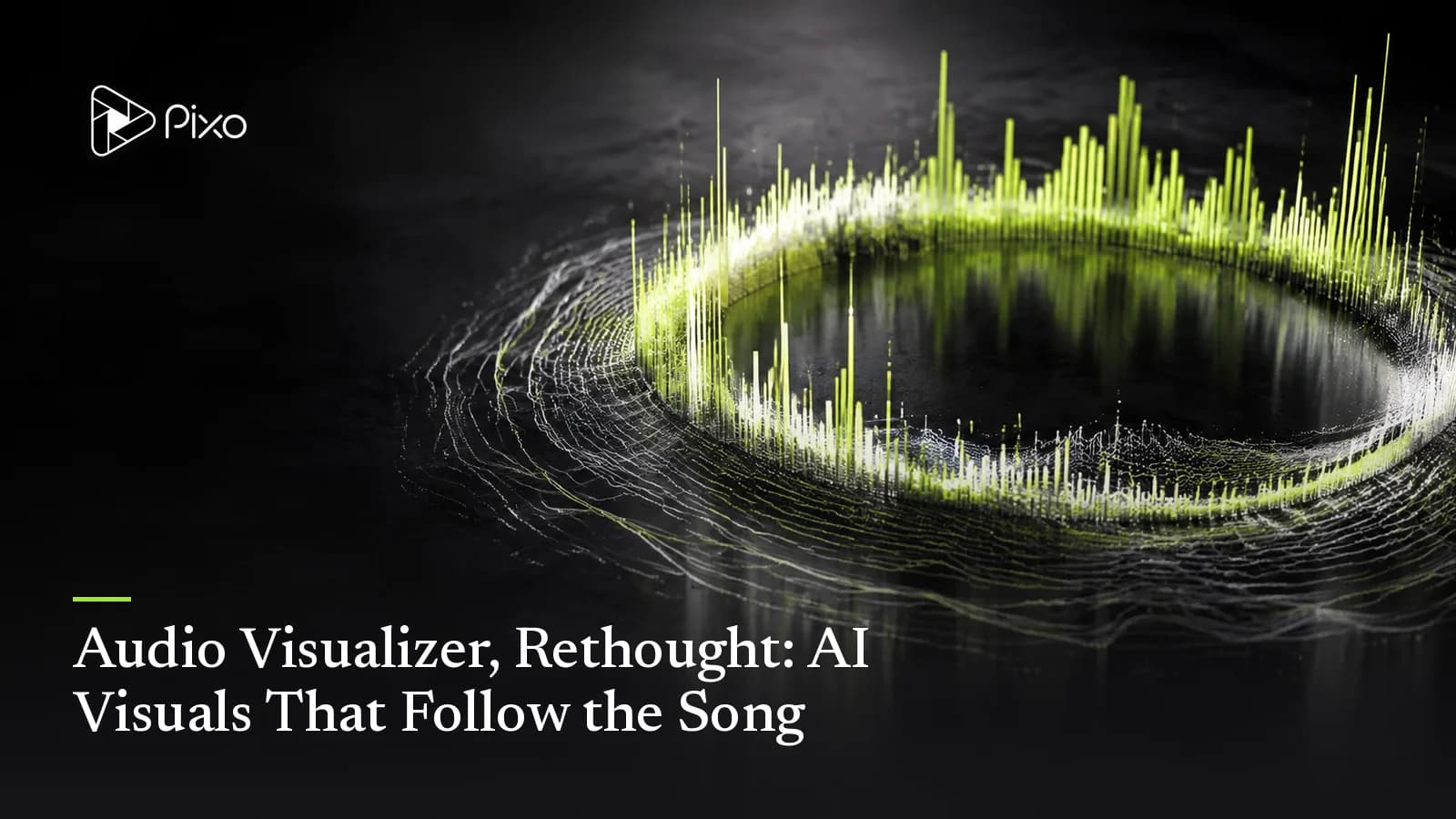
Every music channel on YouTube knows the visualizer drill: drop the track into a template, pick a waveform circle or some particles, export. It works — technically. But scroll any lo-fi or electronic channel and you'll see the ceiling: after the tenth pulsing circle, the visuals stop meaning anything. The track builds, the circle pulses harder. The drop hits, the circle pulses harder still. The visualizer reacts to the music; it never follows it.
That's the distinction this guide is about. An AI audio visualizer — the way Pixo's MV Director builds one — doesn't render your waveform. It reads the track's structure and generates actual scenes for each section: a video that travels somewhere, cut to your music. Here's how it works and when each kind of visualizer is the right call.
Reactive vs. Directed: Two Kinds of Visualizer
The classic visualizer (waveform, spectrum bars, particle fields) maps amplitude to motion in real time. Its strengths are real: instant, cheap, infinitely long. Its weakness is that it carries no narrative — minute one and minute four look the same, which may not suit a release that needs visual development.
The directed visualizer treats the track like a script:
- Structure parsing. MV Director parses the track's structure and timestamps and slices it into segments — one shot per segment. You can create visual scenes for an instrumental and arrange them against a manual section map. The current MV Director lyric-chunking workflow requires sung lyrics; it does not automatically analyze every instrumental or draw real-time spectrum bars.
- A locked world. Visual style, scenes and any recurring element are created as fixed reference assets first, so shot 2 and shot 20 belong to the same aesthetic — your album's world, not a template's.
- Camera that follows energy. Quiet passages get slow, wide, atmospheric shots; builds tighten the framing and quicken the cutting; the drop opens into the most kinetic move in the piece. That's the grammar a human editor applies by hand, planned automatically.
- One assembled timeline. Generated shots land in sequence, aligned to the audio — a finished video, not a folder of clips. If a performer is visible, review mouth timing against the vocal; audio alignment does not guarantee perfect lip-sync.
For instrumentals, generate scenes separately from your visual brief and arrange them in an editor against your section map. The steps below describe the vocal-track MV workflow.
If you are still choosing a release format, compare the creative scope of a visualizer and a music video before planning the shots.
How to Make One
- Bring the track — upload an MP3, or generate the song right in the chat via Suno (explicitly request music generation, provide lyrics and a style brief, then approve the track).
- Describe the world — "slow-motion neon city in the rain," "ink-wash mountains drifting," "abstract liquid chrome." One sentence sets the reference assets.
- Approve the storyboard — the agent reports the shot count and plan before generating; video generation waits for your approval; earlier song and image generations can consume credits.
- Generate and export — shots render, auto-align to the track, and assemble on one timeline. 16:9 for YouTube, 9:16 for Shorts, watermark-free.
Three Starter Directions
For a performance-led contrast to an abstract loop, the rap music video guide shows how artist coverage can carry the vocal. Pick that direction only when the performer adds something the visualizer does not.
Lo-fi / ambient (the streaming-channel classic):
A rainy-window study room at dusk, warm lamp, a cat sleeping by the radiator. Slow push-ins and gentle rack focus; steam from a mug curls in the light. Calm loops through the verses, slightly livelier cutting when the beat doubles.
Electronic / phonk (energy-mapped):
Night drift through an empty city — sodium light, wet asphalt, long lens. Builds tighten to close-ups of reflections and motion blur; on each drop, cut wide to full-speed motion. High contrast, minimal palette.
Organic / cinematic (for acoustic and score work):
Coastal cliffs in fog, tide pulling back in slow motion. Wide, patient framing; one slow camera move per section; light shifts from grey to gold as the piece resolves.
Where the Classic Visualizer Still Wins
Honesty clause: for a 2-hour stream or an infinite radio loop, a reactive visualizer is still the right tool — generated video has a length, a loop doesn't. The directed approach wins for releases: a single, an EP track, a beat you're showcasing — anything where the visual is part of the work, three to five minutes long, and retention matters. Many channels run both: reactive for streams, directed for drops.
Review Before Release
These prompts are starting briefs, not verified sample outputs. Reference images help continuity; they do not guarantee identical faces, exact lettering, choreography or seamless loops. Review the full cut, including vocal close-ups and repeated shots. Ask explicitly for song generation and provide lyrics if using Suno; approve the audio first. Video generation has a separate approval checkpoint. Song and image generation and requested retries can consume credits before that checkpoint. Check current pricing for your settings.
Build a Manual Map for an Instrumental
Listen once for section changes and record their timestamps. For each section, write one environment, one camera movement and an energy level. Generate standalone scenes, place them against the full song in an editor, then adjust their boundaries by listening. This is an editing workflow outside automatic MV lyric chunking; use a reactive visualizer if you need live frequency or amplitude graphics.
To choose a starting cut rhythm, check the track's BPM and compare the estimate with the pulse you hear. Try holding a shot for several beats, then adjust around the musical phrase; a tempo estimate alone does not locate a build or drop.
For a stage-screen version, use the concert visuals guide to plan loops and a visual sequence around the live set.

Create AI videos with Pixo
Turn any idea into a publish-worthy video. One sentence is all it takes.
Soundtrack and release checks
If the soundtrack comes from Suno, check its paid-plan commercial-use guidance against the terms that apply to your track. For a music release, distinguish the composition from the recording using the U.S. Copyright Office's musician guidance. For a YouTube delivery, compare the export with YouTube's encoding recommendations.
FAQ
What is an audio visualizer?
A visual layer that moves with a piece of music — traditionally a waveform, spectrum bars or particle loop reacting to amplitude. The newer, AI-driven kind generates actual scenes that follow the song's structure: different visuals for the build, the drop and the outro, instead of one pattern reacting to loudness.
How is an AI music visualizer different from a classic one?
A classic visualizer reacts — the same circle pulses harder when the track gets louder. An AI visualizer directs: Pixo's MV Director parses the track's structure and timestamps, slices it into segments, and generates a distinct shot for each, with camera energy matched to each section. The result reads as a video, not a screensaver.
Does it work for instrumental tracks?
You can create visual scenes for an instrumental and arrange them against a manual section map. The current MV Director lyric-chunking workflow requires sung lyrics; it does not automatically analyze every instrumental or draw real-time spectrum bars.
Can I make the visualizer match my album's aesthetic?
Yes. Visual style, scenes and any recurring character are created as fixed reference assets before generation, so every shot anchors to the same look — feed it your cover art direction and the whole visualizer lives in that world.
What formats can I export?
Choose the aspect ratio at the prompt — 16:9 for YouTube, 9:16 for Shorts and Reels — and export watermark-free.
Give your next release a visual that goes somewhere — Pixo's MV Director takes it from track to timeline. Sign up now. See the current plans and generation costs before starting. Making a full narrative video instead? Start with the AI music video guide; songs made on Suno get their own walkthrough in the Suno music video guide.
Generate AI summary
From idea to finished video.
In one conversation.
Start CreatingNo credit card required • Free 200 credits