Seedance 2.5 Green-Screen Editing: Film-Grade Keying from a Prompt
How Seedance 2.5 composites green-screen footage into new scenes — the prompt grammar, a zombie-invasion worked example with before/after video, and the failure modes to write around.

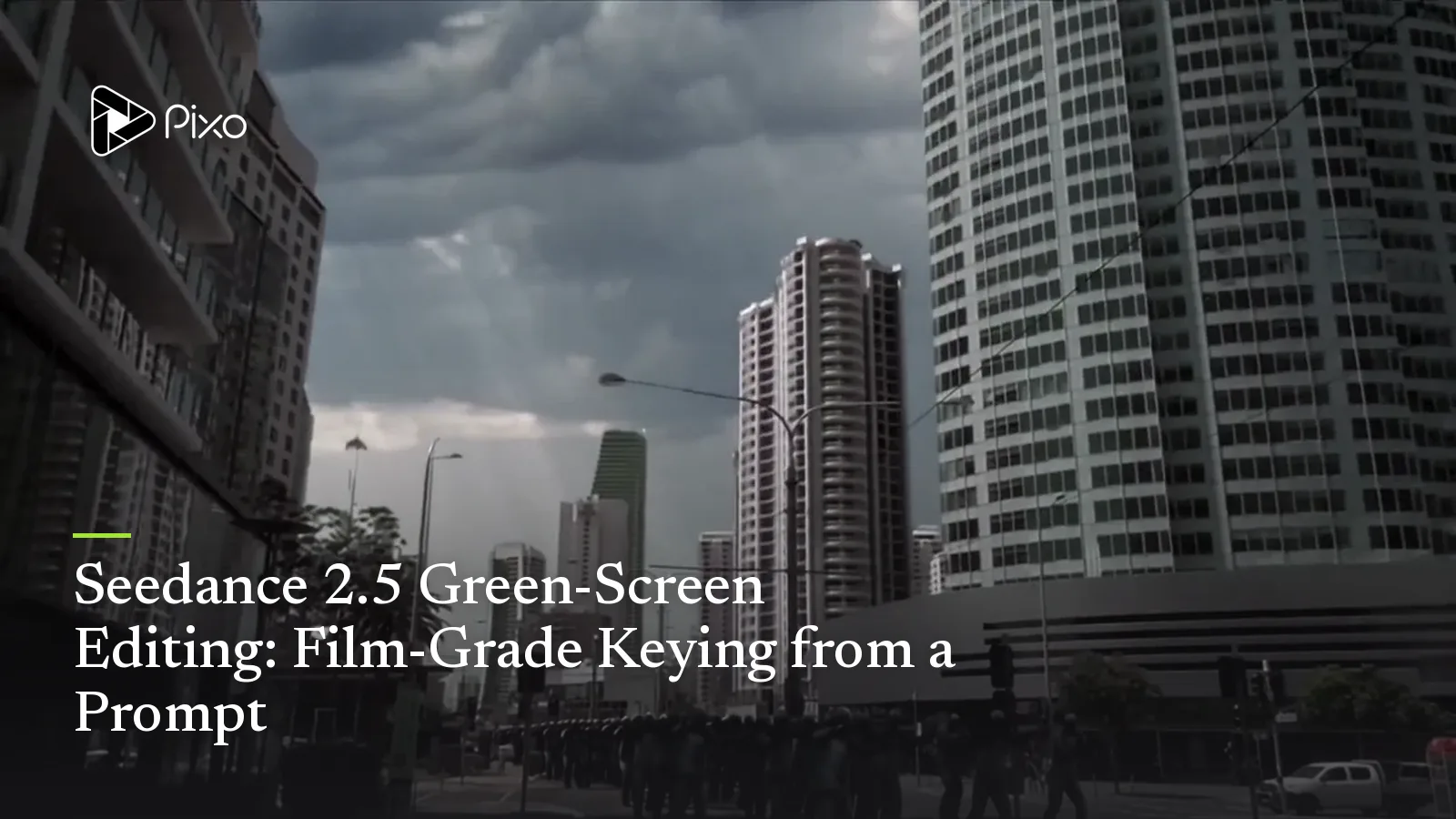
Keying used to be the tax you paid for ambition: shoot on green, then spend the edit pulling mattes and fighting spill. Seedance 2.5 folds that into the prompt. Its editing stack does high-precision foreground segmentation — clean silhouettes, no ghosting — and, more importantly, keeps the subject stable against a moving background: perspective and motion tracks hold frame to frame instead of flickering. That's the difference between "pasted on" and "filmed there".
This is part of our Seedance 2.5 series — the prompt guide covers the general editing grammar; this post goes deep on one capability. Everything runs in Pixo's Playground with Seedance 2.5, up to 30 seconds at 720p.
The prompt grammar
Green-screen work in Seedance 2.5 is reference-driven editing. The skeleton:
Composite [@video X — the green-screen subject] into [@video Y / @image Z —
the target scene], [when and where it appears, tied to a camera move]
+ [the light and mood the merged shot must share]
+ [guards: no green color cast, keep the original camera language]
Three habits make it work:
- Give every upload a job. "@video 1 is the city street, @video 2 is the zombies on green" — the same reference-declaration habit as every Seedance prompt, and worth repeating mid-prompt at the moment each asset fires.
- Tie the insert to a camera move. A composite that appears "when the camera tilts down to street level" inherits the shot's motion logic; one that just "is there" looks stamped on.
- Describe the shared light. The model fuses subject and scene best when you tell it what the merged world looks like — "overcast with a few shafts of sun through the clouds, a hazy pall on the pavement".
Worked example: a zombie horde walks into the shot
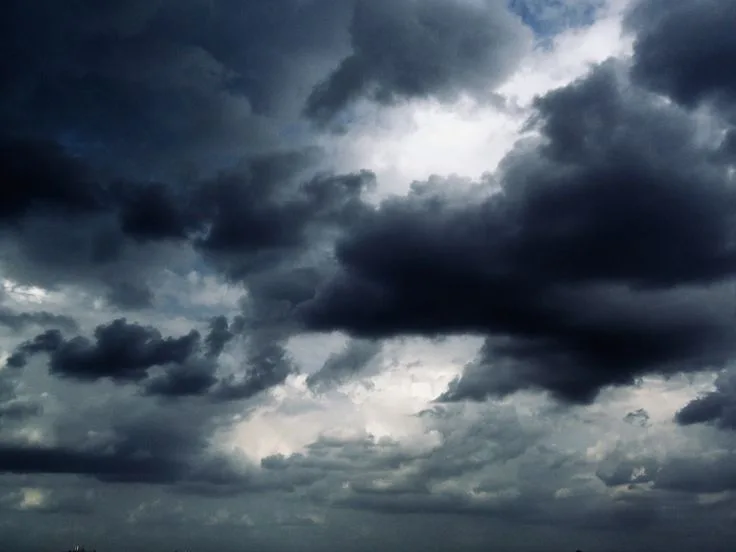
From the official guide's test set — a green-screen crowd of zombies composited into a stormy city street, with a weather plate layered in at the same time:
Composite the weather from @image 1 into @video 1 with natural angle changes.
As the camera tilts down to the city street, composite @video 2's zombies
onto the road, passing right through the shot. The weather is half-overcast:
a little sunlight breaks through the dark clouds and lays a hazy layer on
the ground, giving the scene an eerie, absurd unreality.
The references — note the city clip's sky is itself green screen, so the weather image replaces it while the zombies key onto the street:
@video 1 — city, green-screen sky
@video 2 — zombie horde (green screen)
Composited result
Notice what the prompt did not have to say: nothing about mattes, edges or spill. The work went into the fusion — the camera move that reveals the horde, and the weather that all three layers share.
Create AI videos with Pixo
Turn any idea into a publish-worthy video. One sentence is all it takes.
Worked example: two green-screen layers at once
The guide's other test is the multi-layer version of the same idea — a missile clip and a green-screen explosion composited into one scene, each with a named moment:
Composite @video 1 and @video 2 into @video 3. As the camera pushes in,
@video 1's missile streaks across the sky and explodes ahead; the explosion
triggers @video 2's chain reaction, black smoke spreading.
All three references, in upload order:
@video 1 — missile strike (green screen)
@video 2 — chain explosion, black smoke (green screen)
@video 3 — the target scene
And the composite:
Composited result
Same grammar, more layers — the explosion isn't just keyed in, it's causally chained: the missile's impact triggers it, and the smoke it produces belongs to the scene's wind. The official notes on this one are honest: the blend is nearly invisible, though where the model had to extend the reference scene beyond its edges, the invented surroundings matched less well — which is exactly the first failure mode below.
The reverse trick: footage → green screen
The direction flips too. From the guide:
For seconds 0–5 — the whole video — turn the white background into a green
screen. Remove the sound, keep it silent.
That turns any generated (or uploaded) clip into keyable stock for a traditional pipeline — useful when the final composite happens in your NLE, not in the model.
Failure modes, and the lines that prevent them
The official guide publishes its misses alongside its hits, and both are instructive:
| Failure | What it looks like | The preventive line |
|---|---|---|
| Scene-extension mismatch | The subject keys in cleanly, but the model invents surroundings that don't match the reference scene | Describe the full target environment yourself — don't leave the edges of the world to the model |
| Residual green tint | The composite lands but the frame keeps a green cast | Add "no green color cast on the subject or the scene" and re-run |
General editing hygiene applies on top: scope words ("for the whole video, keep it consistent") and timestamp targeting — both covered in the edit-grammar section of the prompt guide.
Where this pays off
- Fantasy and sci-fi on a budget — perform the magic in front of green, let the model build the cosmos: spell-casting, monster dodges, spaceship cockpits.
- Virtual studios and talking heads — swap the backdrop per topic: broadcast desk, warm study, data wall.
- Crossover shorts — drop a modern presenter into a palace drama, a painting, an anime world; the perspective-stable compositing is what sells the gag.
Reference sweet spots from the guide apply here too: source videos under 20 seconds and 1–5 reference images per edit behave best — the full ranges are on the Seedance 2.5 page. And if your pipeline leans previz rather than keying, the companion piece on white-model blockout rendering covers the other half of the VFX workflow.
Try it on your own footage
Upload a green-screen clip — or generate one with the reverse trick — describe the world it belongs in, and let the model do the matte work.
Run this on Pixo
- Sign up at pixo.video — new accounts start with 200 free credits.
- Open the Playground and pick Seedance 2.5 as the model.
- Upload your green-screen clip (and scene references), paste a compositing prompt from this post, and generate — up to 30 seconds at 720p.
Generate AI summary
From idea to finished video.
In one conversation.
Start CreatingNo credit card required • Free 200 credits