How to Make E-commerce Product Videos with MiniMax H3
Turn product photos into e-commerce videos with MiniMax H3 on Pixo: lock your SKU across scenes, native audio included. Step-by-step guide with prompts.

Every e-commerce team hits the same wall: product pages with video convert better, ad platforms reward video creative, and yet a proper product shoot costs four figures per SKU — then next season's catalog makes it obsolete. Multiply by fifty SKUs and "we should have video" quietly becomes "we have photos."
The reason AI video hasn't fixed this until now is drift. Describe your product in words and every generation invents a slightly different one — the logo warps, the material changes, the shape is almost right. For lifestyle b-roll that's tolerable. For a product you're selling, it's disqualifying.
MiniMax H3, the omni-modal model MiniMax shipped on July 31, takes a different route: it reads your actual product photos as references and locks the SKU while generating the scene around it. We run Pixo, a multi-model video platform where H3 is live in the Playground, and this is the workflow we'd hand any store owner with a folder of product photos and no video budget.
Why H3 Is Built for Product Video
The product is anchored to your photos, not to a description. H3 accepts up to 12 reference files in one prompt — 9 images, 3 video clips, 3 audio tracks — and treats them as one brief. Upload your packshot and a detail shot, tag their jobs, and the generated scene carries your product: same shape, same material, same logo placement. The official manual demonstrates exactly this — one product shown across three environments with the shape, material and logo holding in every frame — and its showcase examples (a Herman Miller chair rotating through a feature tour, a sunglasses spot locked to the frame's details) are product videos, which tells you what the model was tuned for.
Sound ships with the picture. Every H3 output includes native stereo audio generated in the same pass — ambience, product sounds, a voiceover if you write one. A first-cut product video that doesn't need a music library or a dubbing tool is a real workflow difference, not a spec-sheet line.
One concept, every placement. On Pixo you pick the frame at the prompt — 9:16 for Reels and TikTok, 1:1 for feed, 3:4 for marketplace listings, 16:9 for YouTube and your site hero — at 768p or 2K. Each format is generated natively, recomposed for that frame. That matters because cropping a 16:9 master into 9:16 is how products get cut out of their own ads.
It's fast enough to A/B. Clips run 4–15 seconds — which is the length that actually gets watched on product pages and paid placements — and each is a single generation. Testing "marble countertop vs. beach light" is two runs, not two shoot days.
The Workflow: Photos to Product Video in Five Steps
- Pick 2–3 photos per SKU. One clean packshot, one angle or detail shot, optionally a texture close-up. Each file can be up to 30MB — use your real listing photography, not thumbnails.
- Open the Playground and select MiniMax H3. Video → MiniMax H3 in Pixo's Playground. Upload the photos; they're numbered in upload order — Image 1, Image 2 — and that's how you'll reference them.
- Write the prompt in three parts. Reference notes first ("Image 1 locks the product's shape, material and logo"), then the core idea (what scene, what mood), then what the camera sees, in order. Concrete beats poetic: "steam rises, camera pushes in slowly" will outperform "an evocative morning."
- Pick format and resolution. Choose the aspect ratio for the placement you're feeding — one generation per format — and 768p for drafts or 2K for the final.
- Generate, re-roll, export. Review the shot, tweak the prompt where it misses, and export watermark-free.

Create AI videos with Pixo
Turn any idea into a publish-worthy video. One sentence is all it takes.
Three Copy-Paste Prompts
Swap in your own product for the bracketed parts; keep the structure.
1. Clean studio packshot (16:9 or 1:1, site hero / listing)
The showcase's reference files

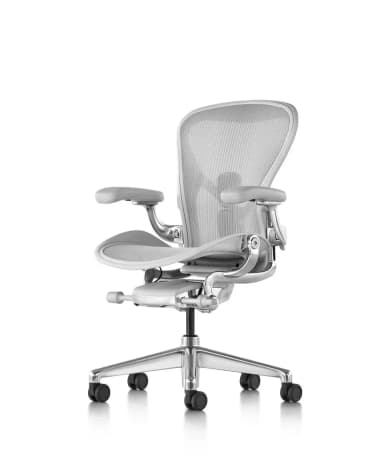
A manual showcase in the same register
Image 1 locks the product's exact shape, material and logo: [a matte-black wireless earbuds case].
A premium studio product video. The case sits on a light marble surface against a soft grey
backdrop. Soft key light from the left, gentle reflection on the marble. The camera orbits
slowly around the product, 180 degrees. At the midpoint, the lid opens smoothly to reveal the
earbuds seated inside. Calm, minimal ambience; a soft click as the lid opens.
Non-narrative music: N/A.
Why it works: one locked reference, one surface, one camera move, one product action. The "non-narrative music: N/A" line keeps the track clean so you can add brand music in post — or delete that line and let H3 score it.
2. Lifestyle scene (9:16, Reels / TikTok / Shorts)
A manual showcase in the same register
Image 1 locks the product: [an amber glass skincare dropper bottle, label exactly as shown].
Vertical lifestyle video. A sunlit bathroom shelf in the morning, out-of-focus green plants
behind. A woman's hand enters frame, lifts the bottle, and turns it slowly so the label faces
the camera. Warm window light, shallow depth of field, water droplets on the glass shelf.
Quiet morning ambience. A calm female voice says: "Two drops. That's the whole routine."
Why it works: the hand gives scale and life without needing a locked face, the turn-to-camera beat guarantees a legible label frame for the thumbnail, and the spoken line is written out verbatim — H3 generates the voice with the picture, lip-sync-free since the speaker is off-screen.
3. Same SKU, three-scene cutdown (16:9, ad creative)
The showcase's reference files
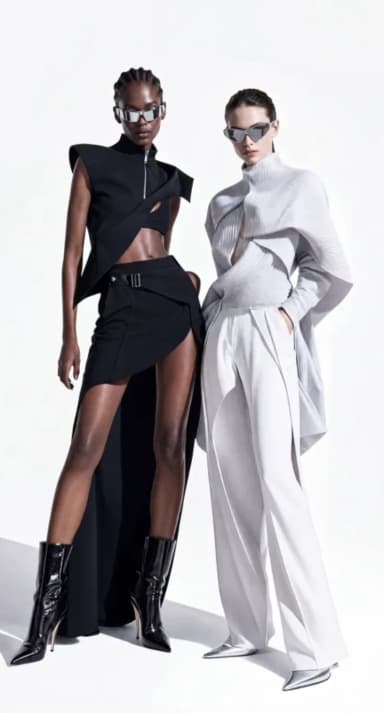
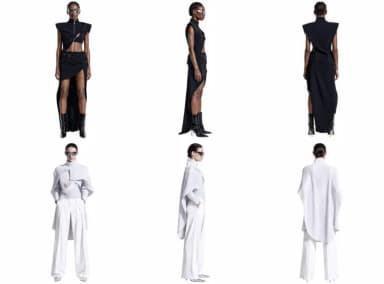
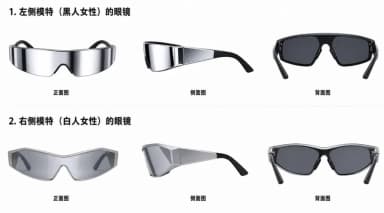
A manual showcase in the same register
Image 1 locks the product's shape, material and logo: [a stainless-steel insulated tumbler].
A three-scene product spot with clean hard cuts. Scene 1: the tumbler on a gym bench, morning
light, a towel beside it. Scene 2: the same tumbler on a car cupholder, city bokeh moving past
the window. Scene 3: the same tumbler on an office desk beside a laptop, late-afternoon light.
The product's shape, material and logo stay identical in every scene. Steady tripod framing,
product centered. Ambient sound follows each location. Non-narrative music: N/A.
Why it works: this is the manual's zero-drift demonstration turned into ad creative — three contexts, one identity. Say "stay identical in every scene" explicitly; restating the lock in the action text is cheap insurance.
Product Video vs. UGC Ad — Which Guide Do You Need?
This guide covers product-led video: the SKU is the hero, the look is polished, the destination is your listing, site or a clean paid placement. If you want the deliberately rough, phone-shot, creator-style format for performance ads, that's a different playbook — see making UGC ads with Pixo. And if you need a full cinematic spot with a spokesperson and a narrative arc across multiple shots, the storyboard pipeline in our AI commercial guide is built for exactly that.
FAQ
Is there an AI that makes product videos from photos?
Yes. MiniMax H3 generates 4–15 second product videos from your existing product photos. Upload up to 9 images as references — packshots, detail shots, lifestyle photos — and H3 locks the product's shape, material and logo across the generated scene, with sound generated in the same pass. It's live in Pixo's Playground.
How many product photos do I need?
Two or three good ones are enough for most SKUs: one clean packshot, one angle or detail shot, and optionally a texture close-up. Each reference can be up to 30MB. Number them in your prompt — Image 1 locks the product, Image 2 shows the detail — so the model knows each file's job.
Will the product look identical in every scene?
That's the point of reference-locked generation. Because the product is anchored to your uploaded photos rather than described in words, its shape, material and logo hold across different environments — the official H3 manual demonstrates the same SKU in three scenes with zero drift.
Do the videos come with sound?
Yes — every H3 output includes native stereo audio generated with the picture: ambience, product sounds, and a voiceover if you write the line into the prompt. No separate music bed or dubbing pass needed for a first cut.
What aspect ratios and resolution can I use?
On Pixo you choose the format at the prompt: 9:16 for Reels, TikTok and Shorts, 1:1 for feed placements, 3:4 or 4:3 for marketplaces, 16:9 for YouTube and site heroes — at 768p or 2K. Each generation renders one format natively, recomposed for that frame rather than cropped.
Is it free to try?
New users get 200 free credits on sign-up, and plans are currently up to 55% off. Exports are watermark-free.
MiniMax H3 is live in Pixo's Playground — upload your product photos and generate 4–15 second shots at 768p or 2K. Sign up now — new users get 200 free credits on sign-up, and plans are currently up to 55% off. For rougher creator-style ads, see UGC ads with Pixo; for multi-shot cinematic spots, see the AI commercial guide; for the full model breakdown, start with what MiniMax H3 is.
Generate AI summary
From idea to finished video.
In one conversation.
Start CreatingNo credit card required • Free 200 credits