AI Video Style Transfer: Restyle Footage with MiniMax H3
Restyle real footage with AI while keeping motion and light: MiniMax H3 turns a street scene into voxel art from one reference image. How to do it on Pixo.

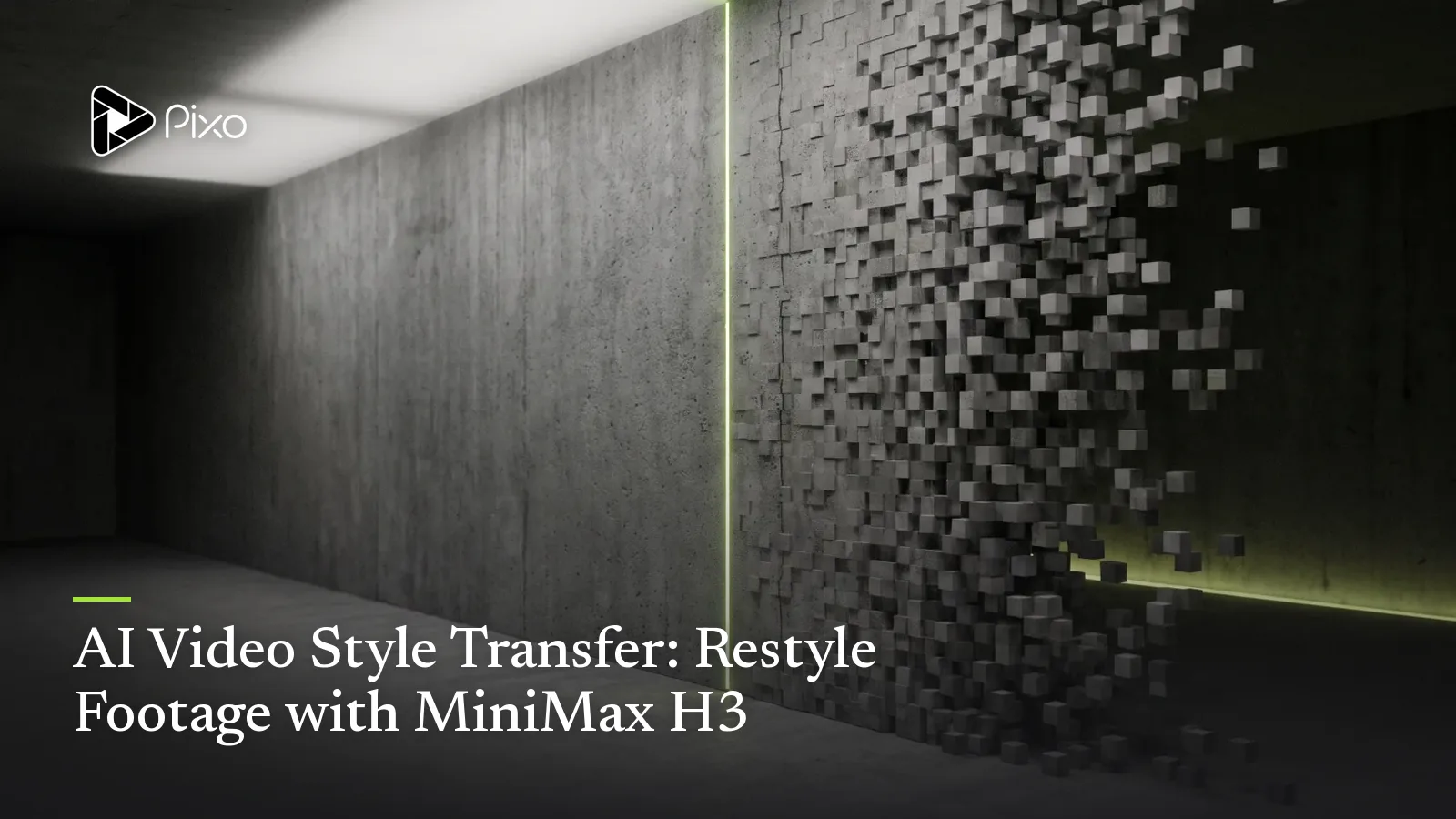
There are two ways to get a stylized video out of AI. You can generate a new scene in the style you want — and lose your footage, your blocking, your timing. Or you can run a filter over what you shot — and get recolored pixels that fool no one. What creators have actually been asking for sits in between: keep my footage, change its world.
That's what video style transfer means in the reference era, and it's one of the clearest demonstrations of what makes MiniMax's H3 different. Upload your clip and a single style image, and H3 re-renders the scene in the new aesthetic while the motion, camera and light behave exactly as they did in your original. The official manual's showcase example is hard to unsee: a real street scene where the cars and trees turn into Minecraft-style voxel blocks — while the buildings and pedestrians stay photographic, and every vehicle keeps its real trajectory and its real shadow.
We run Pixo, a multi-model video platform where H3 is live in the Playground. Here's how the technique works and the prompts to start from.
Making original anime-style visuals for a song? The anime music video guide covers character references, visual direction and a music-led storyboard.
How It Works: Two References, Two Jobs
H3 treats every uploaded file as a reference with a job, numbered in upload order. For style transfer the division of labor is always the same:
- Video 1 — your footage. A 4–15 second clip, up to 50MB. It contributes everything temporal: composition, motion paths, camera movement, timing, light direction.
- Image 1 — the style. One image that is the look you want: a voxel render, a watercolor painting, a clay-animation still, an anime frame. It contributes only aesthetics.
Then the prompt does the directing — and the single most important thing it does is scope the transfer. "Turn everything into watercolor" is a valid instruction; so is "turn only the vehicles and trees into voxel blocks, keep everything else photographic." Partial restyling is where this stops being a gimmick and starts being a look no filter can fake.
The Workflow
- Pick footage with structure. Clear subjects, visible motion, reasonable light. Street scenes, a walk-through, traffic, sport. 4–15 seconds, ≤50MB.
- Pick one honest style image. The reference should already look like your target aesthetic — a frame of the actual style, not a mood board.
- Upload in order. Footage first (Video 1), style second (Image 1). The numbers are how you'll address them.
- Write the scope. What converts, what stays real, and what must be preserved — name motion, shadows and composition explicitly.
- Generate at 768p, finish at 2K. Iterate the scope cheaply, then render the final. Export is watermark-free.
Create AI videos with Pixo
Turn any idea into a publish-worthy video. One sentence is all it takes.
Three Copy-Paste Prompts
1. Voxel street (adapted from the official manual's showcase)
The showcase's reference files

The manual showcase this prompt adapts
Video 1 provides the scene, composition and all motion. Image 1 provides the voxel
block style. In the video, convert only the vehicles and the trees into voxel-block
versions of themselves. Buildings, road and pedestrians stay photographic and unchanged.
Every vehicle keeps its exact original trajectory and speed; shadows and reflected
light stay consistent with the original footage. Keep the original camera movement.
Why it works: the scope is surgical — two named targets, everything else explicitly protected, and the physics ("exact original trajectory", "shadows stay consistent") spelled out rather than assumed.
2. Watercolor city (full-frame restyle — template)
The showcase's reference files
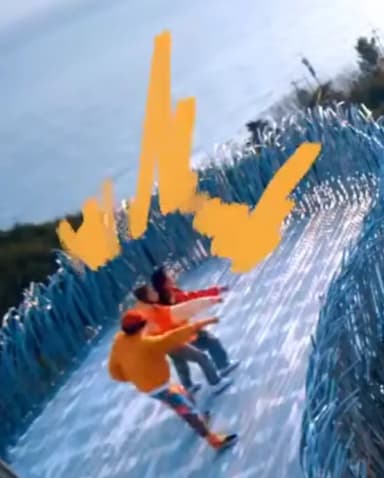
A manual showcase in the same register
Video 1 provides the scene and all motion. Image 1 provides the style: loose ink-and-
watercolor illustration, soft edges, paper texture, muted palette. Re-render the entire
video in this watercolor style. Preserve the original composition, camera movement and
the timing of every moving element; light direction and shadow positions must match the
original footage. Ambient sound follows the original scene. Non-narrative music: N/A.
Why it works: full-frame transfers live or die on the preservation clause — without "timing of every moving element," stylization tends to smooth motion into mush.
3. Claymation cutaway (partial restyle, character focus — template)
The showcase's reference files
A manual showcase in the same register
Video 1 provides the scene and motion: a person walking through a park. Image 1 provides
the style: handcrafted stop-motion claymation, visible fingerprints in the clay, slightly
matte texture. Convert only the walking person into a claymation figure of themselves —
same clothing colors, same gait, same timing. The park, light and background stay
photographic. Subtle stop-motion frame cadence on the character only.
Why it works: restyling the subject while the world stays real is the highest-contrast version of the technique — and pinning "same gait, same timing" keeps the character welded to the original performance.
(Prompts 2 and 3 are our templates built on the manual's formula; the voxel prompt is adapted from the manual's own showcase scenario.)
Where to Take It
Style transfer stacks naturally with the rest of H3's reference system — lock a face with an additional image reference while restyling the world, or add an audio track to re-score the restyled footage. For the underlying prompt grammar (how reference roles and the three-part formula work), see the MiniMax H3 prompt guide; for a library of ready-made prompts across every genre, see 20 MiniMax H3 prompts.
FAQ
What is AI video style transfer?
Style transfer restyles existing footage instead of generating a new scene: your video provides the motion, composition and timing; a style reference provides the look. The result moves exactly like your original — same camera, same trajectories, same shadows — rendered in the new aesthetic.
Does it keep the original motion?
That's the defining feature. MiniMax H3 reads your uploaded clip as a reference, so motion paths, camera movement, light direction and shadows carry through the restyle. The official manual's showcase turns a real street scene into voxel art while cars keep their real trajectories and shadows.
Can it restyle only part of the frame?
Yes — this is what separates H3 from filter-style tools. You can name the targets: in the manual's voxel example, only the vehicles and trees convert to voxel blocks while buildings and pedestrians stay photographic. Say explicitly what changes and what must stay real.
What footage works best?
A 4–15 second clip (up to 50MB) with clear subjects and visible motion — street scenes, a person walking, traffic, sports. Very dark, blurry or fast-shaking footage gives the model less structure to hold onto.
How is this different from a video filter?
A filter recolors pixels; style transfer re-renders the scene. Filters can't turn a car into voxel blocks or repaint a street as watercolor while keeping its shadows consistent — a generative model reading your footage as a reference can.
How do I try it?
MiniMax H3 is live in Pixo's Playground. Upload your clip and a style image, reference them by number in the prompt, and generate at 768p or 2K. New users get 200 free credits on sign-up, and plans are currently up to 55% off.
MiniMax H3 is now live in Pixo's Playground — upload footage and a style reference, and generate 4–15 second restyled shots at 768p or 2K. Sign up now — new users get 200 free credits on sign-up, and plans are currently up to 55% off. New to the model? Start with what MiniMax H3 is.
Generate AI summary
From idea to finished video.
In one conversation.
Start CreatingNo credit card required • Free 200 credits