MiniMax H3 Prompt Guide: Official Formula & Modes
How to write MiniMax H3 prompts that work: the official three-part formula, file references, all three modes, and the six mistakes that ruin outputs.

Most of what's been written about prompting MiniMax H3 is guesswork — the model is barely a week old. This guide isn't guesswork. MiniMax published a detailed official usage manual alongside H3's July 31 launch, and buried in it is something rare: an explicit, engineer-written prompt formula, a taxonomy of file-reference roles, and a frank list of the mistakes that most often ruin generations. Very little of it has surfaced in English until now.
We build Pixo, a multi-model AI video platform, and reading model manuals the day they drop is part of the job — our agent has to write production-grade prompts for every model we run. Here's the H3 prompting system, translated and organized for working creators. (New to the model itself? Start with our H3 first look.)
The Official Formula
Straight from the manual:
Full prompt = reference material notes + core idea + scene-by-scene description
Three blocks, in that order. Skip the first if you uploaded nothing. Most failed H3 prompts break exactly one of these blocks — usually by mashing everything into a single undifferentiated paragraph, which is the manual's #1 listed mistake.
Block 1: Reference material notes
Every file you upload gets a number in upload order, cited inline as @image1, @video2, @audio3. And every file needs a declared role. The manual's role taxonomy is worth memorizing, because it's effectively H3's API surface in natural language:
- Character reference — lock a face or figure
- Object reference — lock a product or prop
- Scene reference — lock a location
- Keyframe — lock a frame (say explicitly whether it's the first or last)
- Voice reference — lock a voice timbre
- Storyboard — generate shots following a story panel
- Style reference — match an image's look
- Composition reference — match framing and layout
- Audio reuse — use the track directly as the video's audio (or reuse part of it)
- Motion reference — lock an action from a video
- Camera reference — lock a camera move
- Video edit — the video to be modified
The manual's example, translated: "@image1 is the character reference (lock this woman's face), @video1 is the motion reference (use the sword-dance moves in it), @audio1 is the mood reference (classical guqin score). Have this woman perform the video's sword dance in a cherry-blossom courtyard."
Block 2: Core idea
Four elements, explicitly named in the manual: subject (who or what), place (where), event (doing what), and genre/style (live-action, animation, cinematic, commercial, documentary — or a named aesthetic like cyberpunk or neon). Plus, optionally, camera behavior: H3 cuts between shots by default, so if you want one continuous take, say so. For camera moves, the manual is unusually specific — write concrete moves like "truck left + pan right" rather than vague requests like "orbit the scene." For cuts, you can specify the style: hard cut, fade, beat-synced, rapid montage.
Block 3: Scene-by-scene description
Describe what happens over time, segment by segment — "0–3s: …, 3–7s: …" — connecting elements to files with @-references wherever they're linked. This is also where dialogue lives, and the rule is absolute: write the exact line. "She says something moving" produces mush; "She says: 'You came. The blade has waited long enough.'" produces the line, lip-synced.
Rules That Save Generations
Four smaller rules from the manual punch far above their weight:
Write what the camera sees, not what it means. H3 rewards concrete, visual, direct description and stumbles on metaphor. "Rain-slick neon reflecting off her leather jacket" beats "an atmosphere of urban melancholy" every time.
On-screen text must be quoted exactly. If you want text in the frame, write it: "The phone screen shows the title 'AI Video Creation' with a button reading 'Start Now'."
Kill unwanted music explicitly. No BGM? End the prompt with non_diegetic_music: N/A. And never contradict yourself — requesting a soundtrack in one line and banning BGM in another is a listed failure mode.
Name the shot when you cut. When specifying a cut, state the new shot size and which established subject it holds — that's what keeps faces consistent across cuts.
Prompting Each of the Three Modes
Omni-reference mode (up to 9 images + 3 videos + 3 audio): the full formula applies — the reference notes block is mandatory, and unlabeled files are wasted files.
First/last-frame mode: upload one image and say whether it's the opening or closing frame; upload two and H3 fills in the motion, lighting and sound between them. Critically, it will not invent camera cuts in this mode — the manual's example: "@image1 is the first frame: a woman holding a sword under a cherry tree. Take her from ready stance through the full sword dance, flowing naturally, no cuts."
Pure text-to-video: no files, up to 7,000 characters of prompt. The floor for a usable result, per the manual: subject appearance + scene details + action + style. Prompts shorter than that are a documented failure mode, not a style choice.
Copy-Paste Starting Points
Three prompts built on the official formula (adapt freely):
The showcase's reference files
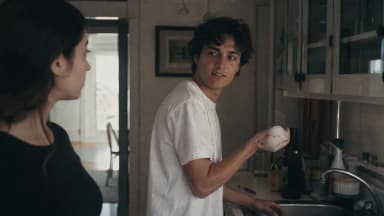
[References] The characters in @image1 strictly follow the movements, expressions and performance rhythm of @video1.
[Process] The man stands at the sink on the right of frame and hands a washed plate to the woman on the left — then turns and suddenly flicks dish-soap foam at her with his right hand, toward the left edge of frame. Startled, she reacts instantly, and the two start gleefully splashing foam at each other, dodging and laughing.The showcase's reference files
[Edit instruction, against two existing videos] Remove the green-screen background from @video1 and replace it with a fairy-tale background in the style of @video2. The background elements must fully match the character's movements in @video1. Adjust the lighting on the character so it fully matches the new background.The showcase's reference files
[Edit instruction, against an existing video] Replace the cat in the video with a dog.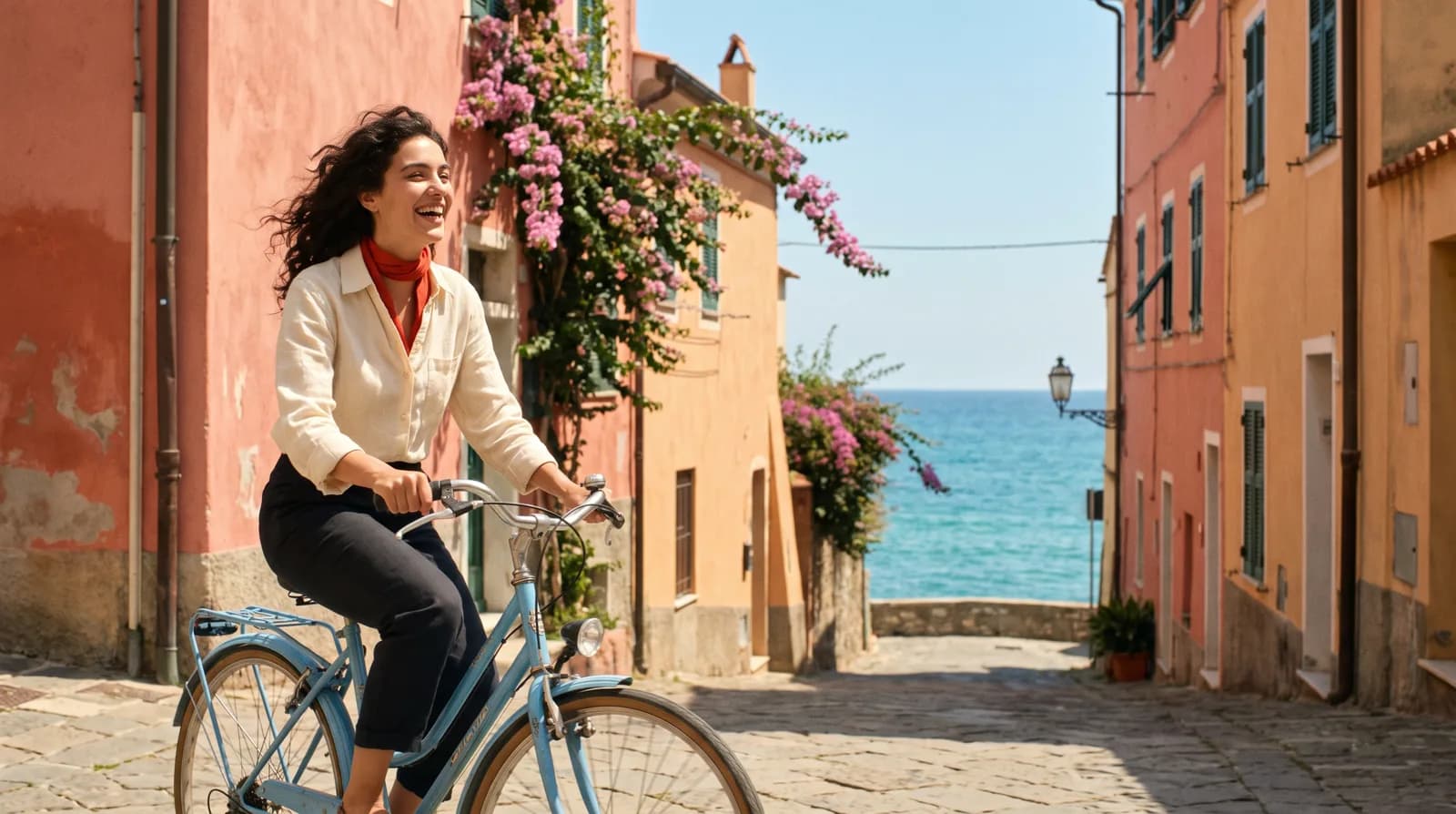
Create AI videos with Pixo
Turn any idea into a publish-worthy video. One sentence is all it takes.
The Formula in the Wild: Four Worked Cases
Each of these is adapted from a manual showcase, and each isolates one part of the formula. (The full library is in 20 MiniMax H3 prompts.)
Text only — [core idea] and [process] carry everything. No references, and the art direction still holds because every visual rule is stated as a constraint:
15 seconds, 16:9. Fully imitate the visual language of a premium brand launch
film: pure black background, studio-grade lighting, ultra-slow rotating
close-ups, giant minimal sans-serif titles, ethereal electronic score. The
product is — a perfectly roasted Peking duck. Typography must be minimal,
generously spaced, one thin sans-serif throughout. Forbidden: cartoon style,
cluttered backgrounds, watermarks.
Reference notes at full stretch — three images, three declared jobs. The prompt never describes the models' faces or the glasses; the references carry identity while the text carries attitude:
The showcase's reference files
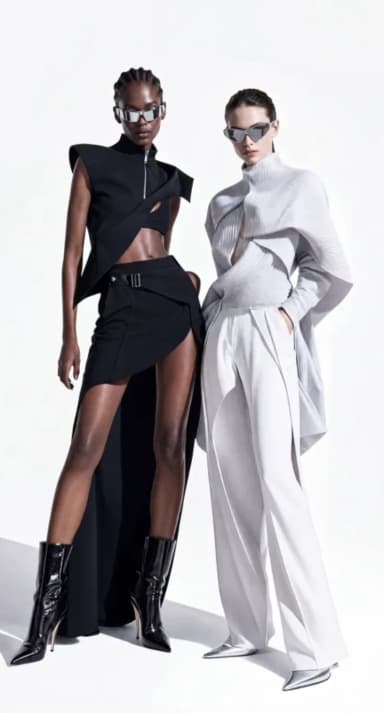
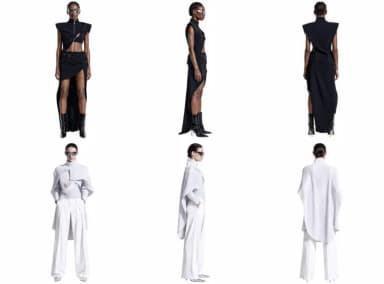
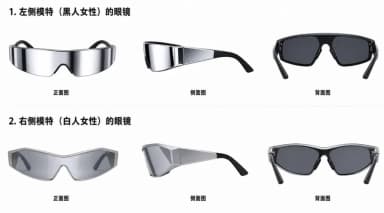
A vertical 9:16 high-fashion eyewear commercial. Minimal white-studio look:
seamless white background, strong haute-couture ad feel — clean, sharp,
avant-garde, international-campaign polish. Image 1 sets the two full-body
looks; keep their wardrobe finish, posture, studio lighting and runway
coolness. Both wear futuristic high-end glasses — design per Image 3:
wraparound curved surfaces, sharp geometric cat-eye/goggle hybrid outline,
mirror reflections, streamlined temples. Facial details per Image 2.
Shot-by-shot [process] with packaging. Cuts, title cards and per-shot audio written in camera order — the trailer grammar from the manual's own sci-fi case:
The showcase's reference files
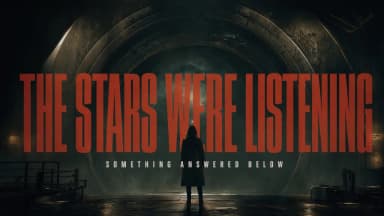
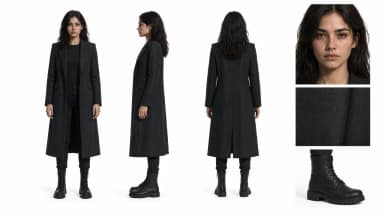
Photoreal cinema, high-contrast light, tight pacing. Image 1 is the overall
atmosphere and style reference; Image 2 is the protagonist.
Shot 1 — ultra-wide establishing: a colossal circular cosmic gate nearly
fills the frame; the figure is a tiny silhouette low-right before it. Wet
reflective ground, darkness at the gate's center. The camera pushes in
slowly. A title bleeds in from the dark edge, blurred then sharp: "THE STARS
WERE LISTENING" — ultra-narrow heavy all-caps, dark red mixed with rust,
light grain and hazed edges.
Audio: deep low-frequency pulse, distant metal tremor, one soft hit as the
title sharpens. -> Hard cut.
Three references, three modalities. Camera move from one video, subject from another, song and performance from a third — the formula's reference notes generalized to sound:
The showcase's reference files
Video 1 provides the camera move: a Hitchcock dolly zoom. Video 2 is the
subject: a woman having coffee at a street cafe. Video 3 provides the song
and the singing performance. Make the woman in Video 2 sing — voice,
phrasing and performance from Video 3 — while the camera executes Video 1's
dolly zoom on her.
The Six Mistakes the Manual Warns About
| Mistake | Fix |
|---|---|
| One undifferentiated paragraph | Split into the three formula blocks |
| Files uploaded, roles unstated | Add "@image1 is the X reference" for every file |
| Requesting music and banning BGM | Delete one — or scope them to different scenes |
| Wanting one take but writing "Shot 1 / Shot 2" | Keep one continuous narrative paragraph, no shot structure |
| Wanting facial consistency without a reference image | Upload one, labeled "character reference (lock face)" |
| Prompt too short with no files | Cover subject appearance + scene + action + style, minimum |
The Honest Shortcut
The manual's closing advice — "hand prompt-writing to a professional partner" — is MiniMax's own admission of the pattern we see across every frontier model: prompts have quietly become specifications, with reference manifests, timing blocks and formatting rules. Knowing the formula is what separates usable output from mush, but writing spec-grade prompts for every shot of a multi-scene video is real work.
That's precisely the job we built Pixo's agent for: describe the video you want, and the agent writes the script, the storyboard, and the per-shot prompts for every shot, in each model's native dialect. (See how a storyboard becomes a finished video.) The storyboard runs Seedance 2.0, Kling and Veo today; MiniMax H3 is live in Pixo's Playground — paste these prompts, add your references (files are numbered Image 1, Video 1… as you upload), and generate 4–15 second shots at 768p or 2K. Sign up now — new users get 200 free credits on sign-up, and plans are currently up to 55% off.
FAQ
What is the official prompt formula for MiniMax H3?
MiniMax's own manual defines it as: full prompt = reference material notes + core idea + scene-by-scene description. First declare what each uploaded file is for, then state subject, place, event and style, then describe the action over time — with timestamps if you need them.
How do I reference uploaded files in a MiniMax H3 prompt?
Number them in upload order and cite them inline — @image1, @video2, @audio3. Every file needs a declared role: face lock, object lock, scene reference, motion reference, voice reference, pacing track and so on. Files without a stated purpose are the single most common cause of ignored references.
How do I stop MiniMax H3 from adding background music?
State it explicitly at the end of the prompt: "non_diegetic_music: N/A" (or the plain-language equivalent). Negative wishes that aren't written down tend to be ignored — and never request a soundtrack in one line while banning BGM in another.
How do I keep a character's face consistent in MiniMax H3?
Upload a character reference image and label it explicitly as a face lock — e.g. "@image1 is the character reference (lock this woman's face)". Wanting facial consistency without uploading a labeled reference is one of the manual's listed common mistakes.
What are MiniMax H3's three generation modes?
Omni-reference (up to 12 files — 9 images, 3 videos, 3 audio — each with a declared role), first/last-frame (one or two images; H3 fills the motion between and won't invent cuts), and pure text-to-video (prompts up to 7,000 characters).
How long can a MiniMax H3 prompt be?
Up to 7,000 characters, in any of the languages H3 understands. Too-short prompts are a documented failure mode: when there are no reference files, always cover at least the subject's appearance, scene details, the action, and the style.
Where can I use MiniMax H3 online?
MiniMax H3 is live in Pixo's Playground — generate 4–15 second shots at 768p or 2K, with image, video and audio references, using the exact prompt formula in this guide. New users get 200 free credits on sign-up, and plans are currently up to 55% off.
Can I edit an existing video with MiniMax H3?
Yes — upload the footage as a video reference and write the instruction against it (like the cat-to-dog example above). H3 executes the change and keeps camera, lighting and background intact. This works in Pixo's Playground today.
Generate AI summary
From idea to finished video.
In one conversation.
Start CreatingNo credit card required • Free 200 credits