What Is Google Vids? Features, Pricing, and Flow
Learn what Google Vids is, how its AI video features work, current pricing and access, and how Google Vids compares with Google Flow and Pixo for work teams.

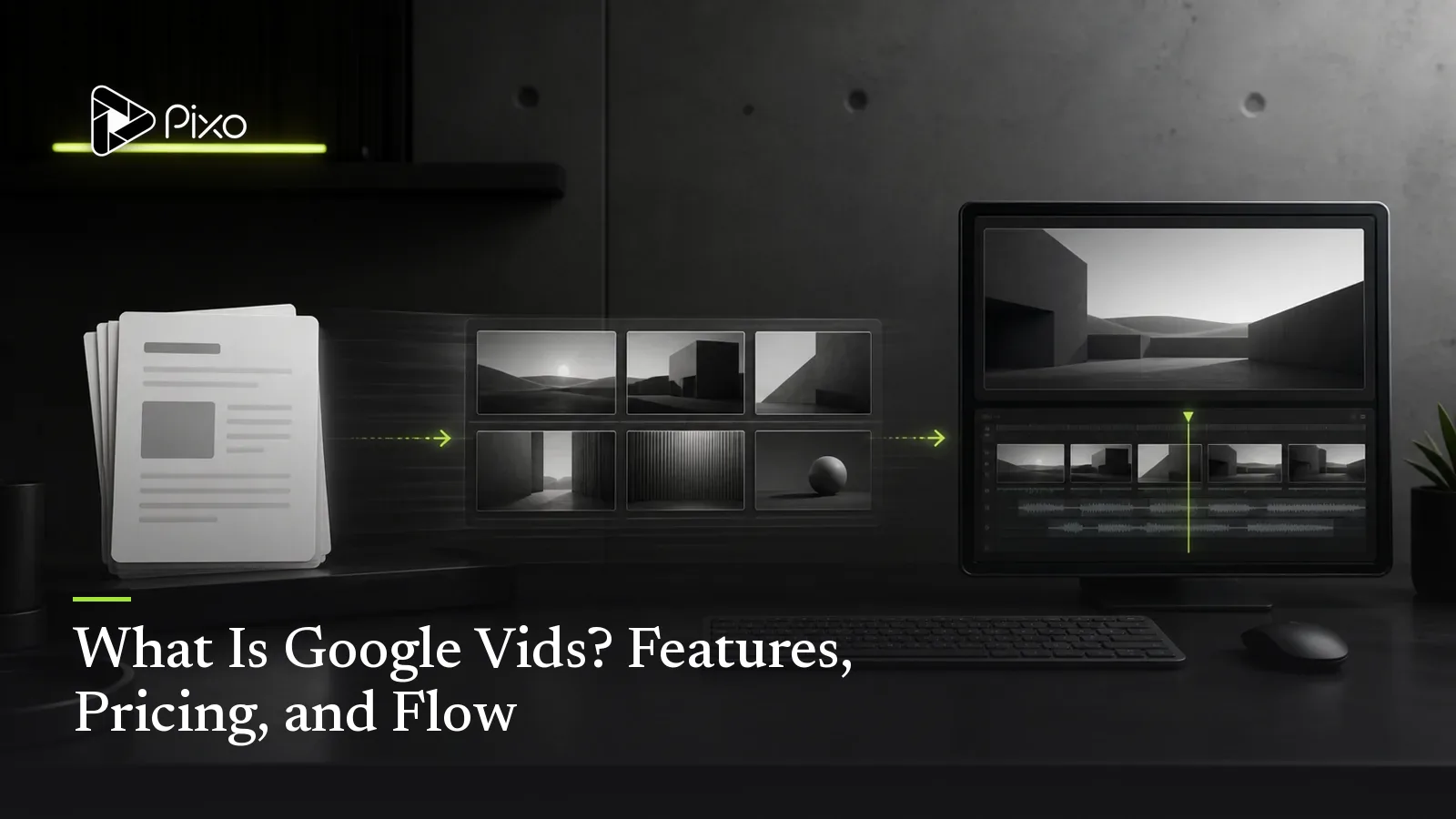
Google Vids sounds like another name for Google's video model. It is not. Google Vids is an app: a collaborative, scene-based video creator in the Google Workspace family alongside Docs, Sheets, and Slides. It is designed for AI-powered video creation at work.
Vids is easy to confuse with Google Flow because both products can generate footage with Veo. They produce different results. Vids assembles documents, scripts, recordings, stock media, and generated clips into a complete workplace video. Flow generates and refines cinematic shots and scenes that you can use in a larger video.
Quick answer: Google Vids assembles complete workplace videos from documents, recordings, stock media, and AI-generated clips. Google Flow focuses on creating and refining individual cinematic shots and scenes. A clip made in Flow can become footage in a Vids project.
Here is how Google Vids works, what it costs, where it works well, and when another video tool may be a better choice.
What Is Google Vids?
Google Vids is a Google Workspace app for creating and editing videos. It is designed for workplace communication, not as a standalone generative video model. It combines a scene-based canvas, templates, recording, media libraries, editing, collaboration, and Gemini features in one browser-based workspace.
The most useful mental model is a word processor for video. A document has an outline, sections, text, media, comments, and sharing permissions. A Vids project has a similar structure: an outline, individual scenes, scripts, visual assets, audio, collaborators, and a finished video. A conventional prompt-to-video tool usually produces a single generated clip instead.
Gemini can create an editable first draft from a prompt and a file in Google Drive. That draft can include suggested scenes, stock media, background music, and scripts. You can then replace assets, record new material, adjust the layout, and refine the sequence.
Veo is one part of Vids, not the whole app. Vids can use Veo to generate video from a prompt or image, animate a still, and create clips with native audio. You can combine those clips with recordings, stock footage, voiceover, music, and text in a Vids project.
That distinction answers the naming problem:
| Name | What it is | Role in the workflow |
|---|---|---|
| Google Vids | Workplace video application | Builds and shares a complete, scene-based video |
| Gemini in Vids | AI assistance inside the app | Drafts outlines, scenes, scripts, voiceovers, and media suggestions |
| Veo | Google's generative video model family | Creates or modifies individual video clips used in a Vids project |
What Can You Make With Google Vids?
Google Vids is designed for communicating information at work. Its main use cases include employee training, company announcements, meeting updates, customer education, and screen sharing. Product demos, onboarding explainers, project recaps, sales updates, process walkthroughs, and internal learning modules also fit its presentation-style format.
The creation process can start in several ways:
- Start from a prompt and a Drive file. Gemini can turn source material into an editable outline and storyboard with suggested scenes, scripts, stock media, and music.
- Start from a template. Google provides templates for common business videos. You can replace their layouts and media inside Vids.
- Record the message. The built-in studio can record a screen, camera, or audio track, and it includes a read-along teleprompter. A Chrome screen-recorder extension can also start a capture from a browser window.
- Use an AI presenter. AI avatars in Google Vids can speak a supplied script, with captions and multiple voice options available for supported accounts and languages.
- Generate footage. Google's Vids generation guide says creators can generate a clip from a text prompt with reference images or avatars, animate a still image, edit uploaded video, or extend a clip.
- Assemble existing media. Vids accepts material from Google Drive and Google Photos. Its content library includes millions of royalty-free images, videos, and music tracks.
After adding your material, you can edit scenes on a timeline and add animations, transitions, photo effects, or object tracking. You can share the project with Workspace permissions for editors, commenters, and viewers. Playback also supports auto-generated closed captions.
Vids also has a few limits. A project can be up to 30 minutes long. You can import an audio or video clip up to 95 minutes or 4 GB, but you must shorten it to 30 minutes before making other edits. Each clip recorded in the built-in studio can be up to 10 minutes long. You must use a computer to create or edit a video. On mobile, you can watch processed videos but cannot edit them or add comments.
Google Vids vs Google Flow
The simplest distinction is this: Flow creates cinematic shots; Vids assembles a complete workplace video. Both can use Veo, but for different jobs.
| Google Vids | Google Flow | |
|---|---|---|
| Audience | Business teams, educators, and workplace communicators | Filmmakers, visual artists, and cinematic creators |
| Lives in | Google Workspace | Google's standalone AI filmmaking environment |
| Main output | A complete presentation-style video made of scenes | A generated shot, scene, or cinematic sequence |
| Typical input | Prompt plus a Drive file, script, recording, template, or existing media | Shot description, image, character, object, location, or style reference |
| Signature features | Storyboard drafting, recording, teleprompter, avatars, stock media, captions, and Workspace permissions | Ingredients, camera position and motion, and Scenebuilder |
| Access | Personal Google Accounts, eligible Workspace plans, and Google AI plans; feature limits vary | Non-subscribers may receive 50 daily trial credits; eligible Google AI and Workspace plans also include access; age and region rules apply |
| AI models | Gemini assistance plus Veo-generated video | Veo 3.1 and Gemini Omni Flash for video; Nano Banana models for images |
The same brief produces different work
Suppose a safety team starts with a PDF explaining a new warehouse procedure.
In Google Vids, the team can turn the PDF into a complete training video. “Help me create” can propose an outline and scenes, add stock media or visuals from the source file, draft a script and voiceover, and leave placeholders for recordings. The team then edits the scenes and shares the finished video.
In Google Flow, the team would start by describing a shot: for example, a technician approaching a machine, with reference images for the person, uniform, or location. Flow can generate and refine that visual clip, with options such as ingredients, camera position and motion, and Scenebuilder on desktop. Vids, not Flow, is designed to turn the policy PDF into a narrated training presentation.
In short, Vids can include AI-generated footage, while Flow is mainly for creating and directing that footage. Both use Veo, but they serve different workflows.
For Flow-specific models and credits, read our full Google Flow AI guide.

Create AI videos with Pixo
Turn any idea into a publish-worthy video. One sentence is all it takes.
Google Vids Pricing and Access: Is It Free?
Google does not list Vids as a separate subscription. Access is included with Google accounts and eligible plans. Basic features are available with a personal Google Account, while paid Google Workspace and Google AI plans include different Gemini features and usage limits. Google's Vids availability table gives personal accounts 50 credits per month, plus limits of 10 AI avatar generations and 10 AI video-clip generations. “Help me create” costs 5 credits per use, AI voiceover costs 1 credit, and an image action costs 1 credit. Credits reset monthly and do not roll over.
Organizations get Vids through Google Workspace. The app is generally available on all Business and Enterprise plans. In the United States, the standard prices with a one-year commitment are $7 per user per month for Business Starter, $14 for Business Standard, and $22 for Business Plus. Flexible billing costs more, Enterprise uses sales pricing, and promotions or regional pricing may differ. Check the live Workspace pricing before purchasing.
Your plan determines which AI features you get and how often you can use them. Google's Gemini-in-Vids availability table lists these examples:
| Account or plan | Selected current limits |
|---|---|
| Personal Google Account | 50 credits per month; 10 AI avatar and 10 AI video-clip generations; paid AI actions draw from the credit pool |
| Google AI Plus | 50 credits per month; 10 AI avatar and 10 AI video-clip generations; paid AI actions draw from the credit pool |
| Workspace Business Starter | 20 AI video clips and 10 AI avatar generations per month |
| Workspace Business Standard or Plus | 50 AI video clips and 25 AI avatar generations per month |
| Google AI Pro | 50 AI video clips and 25 AI avatar generations per month |
| Google AI Ultra 5x | 250 AI video clips and 125 AI avatar generations per month |
| Google AI Ultra 20x | 1,000 AI video clips and 500 AI avatar generations per month |
For work and school accounts, an administrator controls access and can disable generative AI features. That means a user may not see a feature even when the organization's plan includes it.
Where Google Vids Works Well
Vids works best when the source material is already in Google Workspace and the final video will resemble a narrated presentation rather than a film.
Turning documents into videos is the clearest use case. A policy, project brief, training document, or sales outline in Drive can become a first-draft storyboard. Because the draft remains editable, a subject-matter expert can correct the script and scenes before recording or sharing.
Videos built around recordings are another good fit. The recording studio includes screen capture, camera, audio, scripts, and a teleprompter. A product manager can explain a launch or a trainer can demonstrate a process without combining several tools.
Collaboration works like other Workspace apps. Teams familiar with Docs and Slides can use similar edit, comment, and view permissions in Vids. Browser playback and automatic captions also reduce the need to export a file for each review.
Despite its presentation-style design, Vids includes more editing tools than you might expect. It can combine recordings, uploaded footage, stock assets, AI voiceover, avatars, and Veo clips on a timeline. For short explainers and internal communication, that range may be more useful than detailed cinematic controls.
Where a Workspace-Only Workflow Becomes Limiting
The features that make Vids easy to use also create some limits.
First, Vids is designed for short workplace videos. The 30-minute project limit, desktop-only editing, and plan-specific AI limits may be acceptable for a quarterly update but restrictive for a long production or a large campaign.
Second, Vids uses Google's own AI models. It can use Veo to create and modify clips, but it does not let you choose a competing model for an individual shot. If Veo struggles with a character, movement, or visual style, you can revise the prompt or try another Google tool available to your account.
Third, Vids lacks some of Flow's controls for directing individual shots. Flow offers ingredients, camera position and motion, and Scenebuilder, while Vids focuses on scenes, scripts, layouts, and collaboration. Vids is easier to use for workplace communication, but it gives you less control over each generated shot.
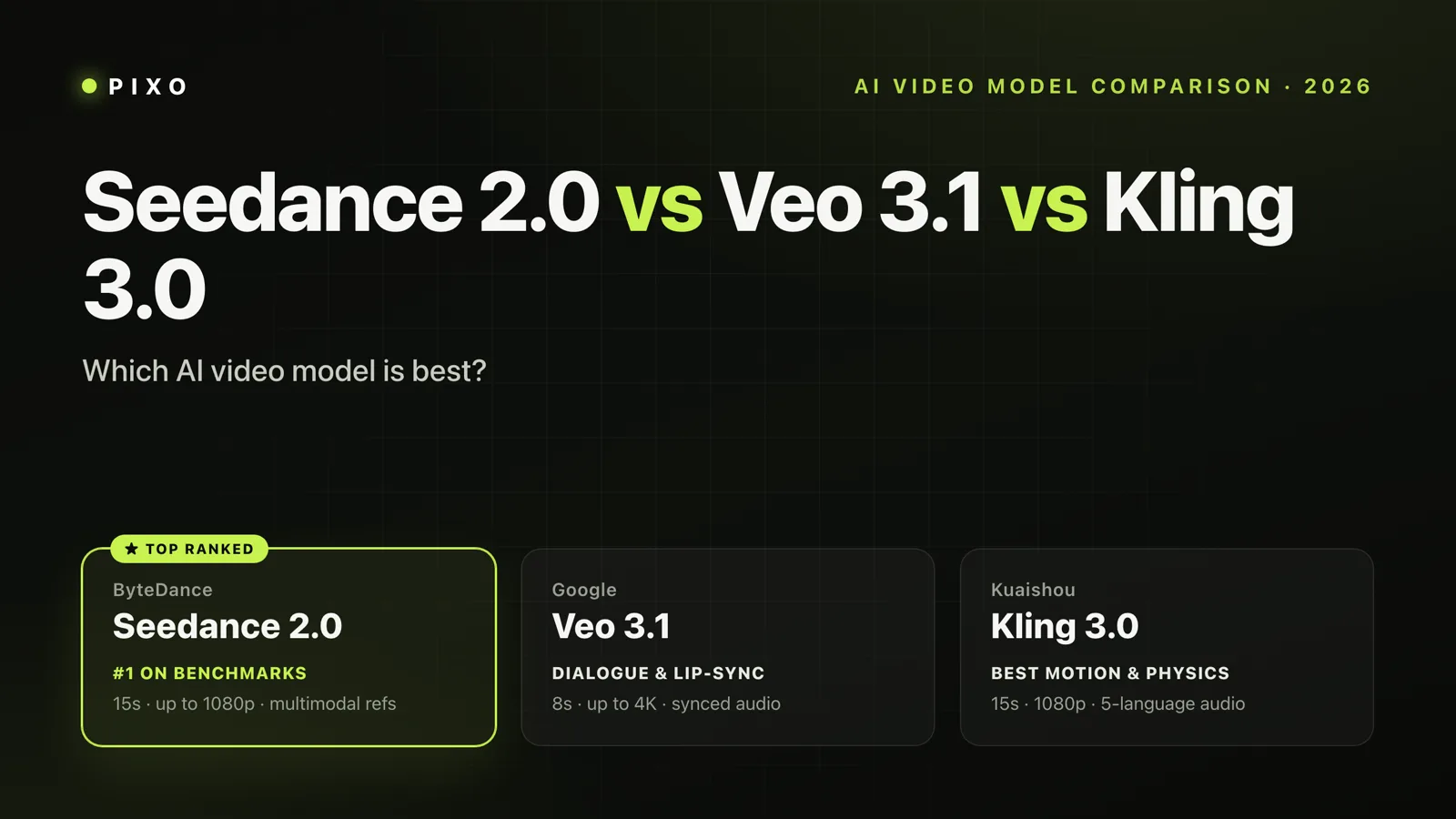
For teams comparing the wider model market, our best AI video generators guide explains how leading models differ, while Seedance vs Veo vs Kling focuses on the trade-offs that can matter from one shot to the next.
Google Vids vs Pixo
Pixo takes a different approach. Google Vids makes a workplace video feel like another Workspace document. Pixo keeps the complete video project together while letting creators use different generation models for different shots.
| Google Vids | Pixo | |
|---|---|---|
| Core job | Create and share short workplace videos | Produce complete multi-scene AI videos |
| Starting point | Prompt, Drive file, template, or recording | Brief that becomes a script and structured storyboard |
| Model ecosystem | Google's Gemini and Veo stack | Veo, Seedance, Kling, Hailuo, and other model families |
| Model choice per shot | Within Google's available tools | Across multiple providers without rebuilding the project |
| Recording and collaboration | Built around Workspace recording and sharing | Built around storyboards, assets, model selection, audio, and assembly |
| Best fit | Training, explainers, updates, and document-led business videos | Campaigns, stories, and productions that need different models across shots |
Google Vids keeps this process simple. If a team needs to turn a Drive document into a five-minute training video, it can use familiar permissions, recording, stock media, captions, and an editable AI draft in one app. That team may not need access to several video models.
Pixo becomes more useful when a team must decide not only what a scene should say, but also which model should render it. A product close-up, dialogue scene, recurring character, and fast action shot may work better with different generators. In Pixo, you can change models without separating the shot from its script, storyboard, references, audio, and the rest of the edit.
Vids and Pixo are not interchangeable editors. Choose Vids for workplace communication inside Google Workspace. Choose Pixo when model choice and multi-scene production matter more than Workspace recording and permissions.
The Bottom Line
Google Vids is neither a generative video model nor a renamed version of Flow. It is a Workspace app for turning information into a short video that teams can edit and review together.
Its main features support that purpose: storyboards created from a prompt and Drive file, scene scripts, templates, teleprompter recording, AI avatars, stock media, captions, animations, familiar sharing controls, and Veo clips.
Use Google Vids to turn workplace information into a complete video. Use Flow to create and direct cinematic shots. Use Pixo to produce a complete video with different AI models for different shots.
Frequently Asked Questions
What is Google Vids?
Google Vids is an AI-powered video creation and editing app for work. It combines a scene-based editor, recording tools, stock media, collaboration, and Gemini features that can build a storyboard from a prompt or Drive file.
Is Google Vids free?
You can use basic Google Vids features with a personal Google Account without paying for a Vids subscription. Personal accounts currently receive 50 monthly credits for some AI actions, while Workspace and Google AI plans provide different features and limits.
What is the difference between Google Vids and Google Flow?
Google Vids assembles complete workplace videos from documents, recordings, stock media, and generated clips. Google Flow is an AI filmmaking workspace for creating and refining individual cinematic shots and scenes. A clip made in Flow can become footage in a Vids project.
Does Google Vids use Veo?
Yes. Google Vids uses Veo for generative video features such as creating clips from prompts or reference images, animating still images, editing uploaded video, and extending clips. Veo is one tool inside Vids, not another name for the app.
Do I need a Google Workspace subscription for Google Vids?
Not for basic personal use. Basic Vids features are available with a Google Account. Work and school access is controlled by the organization's administrator, while eligible Workspace or Google AI plans determine which Gemini features and limits are available.
Can Google Vids make videos from a document?
Yes. Gemini in Vids can use a prompt and a Google Drive file to create an editable first draft with suggested scenes, stock media, scripts, and background music.
What is the difference between Google Vids and Pixo?
Google Vids is a Workspace app for workplace communication that uses Google's AI models. Pixo lets you build a complete video while choosing among Veo, Seedance, Kling, Hailuo, and other model families for each shot.
Generate AI summary
From idea to finished video.
In one conversation.
Start CreatingNo credit card required • Free 200 credits