How to Keep Characters Consistent in AI Video (2026 Guide)
Characters that change face shot to shot are the #1 problem in AI video. Here's how character consistency actually works — reference sets, asset libraries, @character references, and which models hold a face best.

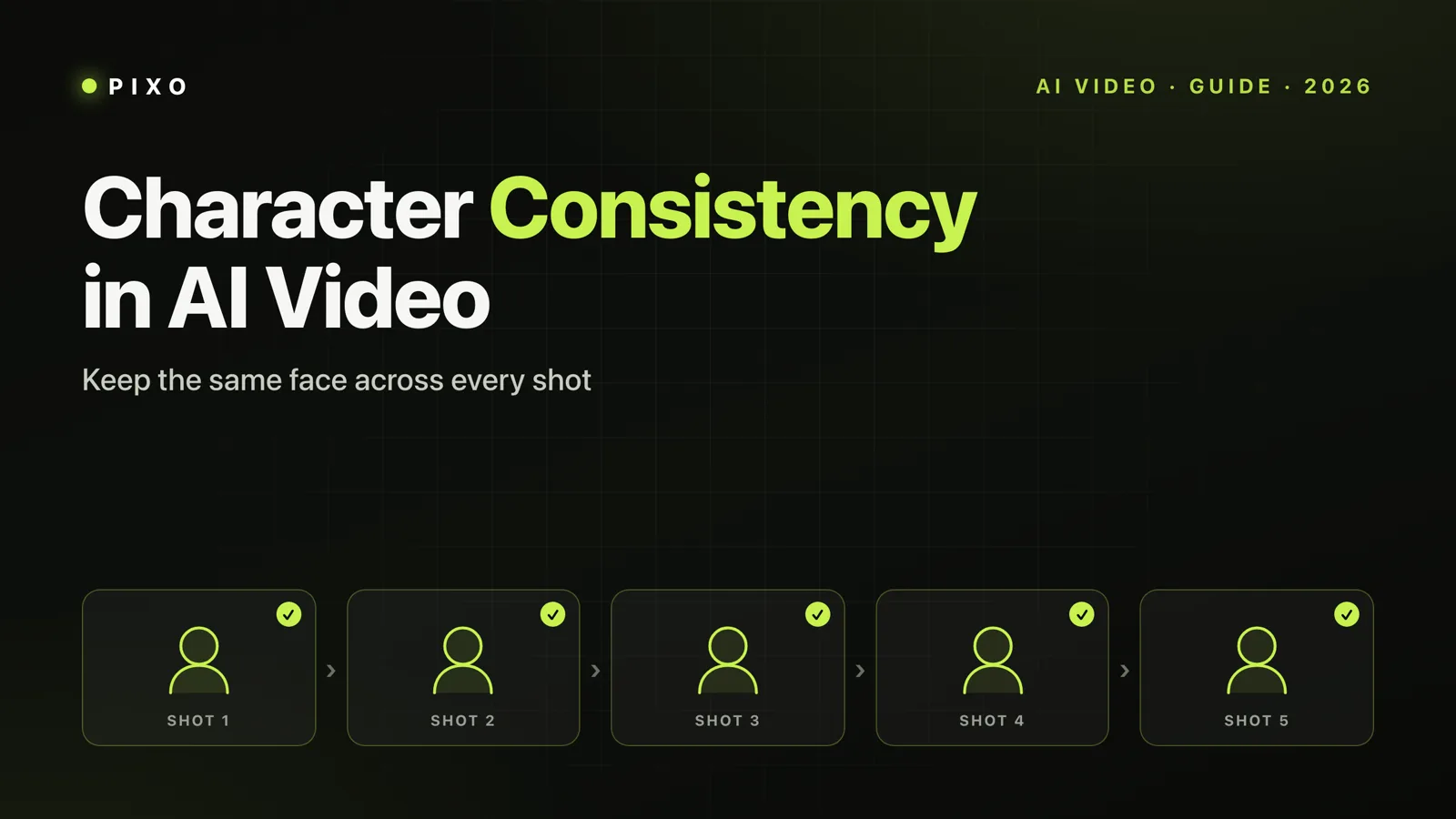
You generate a great opening shot. The character's face is perfect. Then you generate shot two, and it's a different person. This is the single most common frustration in AI video, and it's the thing that separates a real production from a slideshow of unrelated clips.
Character consistency — keeping the same face, build, and wardrobe across every shot — is solvable in 2026, but not by prompting harder. It comes down to how you set up your characters and which model renders them. This guide covers why characters drift, the techniques that fix it, and how the leading models compare.
Why AI Characters Drift Between Shots
Most text-to-video models generate each clip in isolation. They have no memory of the previous shot, so every generation is a fresh roll of the dice on what your character looks like. Two things make it worse:
- Prompt paraphrasing. Describe your character as a "black jacket" in one shot and a "dark coat" in the next, and the model treats them as different garments. Even small wording shifts in hair, build, or color nudge the output toward a different person.
- No shared reference. Without an image the model can anchor to, it reconstructs the character from your text every time — and text is far too loose to pin down a specific face.
So consistency isn't a prompting trick. It's a setup problem, and it's fixed on two fronts at once.
The Two-Front Fix: Model + Asset System
Reliable consistency needs both halves:
- A model that can hold identity — one capable of carrying facial features and clothing across a generation. This is what you get.
- An asset system that feeds the same reference everywhere — a structured way to reuse the exact same images and description on every shot. This is what you intend.
The asset system ensures what you intend stays consistent; the model's capability ensures what you get stays consistent. Skip either and the character drifts. The techniques below cover both.
Technique 1: Build a Reference Set
Before generating anything, lock a small reference set for each main character. In practice that's:
- A clear front-facing image
- A side profile
- One or two expression or outfit references (and a full-body shot if the character moves a lot)
- A written description — hair, clothing, colors, distinguishing features
Two to four images is usually enough. The discipline that matters most: reuse the exact same set and the exact same words on every shot. Keep "black leather jacket, short dark hair" identical across all prompts. Paraphrasing is one of the biggest causes of drift, and it's entirely avoidable.
Lock your reference images and description once, at the start. Re-describing a character from memory on each shot is the fastest way to lose the face.
Technique 2: Reference the Character, Don't Re-Describe It
Once you have a locked reference set, the goal on every shot is to point back to it rather than rewrite a description from memory. In practice that means attaching the same reference image(s) to each generation instead of relying on text alone. Tools expose this differently — Kling has "Elements" slots, Veo takes reference images as "Ingredients," and MiniMax/Hailuo uses a subject-reference image — but the principle is universal: the model should see the character, not just read about it.
In Pixo, this is built into the prompt. You tag a saved character with @character-name, and the model pulls that asset's reference images into the generation automatically. For example:
@Lin Feng stands in front of @Coffee Shop, warm sunset light.
That guarantees every shot draws from the same reference set, and it lets you compose scenes (character + location + props) without rewriting paragraphs each time. The same @ approach works for scenes and recurring objects, not just people.
Technique 3: Pick the Right Model
Models differ a lot on identity. As of 2026:
| Model | Character consistency | Notes |
|---|---|---|
| Seedance 2.0 | Strongest | Holds facial features, clothing, and body type across shot transitions (per ByteDance), and generates multi-shot sequences natively. Best for narrative and performance. |
| Kling 3.0 | Strongest across separate clips | Its Elements system locks appearance and clothing from reference images; the standout when shots are generated as separate calls. |
| Veo 3.1 | Good, less precise | Supports reference images (Google's "Ingredients") and is photoreal, but identity is generally less precise than Kling's Elements. |
| Hailuo | Budget | Competitive on identity within a shot, but less reliable for the same character across separate sessions — a solid pick for low-cost b-roll. |
The practical rule: you don't have to commit to one model. Switch models per shot based on what each shot needs, and let your character asset keep the face consistent across whichever model renders it. (For a full head-to-head, see our Seedance vs Veo vs Kling comparison and the multi-model guide.)

Create AI videos with Pixo
Turn any idea into a publish-worthy video. One sentence is all it takes.
When a Character Drifts: The Recovery Order
Even with a good setup, a shot occasionally comes out wrong. Fix it in this order, cheapest first:
- Adjust the prompt — tighten the description, make sure it matches your locked wording.
- Switch the model — regenerate the shot with a model stronger on identity (often Seedance or Kling).
- Re-anchor on the reference — only as a last resort, regenerate the shot with the character's reference images freshly applied.
Working in that order saves you from rebuilding a whole sequence when a single shot is the problem.
How Pixo Keeps Characters Consistent
Pixo is built around exactly this workflow, so most of the discipline above is handled for you:
- An asset library with three types — character, scene, and general (props, logos) assets. Each character asset has its own workspace with front-facing, side-profile, and expression/outfit reference images, and the model references them on every shot they appear in.
- Update references anytime — refine a character's reference images as you go; shots you've already generated stay exactly as rendered, and only new generations pick up the change.
- Shared by reference — the same character is pulled into every scene by reference, so your lead in shot 4 and shot 52 trace back to the same asset.
- Automatic review — after generation, the AI Director reviews each shot and flags consistency issues (a wardrobe change, a drifting face), then leaves the call to you: regenerate, accept, or adjust.
The result is what makes AI video look like a production instead of a reel of strangers: the same character, the same face, all the way through. You can see it in practice in our guides on long-form AI video, AI short films, and multi-shot history videos, and on the AI short film and Kling short film use-case pages.
Start creating consistent characters in Pixo — free credits to start. New to AI video? Begin with our getting-started tutorial.
Frequently Asked Questions
Why do AI video characters look different in every shot?
Most models generate each clip independently with no memory of the last one, and small prompt wording changes push the output toward a different face. Consistency requires a model that can hold identity plus an asset system that feeds the same reference images and description into every shot.
How do you keep a character consistent across AI video shots?
Build a locked reference set (front-facing image, side profile, key expressions) plus a word-for-word description, and reference that same asset on every shot instead of re-describing the character. In Pixo you save the character as an asset and reference it with @character-name.
Which AI video model has the best character consistency?
Seedance 2.0 and Kling 3.0 lead — Seedance holds identity across shot transitions, Kling via its Elements system across separate generations. Veo 3.1 supports references but is generally less precise on identity.
How many reference images do I need?
Two to four: a front-facing image and a side profile at minimum, plus an expression or full-body shot if the character moves a lot. Lock the set and keep the written description identical word-for-word.
Can I keep a character consistent across different models?
Yes, if your tool references the same character asset regardless of model. In Pixo you can switch models per shot, and the asset's reference images keep the character consistent across whichever model renders it.
Generate AI summary
From idea to finished video.
In one conversation.
Start CreatingNo credit card required • Free 200 credits